
Current public release
Versions, changes and supported installers all come from the same public release records.
HyphenScreen
Screen recording and editing with a Resolve-style timeline, automatic redaction and pre-export checks.
View public downloads and updates ↗Info: Machine translation This post was machine-translated from the Chinese original. Wording may be rough in places — the Chinese version is authoritative.
After the screen is cut out, what often holds me back is the packaging: I want to make it stand out at the start, list a few key points in the middle, then zoom in on the webpage for the audience to see, and finally a number to emphasize. Each segment is an animation on its own, but when pieced together, it feels like something made on the spot.
So this time, HyphenScreen added an independent entry point: Full packaging. First, select a set of visuals for this episode, then use the same set of layout, colors, animations, and sound to complete the opening, checklist, focus, and numbers. Ten styles, forty combinations, all generated directly in the software and added to the timeline.
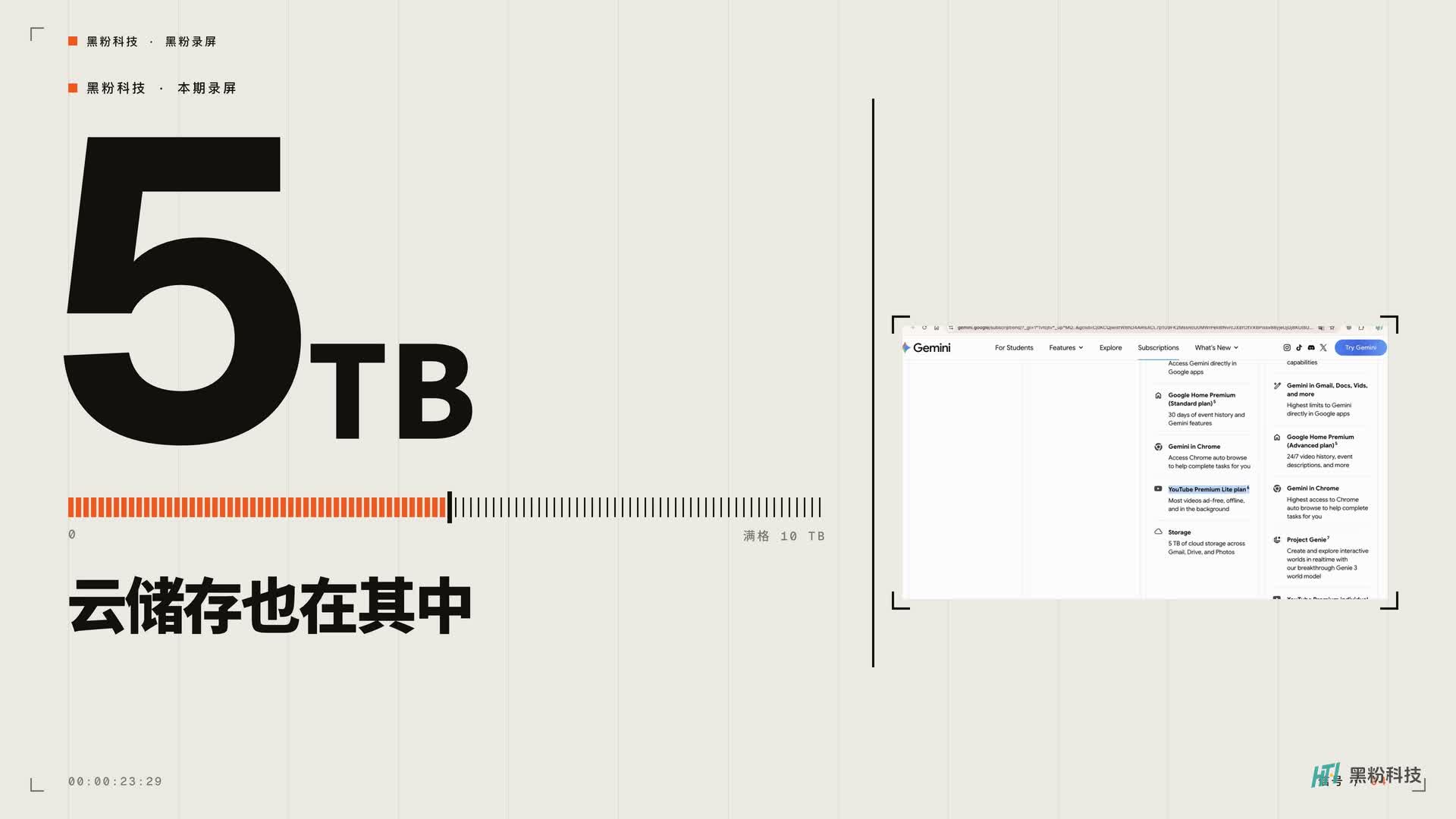
Let’s look at the full video: four segments of packaging, all from the same real recording
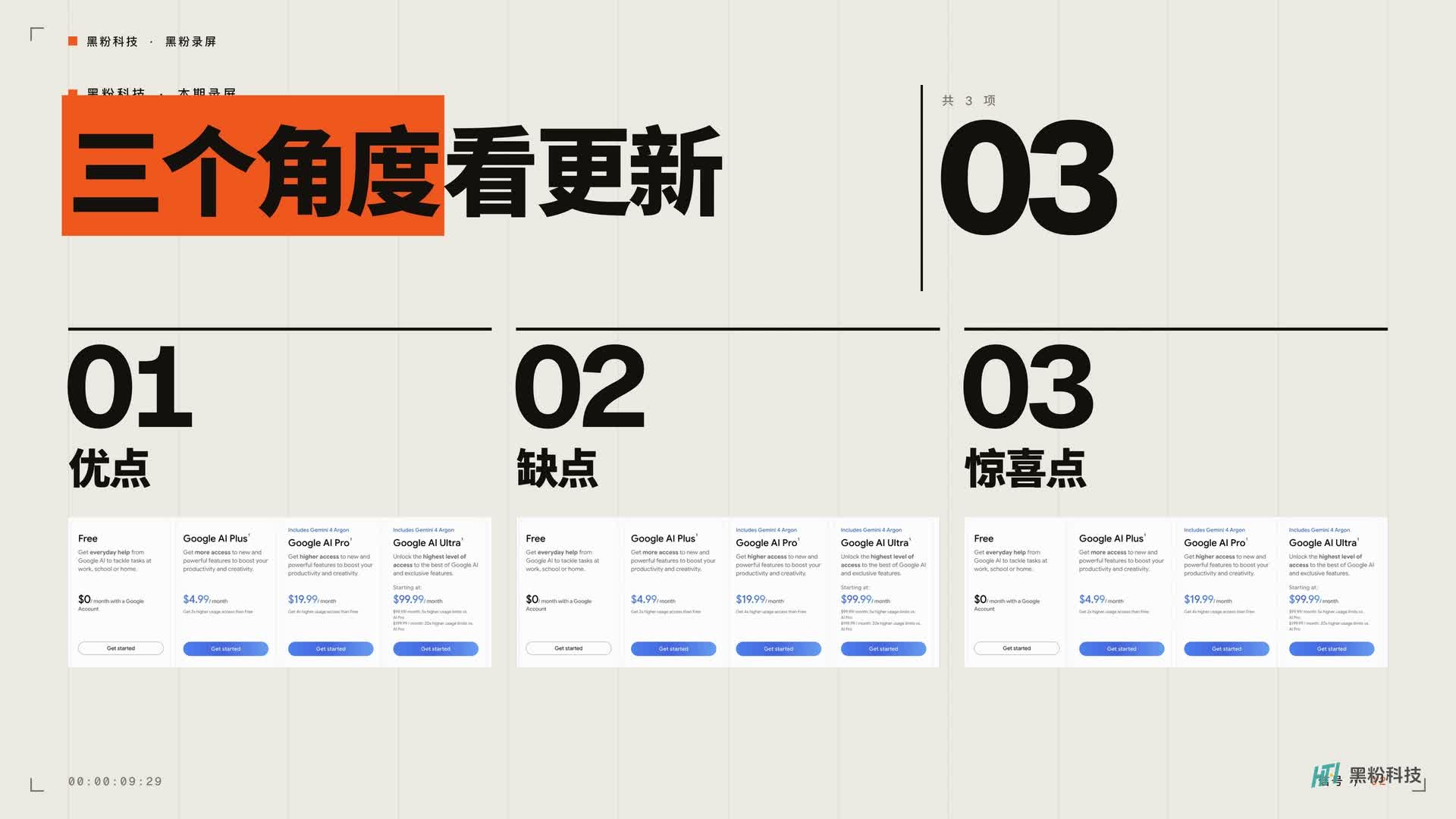
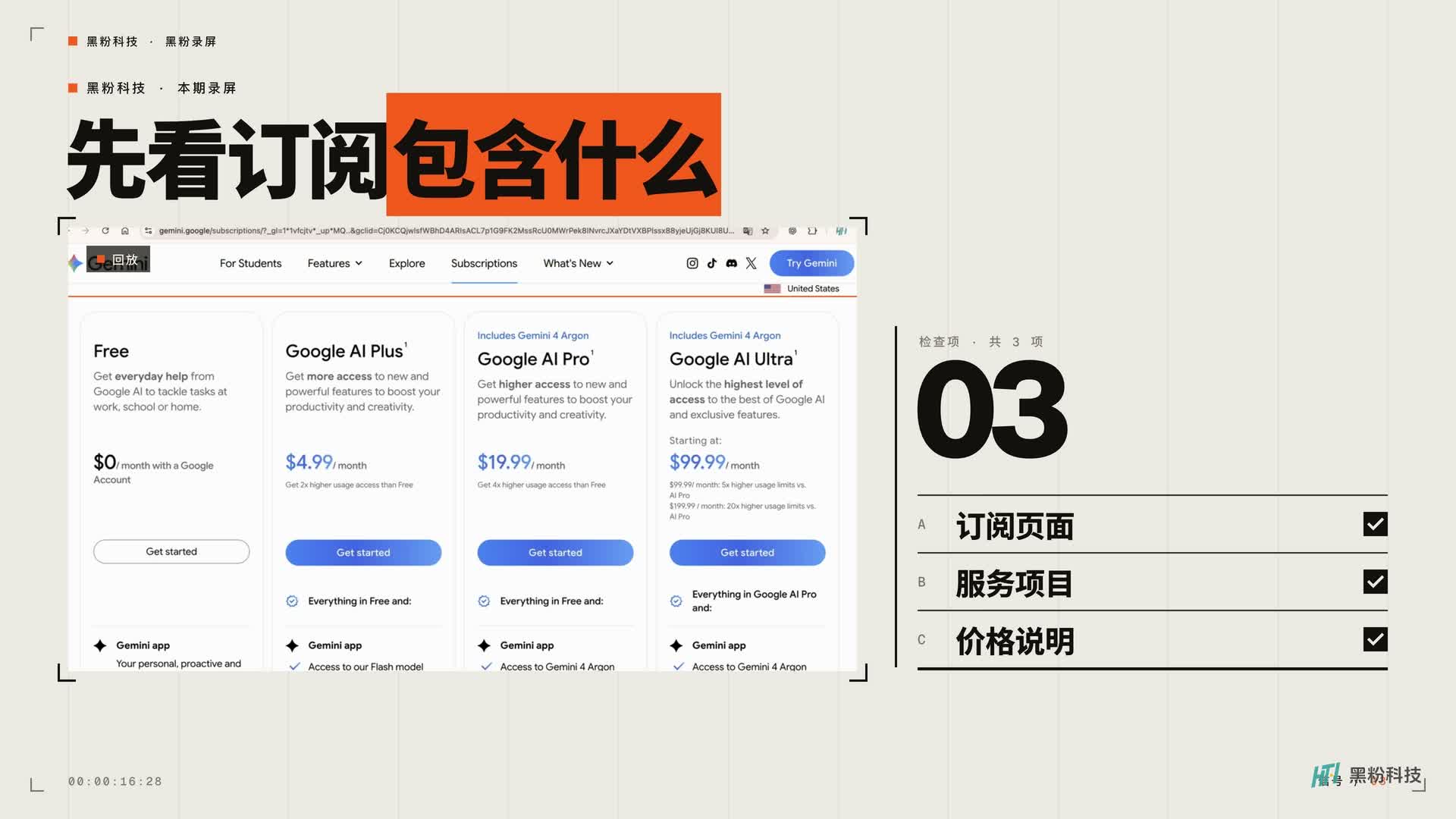
The following 27.4-second compilation is the actual result of the official installation version 1.6.5, regenerated and exported after adding to the project. The opening explains the theme, breaks down the list into three observation angles, focusing on displaying the subscription webpage, and the digital layout emphasizes the specific information in the recording. The focus is on how the packaging organizes the explanation; the subscription information on the webpage is only used as recording material for this issue, not as a price recommendation for this article.
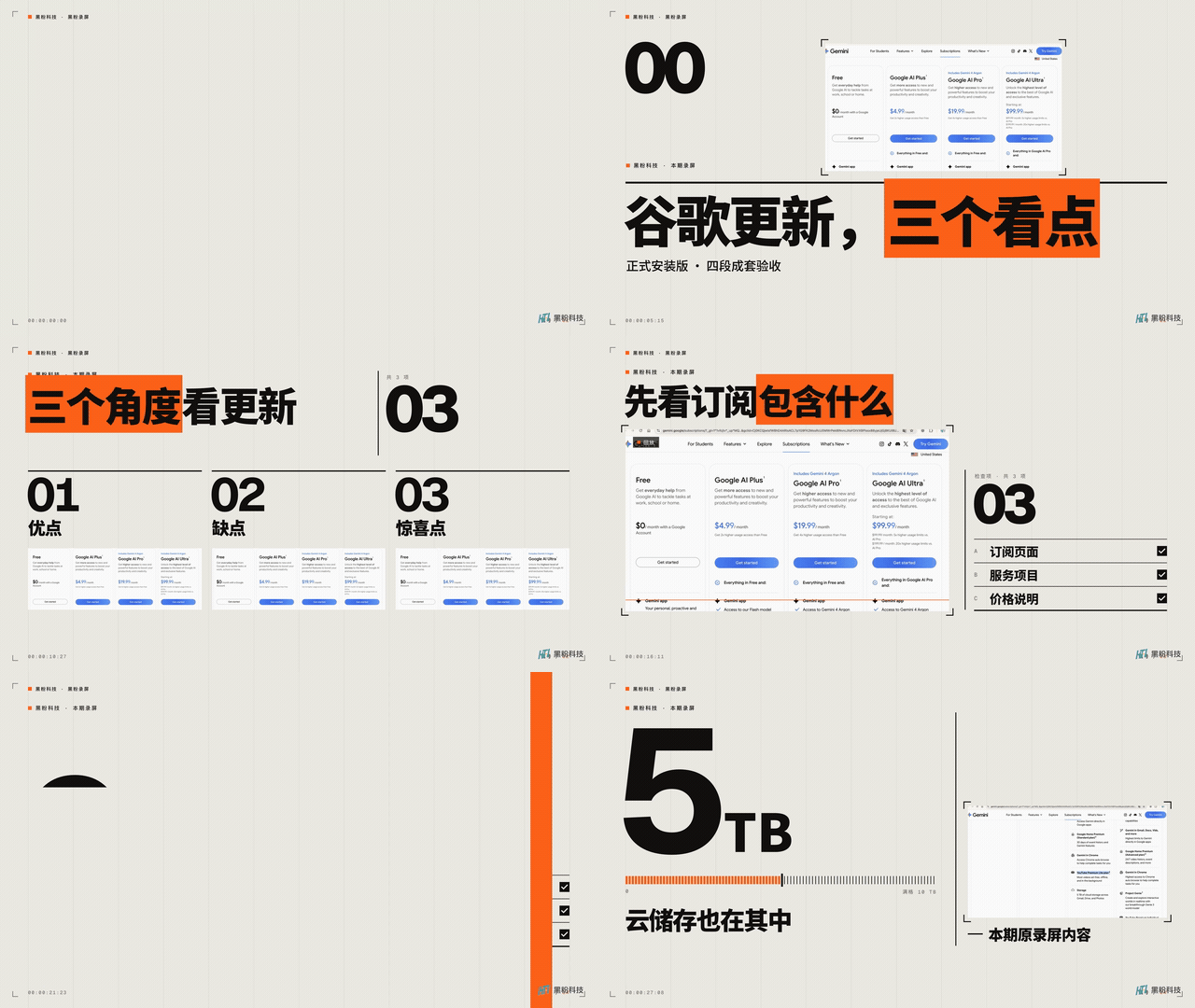
Pay attention to their commonalities: white paper background, bold black text, orange signal accent blocks, fine grids, and scanning revelations are always present. Even if the way information is arranged, viewers can still recognize that this is the same video. The purpose of packaging is to highlight what you’re talking about.
Ten styles—look at the effect before choosing
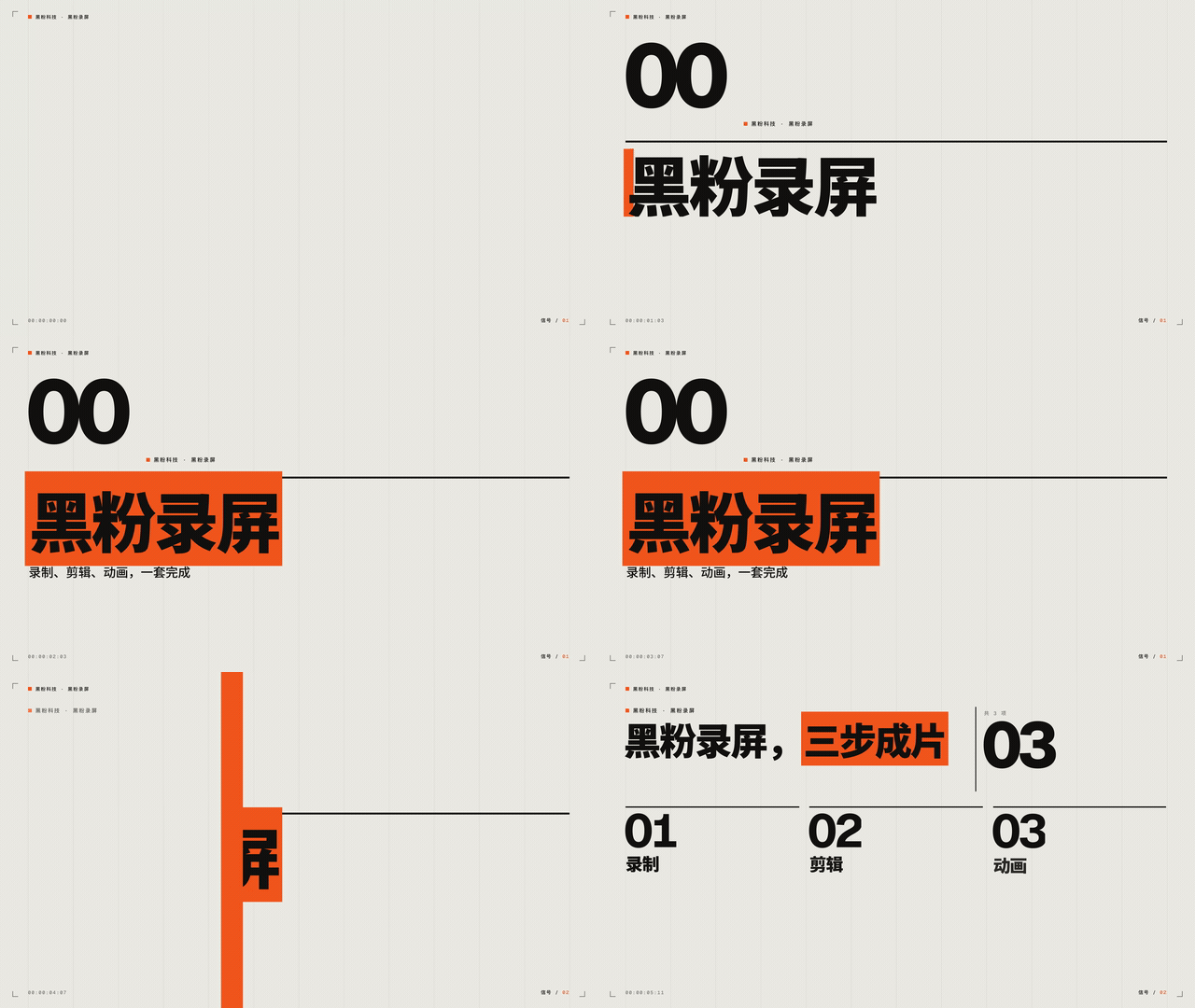
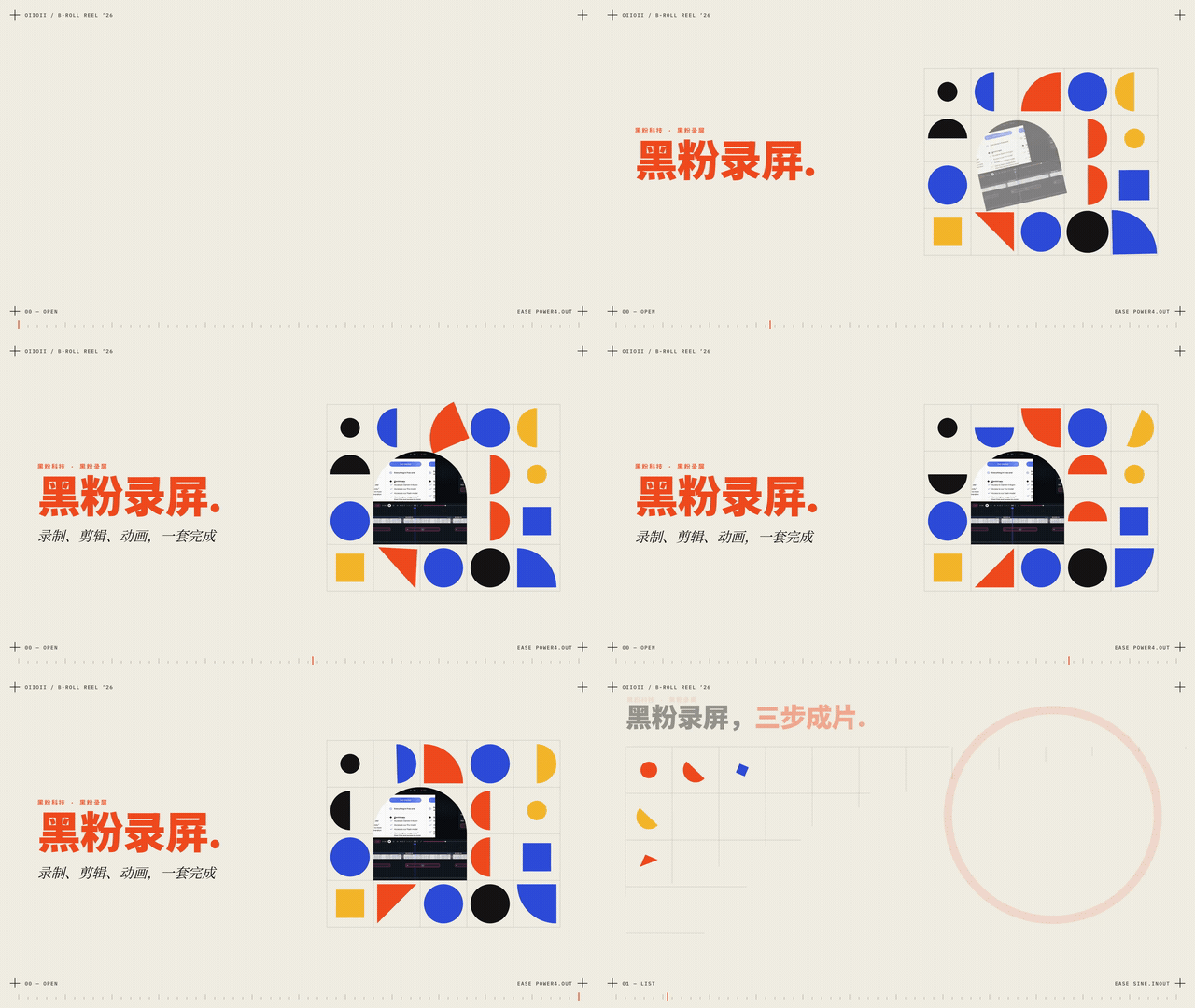
I turned all ten sets into actual dynamic examples. Each GIF, taken from the opening 5.5 seconds, shows how text appears, how emphasis blocks are introduced, and how paper, lines, and geometric elements work together. These are software-generated effects, not cover concept images.
01 · Paper with white orange tones
Paper White Orange Tone: Paper white background, bold black text, and orange accents, suitable for tool testing and information analysis. This time, the real screen recording uses this setup.
02 · Sticker Pop
Sticker Pop: More vivid color blocks and sticker feel, suitable for more relaxed feature introductions, creative processes, and program openings.

03 · Black and white mint
Black and white mint: A dark base accented with mint accents. If you want a more composed tech look and clearer screen contrast, this is the starting point.

04 · Warm mist and light shadows
Warm mist and light shadows: Softer colors and variations, suitable for a relaxed pace of introduction, making text focused without overpowering the image.

05 · Instant review and review
Sticky note review: Using sticky notes and paper relationships to organize content, suitable for review, steps, and checklists, and also makes it easy to break a broadcast into several points.

06 · Stencil printing
Pattern printing: grain, layered colors, and print texture are more pronounced. For content that needs to retain a handmade feel, you can look at the movement and edges of this set.

07 · Red poster
Red posters: The style of vintage posters stands out more and suits content with clear chapters and titles.
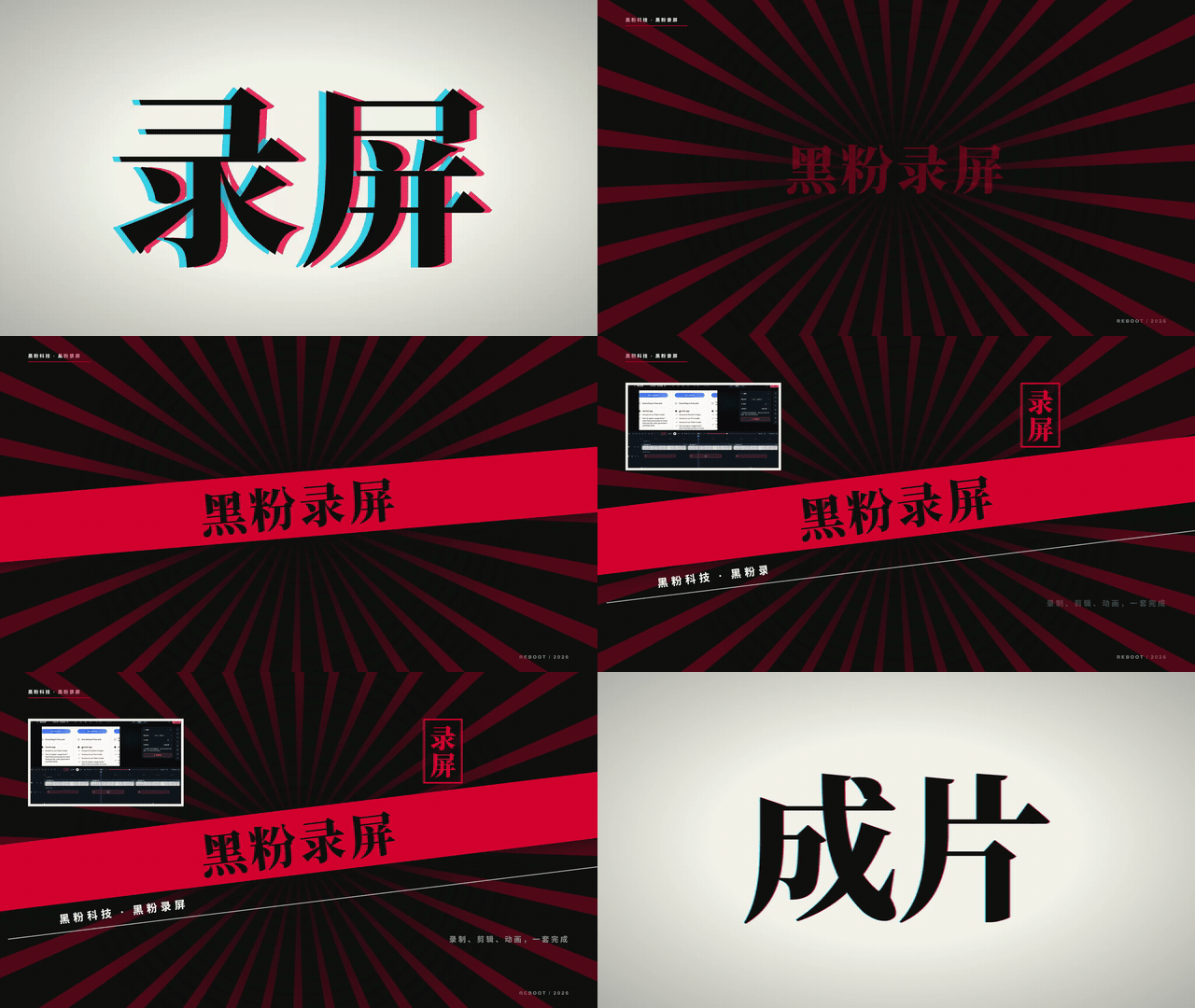
08 · Retro Rising Sun
Vintage Rising Sun: Radiating structure and strong visual center, suitable for establishing a theme in a short time; leave enough space for the title when using.

09 · Color card collage
Color card collage: Color cards form layers, suitable for multi-information explanations. Use the same set throughout the entire episode, making it easier to unify than finding a different collage for each segment.

10 · Geometric composition
Geometric composition: Geometric shapes, proportions, and color schemes provide visual rhythm, suitable for columns that want a clean and structured image.
These are my suggestions for selection, not subject matter restrictions. For the same piece of news, product introduction, or study summary, you can first check the dynamic examples, then pick the one that suits your channel. Each set also includes complete audio examples saved in this article’s material pack.
How to use: Break the explanation into several parts and assign it to a set of design sets
First, open a project and enter “Full Package” in the AI area. Here, generation uses local preset programs, no need to configure large models, nor are they billed based on model calls. The original “Animation Creation” entry continues to handle more flexible animation tasks, with two options to choose from.
Mac version 1.6.7 has already released a compact editing window. The screenshot below shows the same interface components: Selected by segment collection, layout modified according to the current clip, ten sets of names unified into four characters, original style, color scheme, and sound retained. Four standard configurations are checked and approved in windows 1280×720 and 1024×768; If there are more clips or the window is smaller, scroll within the area.
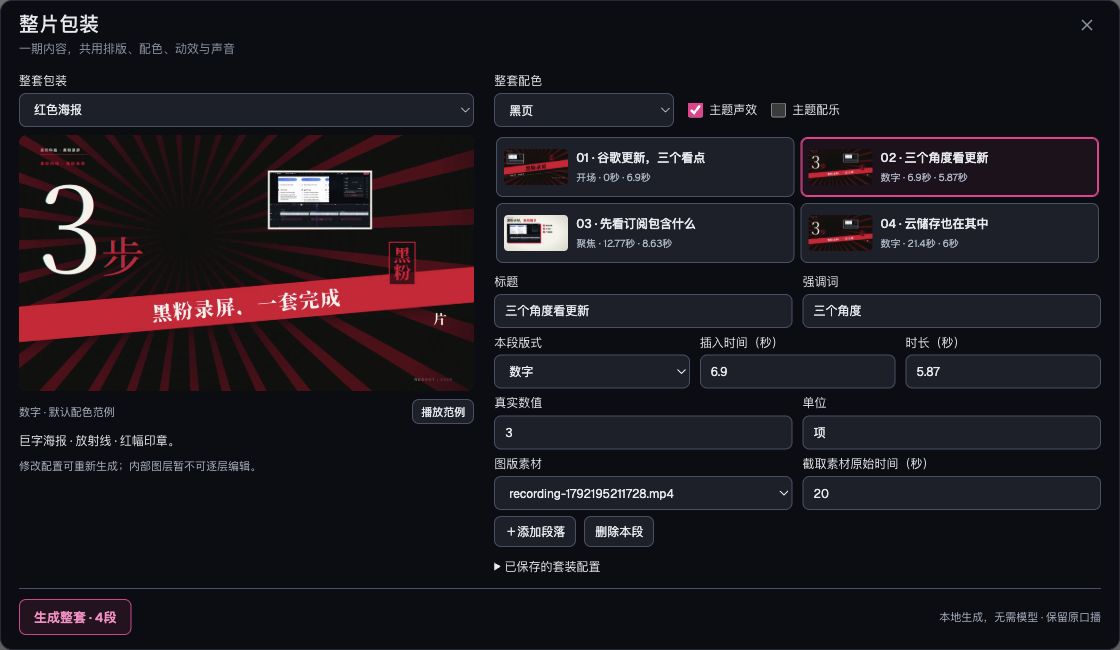
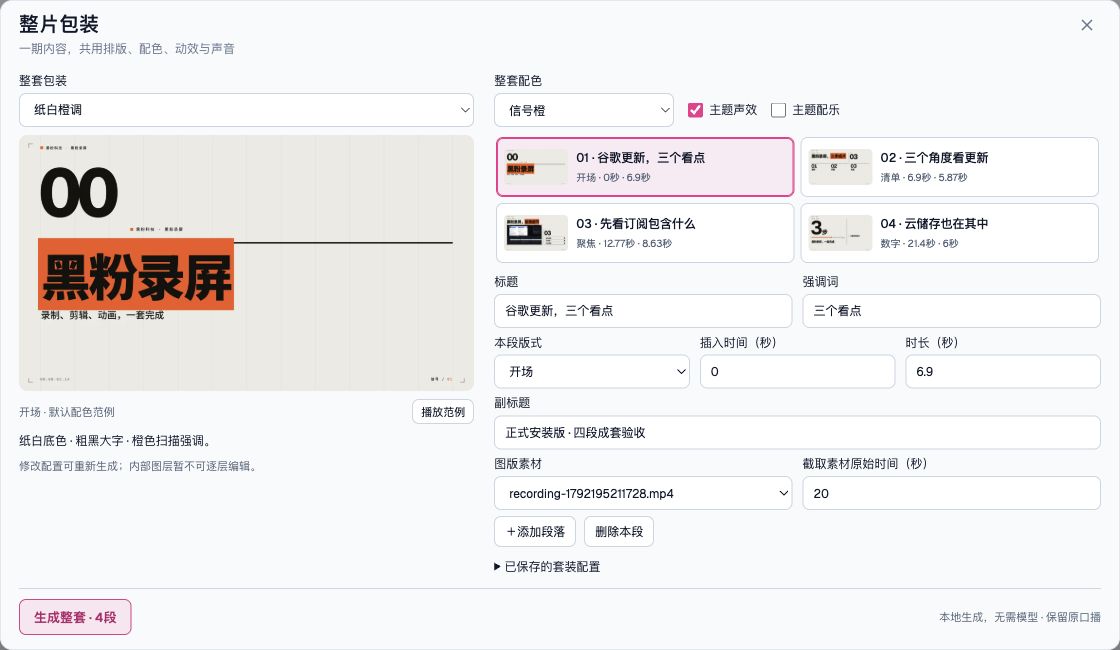
This time, the editing window has been tightened again: the top right keeps only one clip list, and each card displays thumbnails, titles, layouts, and time. First, click the clip you want to modify, then use “Section Layout” to switch between opening, checklist, focus, or numbers. Below is only the parameters needed for this section. Selecting clips and revising formats each handle one thing, so you don’t have to search back and forth between two large cards.
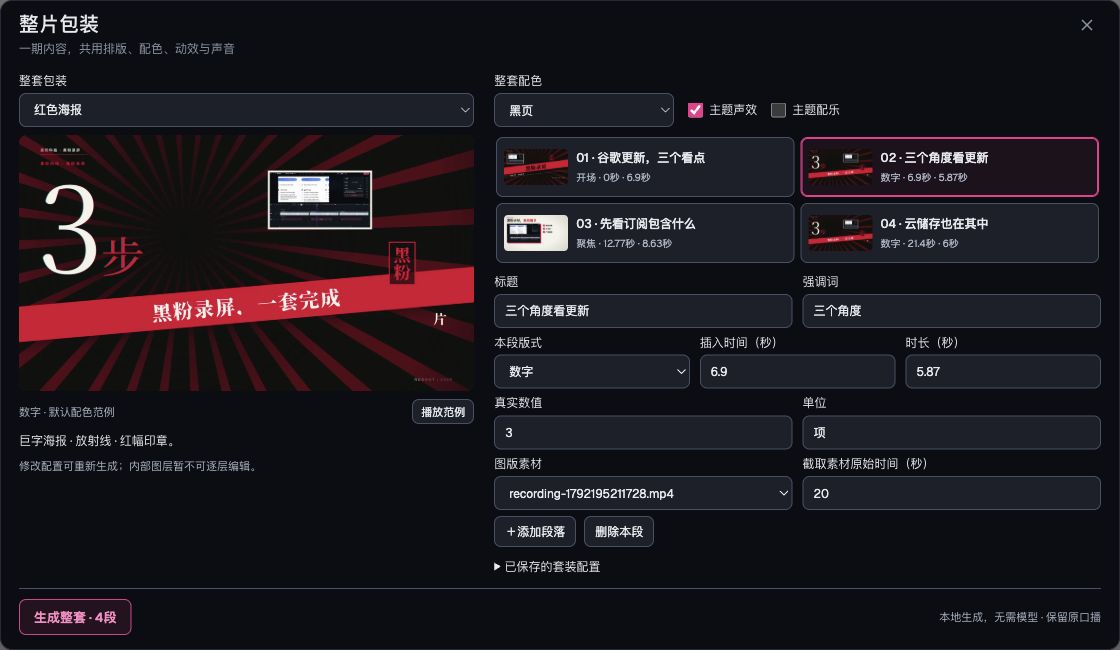
Each group can schedule 1 to 12 clips, each 4 to 30 seconds, and fill in the insertion times on the timeline. Clips in the same group should not overlap. The easiest way is to first cut the audio clip, then find four or five spots that need packaging and fill them in one by one, without overlaying the entire video with animation.
| What was it about? | What to choose | Main function |
|---|---|---|
| The topic and chapters of this issue begin | Start | Establishing themes and identification |
| A few reasons, steps, or conclusions | List | Helping the audience keep up with the structure |
| Webpages, interfaces, evidence | Focus | Zoom in on the scene being explained |
| Capacity, quantity, results | Numbers | Highlight one key message |
This focus should be clearly explained: currently, a screenshot is extracted from the project’s video at the specified original material time, then packaged. It’s suitable to point to the interface for explanation, and the original video will not continue to play in the screenshot. When continuous demonstrations are needed, the original screen recording still takes center stage.
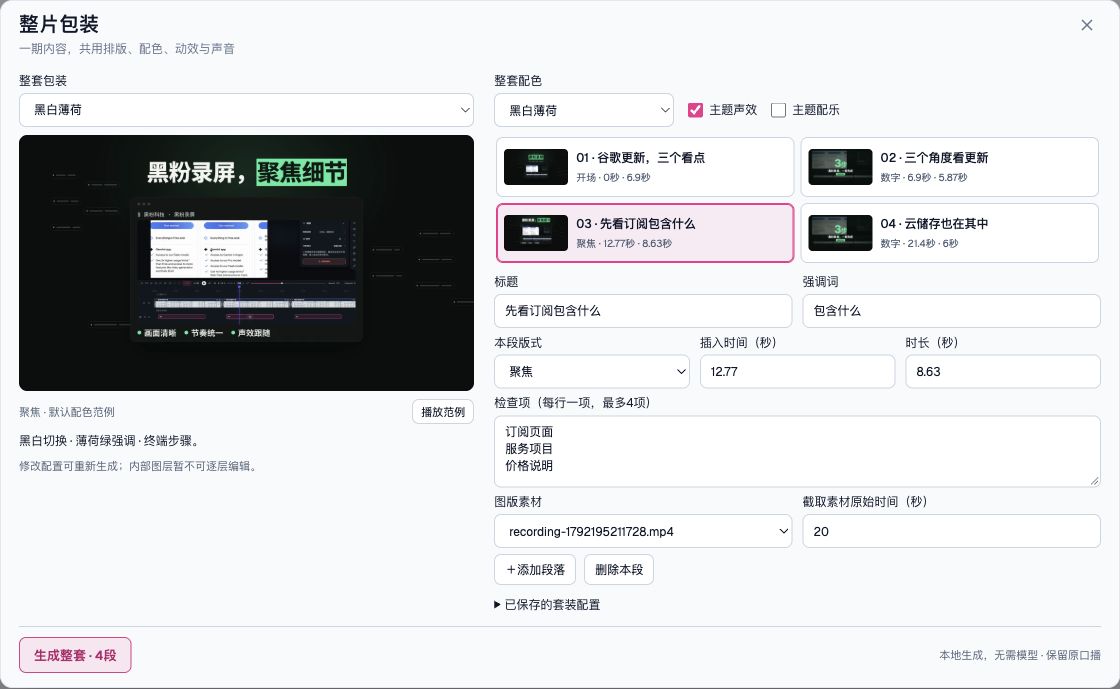
After confirmation, generate the software, and the software will display the processing progress. Once completed, the entire group is added to the project, with the screen and theme sounds entering the timeline separately; If a group already exists, re-generating will replace the original group, preventing repeated overlapping of the same group of sounds. Adding a whole group can also be undone at once.
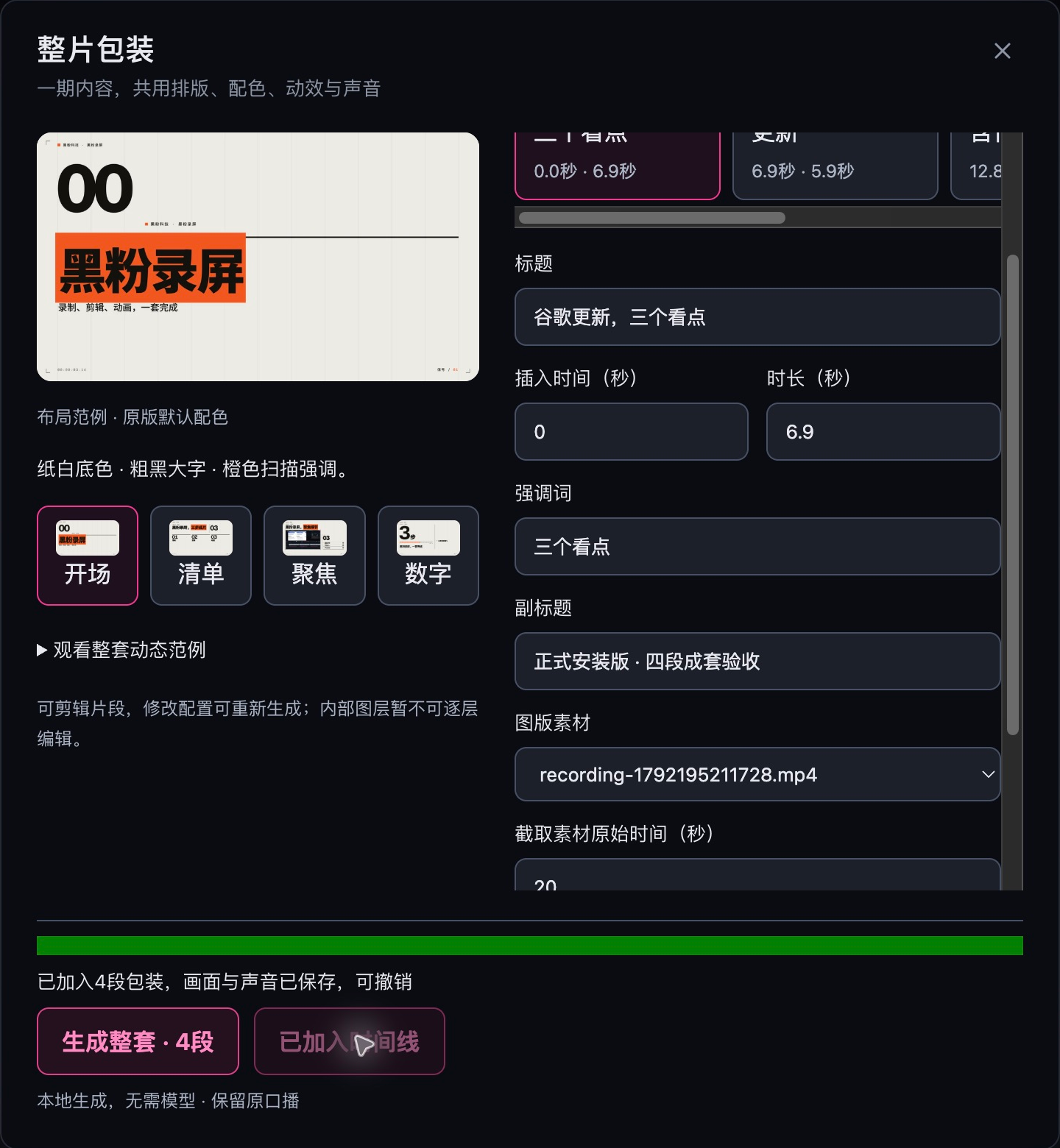
The key to ease is that after modifications, you can keep cutting
Previously, 1.6.5 didn’t stop at “file generated” in actual tests. The official installation version loads four segments from the saved configuration, modifies the subtitle, and actually clicks generate and adds; then continues playback from the middle section to the end, and finally exports again. The project readback still includes a wrapper group, four segments of visuals, and four segments of theme sound.
The exported footage was 1920×1080, at 30 frames per second, totaling 822 frames, and the full media passed decoding. Forty layout combinations under ten default color schemes were also actually generated and decoded for verification; Other optional color schemes were not exported individually, so this part is not counted as a complete test test.
Sound options are also retained: theme sound effects are enabled by default, theme music is off by default, and the original audio is reserved for the original audio recording. This 27.4-second compilation has been personally listened to and confirmed the sound is normal; The audio tracks re-exported from the official installation version are consistent with the versions I listened to. The other nine sets have completed objective sound checks, but subjective listening review has not been done individually. The animation has no sound; to judge the sound, please listen to the full video.
There are two more things to remember when using it. First, after the packaging image is generated, it becomes an editable video clip, not a native animation layer that can be separated by text and shapes one by one. If you want to change the title or number, go back to the saved configuration to modify it and regenerate it. Second, the image and sound are currently separated by track; when moving positions, select them together to keep them synchronized.
If you’ve already manually moved, cropped, or locked this set, the software will refuse to overwrite it and protect the existing clip. First, decide whether to keep the manual cut or regenerate it and continue processing. This is more reliable than quietly resetting your timeline.
Leave the design in the template and spend time explaining
What I value most is the working approach brought by this update: screen recording to clarify the story, opening the scene when the theme is needed, placing checklists when pointing out points, focusing when explaining evidence, and using numbers when encountering key data. The entire episode uses the same set of colors, fonts, and movements, so viewers don’t have to constantly switch visual rules.
Fixed layouts make each generation more predictable; What truly determines the rhythm of the final film is still your copywriting, information selection, and placement. If you want characters to perform freely and tell a complete story, you can continue with “Animation Production”; If you want to quickly package a single screen recording, this new entry point is more direct.
The styles and sound arrangements of the ten packages reference the open-source content of Ajiang Video Packaging Tool, with local conversion and integration within the permitted scope, and relevant licenses retained with the resources. This article shows the actual generation and editing results in HyphenScreen, and does not claim all reference styles as original.
Currently, the Mac Apple chip version has been updated to 1.6.7, while Windows and Linux still use 1.6.6. The 27.4-second video and four-segment generation operation records in this article are from previous 1.6.5 tests, and are kept for everyone to see; The official installation version of 1.6.7 has been re-exported from an independent project, with complete decoding at 1920×1080, 30 frames per second, and 822 frames per second. I took over manual testing of the click-generated and jump interaction in this round of installation, so I’m not counting it as accepted.
Download and reference
- HyphenScreen 1.6.7 Release Notes and Mac Apple Chip Installation Package
- HyphenScreen Complete Features and User Instructions
- Reference Style: Ajiang Video Packaging Tool
- Reference Source Code and License
Complete audio recording
Self-made software
Versions, changes and supported installers all come from the same public release records.
LocalBrain
A local AI toolbox for transcription, speech, images, video, and MCP tools. Features vary by platform version.
View public downloads and updates ↗HyphenBox
A free model API radar and local router, with ongoing availability checks and keys kept on your device.
View public downloads and updates ↗ScreenLex
Turn subtitles from your own films and shows into an English vocabulary library, entirely offline.
View public downloads and updates ↗Late nights and burned API credits went in,a cup of tea comes back out — only if you feel like it.
Scan with WeChatPress and hold to save the image, then open it from your album in WeChat Scan




Comments
Loading comments…