Summary Recording is easy; the work starts after HyphenScreen 1.0.1 · official release · free download HyphenTech · first published 2026-09-16 · updated 2026-09-28 · also in 简体中文 and 繁體中文 (switch below the title)
Let me start with something that made my stomach drop. I built automatic redaction into my own screen recorder: it finds e-mail addresses, keys and the like in the picture and covers them with a mosaic. When it was done, every unit test passed. The boxes were in the right place, and on a still frame they fitted perfectly.
Then I exported a video and watched it from start to finish. During the few seconds the picture zoomed in, the mosaic fell behind, and an e-mail address and a key starting with sk- were plainly readable. It happened once more inside a vertical reframe. The tests checked whether the box coordinates were right; what I actually needed was that nobody could read anything sensitive in the finished video. Those are two different things, with zooms, tilts, crops and encoding in between.
Since that day the app has something most screen recorders do not: after export, it reads the finished video itself back, frame by frame with text recognition, to confirm that what should be covered is covered. This post is about what the app has become — and 1.0.1 is its first official release.
A word on where the money in screen recording comes from, because it decides where the effort goes. The usual moves: the free version adds a watermark or a time limit and turns export into a paywall; or the tool becomes a cloud service where you upload your screen and pay for storage and exports. Screen recordings are about the most private material there is — your e-mail, your paths, tokens, the chat window you forgot to close. The party that gains is the one holding your footage for storage and transcoding; the cost lands on whoever uploaded it. Desktop software has played this script many times: the one-off licence stops getting updates and features move into a subscription.
Why do I make HyphenScreen? Honestly: I publish videos every week, screen recordings are my main footage, and I do not want my screen on anyone’s server. There is no subscription, no cloud and no storage to sell, so there is no way for it to make money off you; the upkeep is mine. Judge it accordingly: it will not get worse to earn from you, but it could stall if I run out of time.
| Facts | |
|---|---|
| Current version | 1.0.1, official release (2026-09-28) |
| Built with | Electron interface + a native Rust compositor; recognition, transcription and voice isolation all run on your computer |
| Installer | Mac 265.6 MB (Apple silicon), signed with my own HyphenTech certificate, not Apple-notarized |
| Other platforms | Windows 10/11 x64 and Linux x64 currently get 0.4.36, without the features added since; unsigned |
| Download | Free and public, with SHA-256 checksums; the source is private |
Versions and installer size come from the project’s release notes and my local installer shelf, not estimates
Warning 1.0.1 is an official release, but it is still not notarized by Apple or code-signed on Windows, so your system will stop it once; allow it as the download page describes. Windows and Linux stay on 0.4.36 for now; the new features in this post are the Mac version’s.
🧩 The full tour (1.0.1 screenshots)
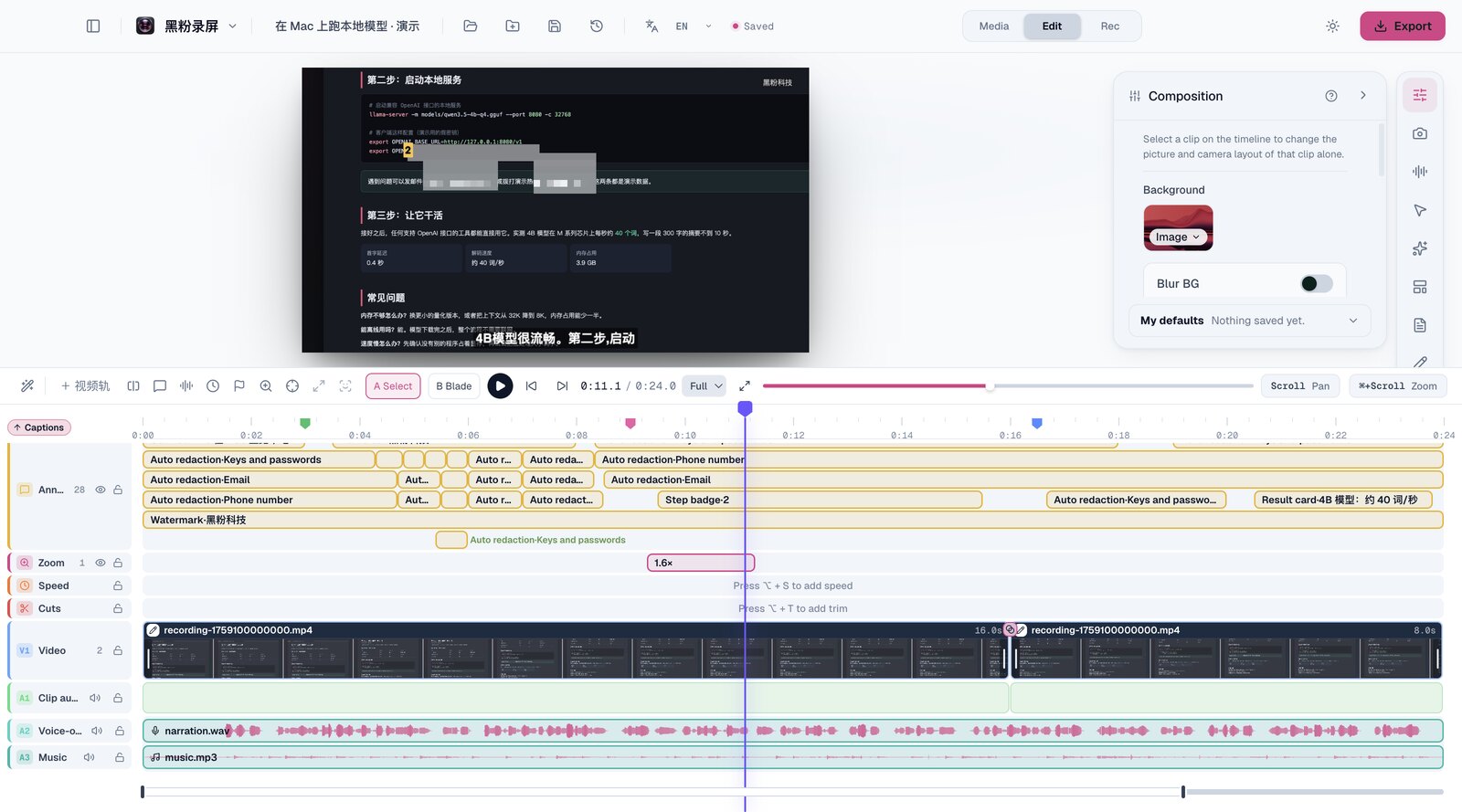
These are real screenshots, taken on a demo project made for the purpose: a recording of a scrolling web page, synthetic narration and background music. Every e-mail, phone number and key in it is fake — the pictures that introduce a screen recorder should not leak anything either. The two camera shots show my own camera. The recording, camera, multitrack, transition and AI chat shots show the Chinese interface; the rest show the English one.
🎥 Recording: make “what to record” simple
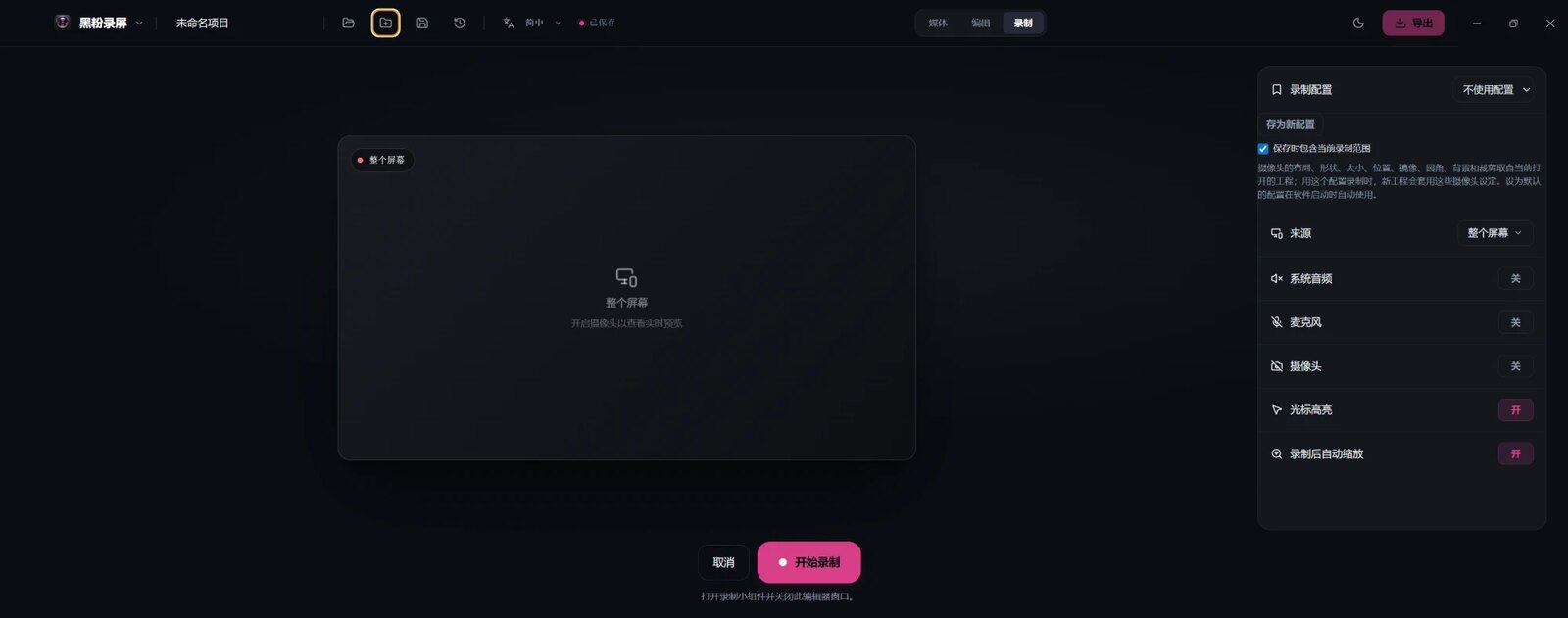
- The whole screen, one window, or any region you drag — while dragging, click a window to take its exact bounds instead of lining up the edges yourself. Lock the region to 16:9, 9:16, 1:1 or 4:3 so vertical content needs no crop later. Region capture works on macOS and Windows.
- Camera, microphone and system sound record together, along with the pointer, so the editor can suggest smooth zoom-ins where the pointer lingered. The camera records at the best quality the device offers.
- Microphone, camera, capture area and camera look can be saved as named “recording setups” and switched in one click.
Screen recorders used to stop at recording: you opened another app to edit, exporting once and importing once, losing quality twice. This one was built as record + edit from day one — the take goes straight onto the timeline without an extra encode.
✂️ A timeline laid out like DaVinci Resolve
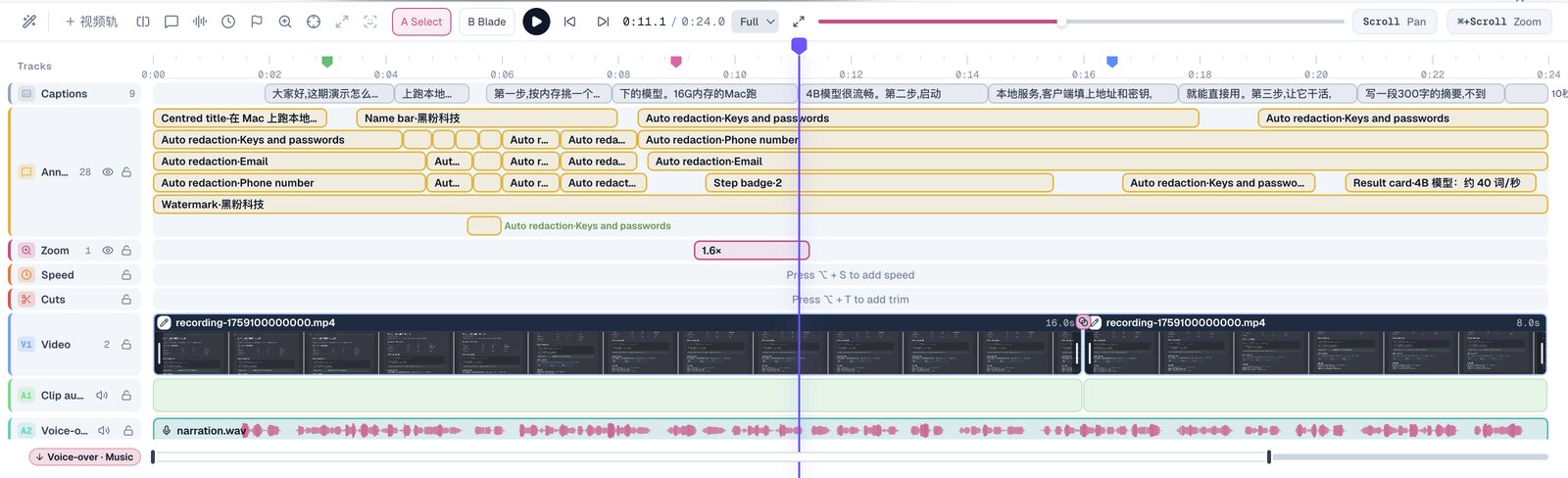
- Captions, annotations, zoom, speed, cuts, V1 video (add more video tracks above it), A1 original sound, then voiceover and music. Track headers show the name and item count and can lock, hide, mute and reorder.
- Items say what they are: the annotation text, the template, the redaction category, the zoom factor, the length cut, the caption sentence — no clicking each one open.
- Voiceover and music waveforms are drawn for the part you can see, at device-pixel detail, so zooming in makes them sharper.
- Press M for a marker; markers copy straight into chapter timestamps for a video description. A/B for select and blade, Cmd+B to split, J/K/L to play, I/O for in and out — the keys editors already know.
🧱 Multitrack and on-canvas editing
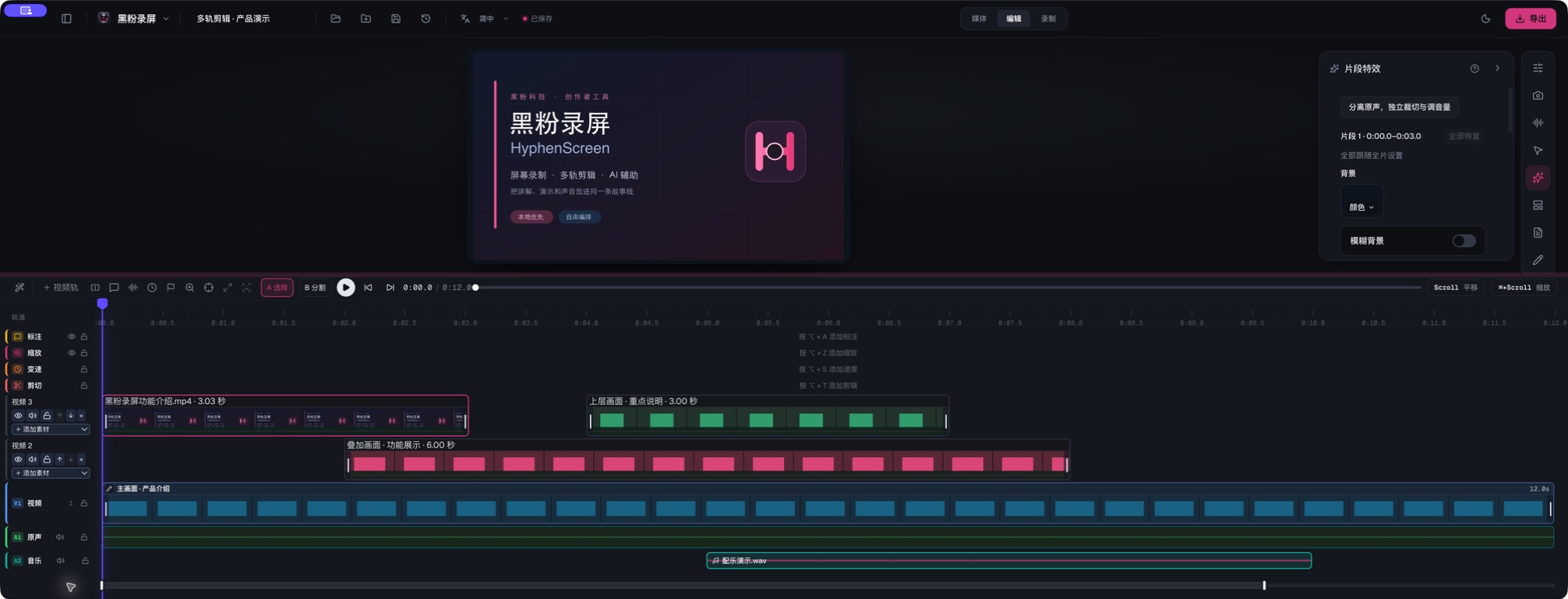
- Import several videos and audio files at once. Video tracks have no fixed limit: the upper picture covers the lower ones and all sound is mixed. Drag clips and their edges to arrange and trim; Shift for fine control, arrow keys frame by frame.
- While paused, select things right in the preview: move and scale the recording and the camera; drag and resize captions, text, images, arrows, blur boxes and templates.
- Fullscreen preview (F in, Esc out). A heavy project can drop its preview to 1/2 or 1/4 resolution to stay smooth; exports always use full resolution.
🎭 Screen and camera
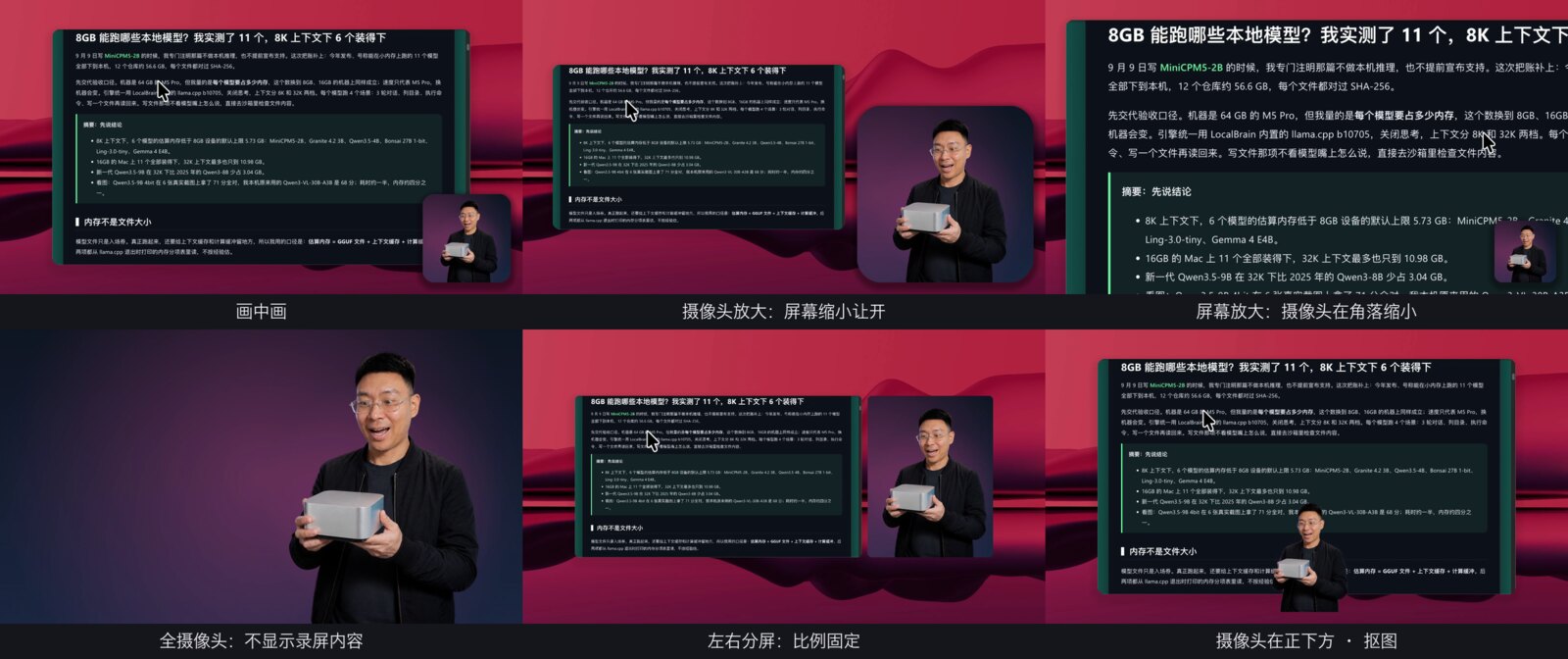
- Picture-in-picture, side-by-side or stacked split, with one click to swap sides; the screen always keeps its aspect ratio.
- The cut-out edge follows the real outline in the camera picture (macOS): fingers, glasses and shoulders stay crisp instead of a blurred halo. The background can be a blur, an image, a colour or a gradient.
- In picture-in-picture the screen and camera make room for each other: when the screen zooms, the camera shrinks into its corner; when the camera zooms, the screen shrinks aside. A shrunken camera is sampled over each pixel’s footprint, so it neither flickers nor blurs.
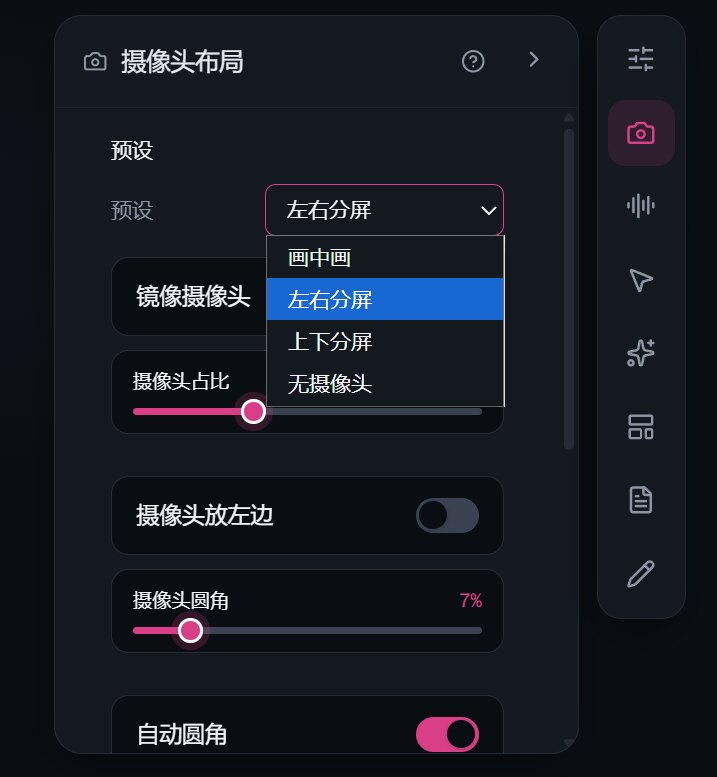
- Every clip can have its own layout and look — side by side for one stretch, picture-in-picture for the next; whatever a clip does not set follows the whole video.
💬 Captions and Chinese line breaks
- On-device transcription creates captions (built-in Whisper, or LocalBrain), keeping the recognizer’s real timestamps; silence and music markers never become captions.
- Edit captions by hand, search them, restore the original wording, pick one of six styles. Chinese captions break between words, never inside a word or a model name, and preview and export break in the same place.
🔊 Sound
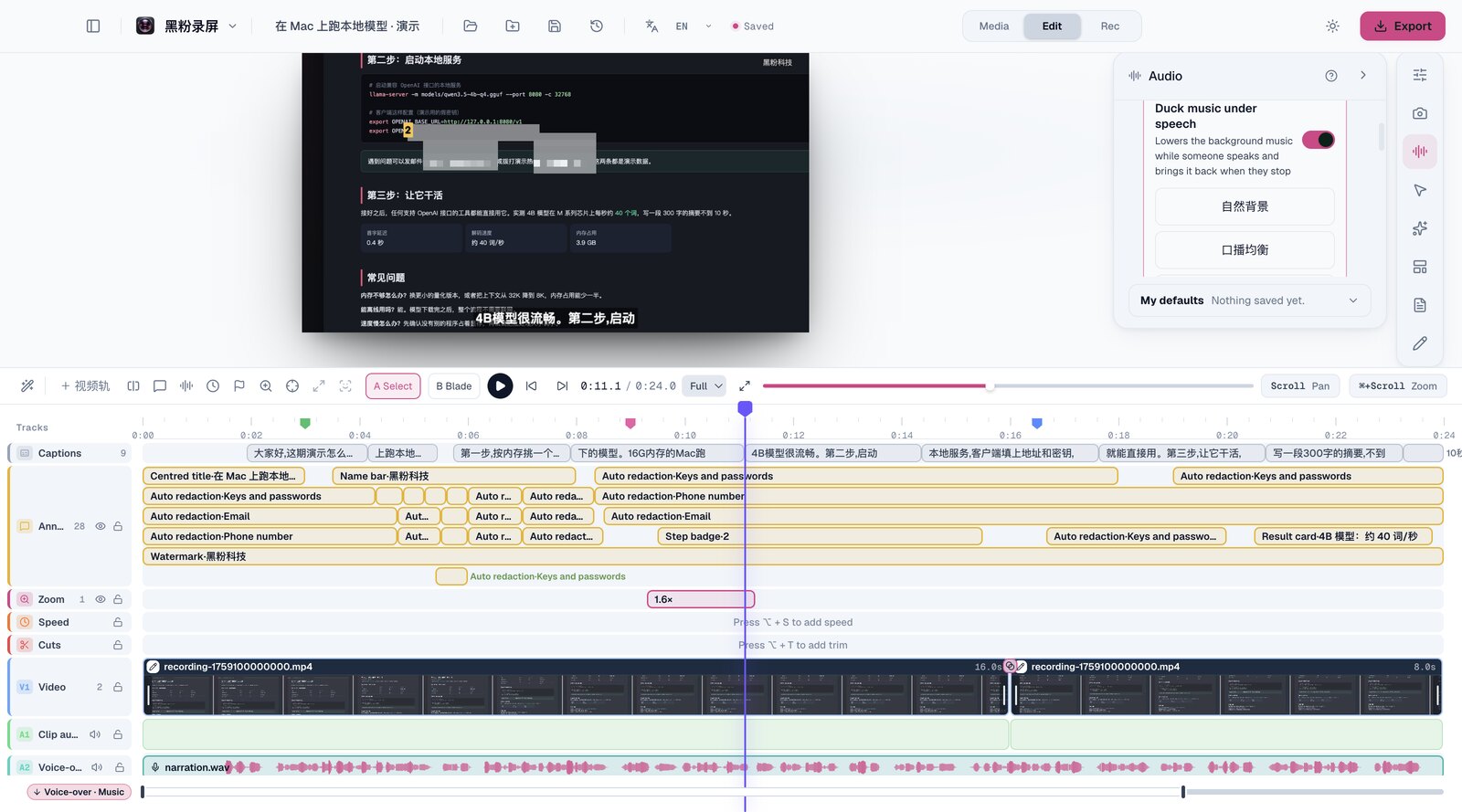
- Voice isolation (macOS): an on-device neural network removes keyboard, fan and other noise and keeps the voice, with low cut, EQ, compression and limiting.
- Music ducking: the music dips while someone speaks and comes back after, with natural background, balanced voice and voice first presets, or your own lead-in, hold and release.
- Split the original sound onto its own track, blade it and set each part’s level (−60 to +36 dB). Cut a video clip in two and the voiceover and music over it split with it and play straight on.
🎨 Visual templates and picture effects
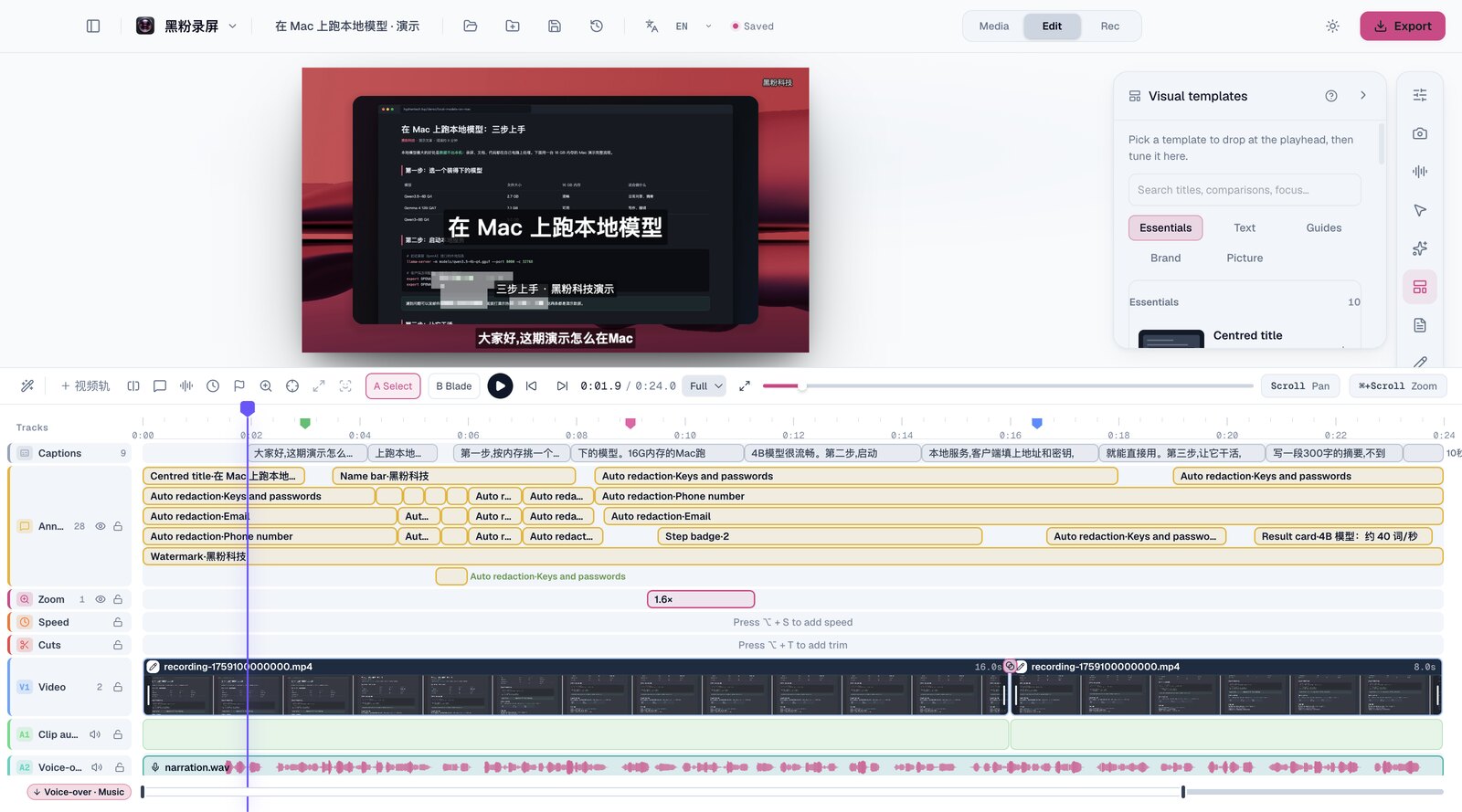
- 35 templates: title cards, name strips, step badges, key caps, spotlight, result and comparison cards, an outro with a call to action, a corner watermark and more, with search across all of them.
- 13 text styles and 11 picture effects recreated from my other app, HyphenCut (bold impact titles, handwritten quotes, warm documentary, teal-and-orange, vignette, RGB glitch…); nine fonts ship with the app.
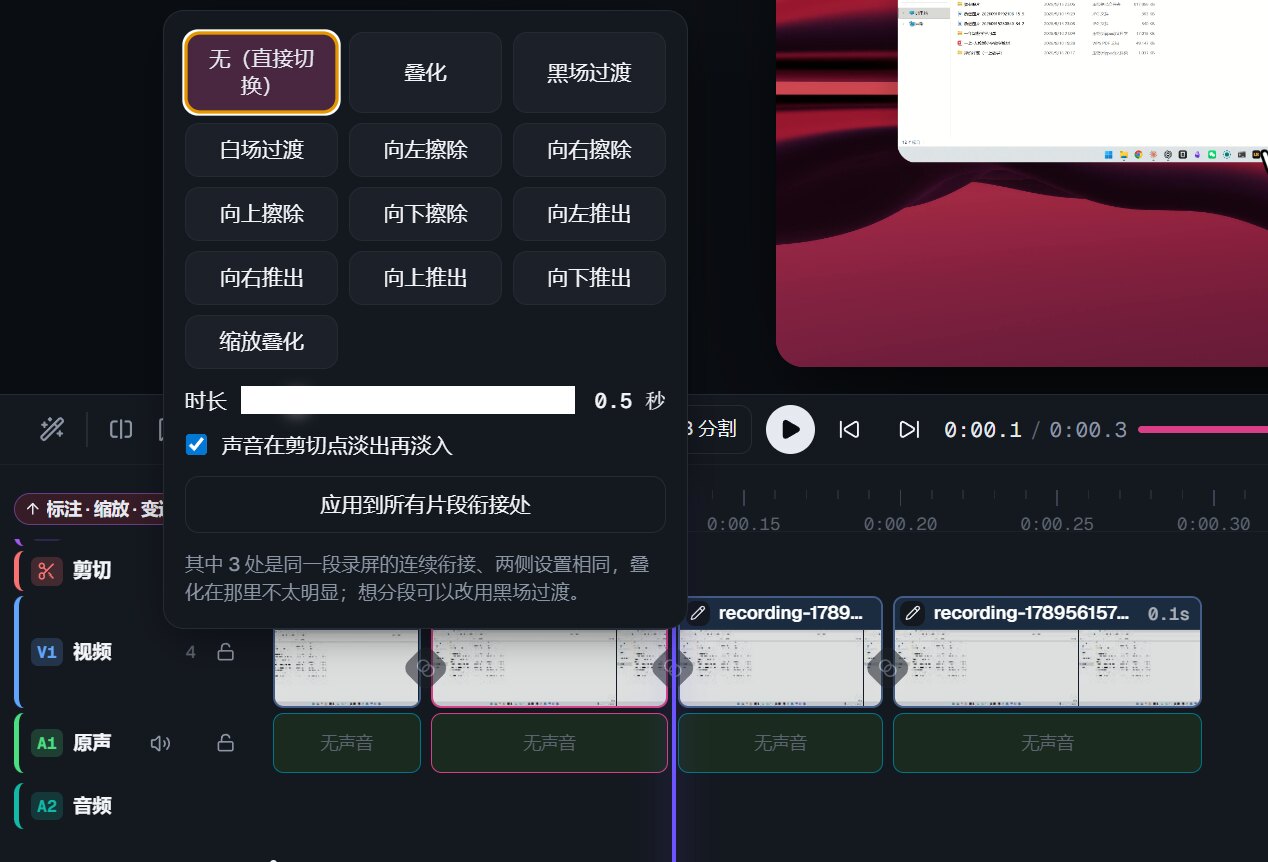
- 12 transitions (dissolve, dip to black or white, wipes and pushes in four directions, zoom) with the sound fading along, applicable to every cut at once.
🛡 Automatic redaction that follows the picture
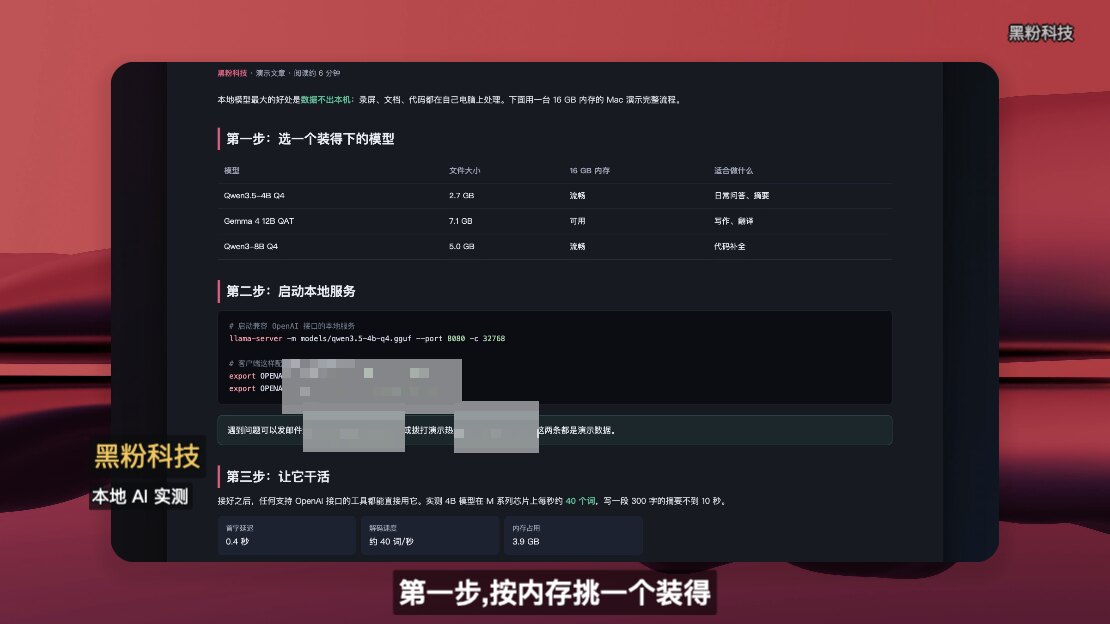
The hard part of redaction is not finding the text; it is following it. Finding the e-mail is only step one — then the picture zooms, tilts, gets cropped to vertical, and the page scrolls. The mosaic has to move with all of it; one frame late is one leak.
- On-device recognition of e-mail addresses, phone numbers, ID numbers, bank card numbers, keys and your own keywords (automatic detection is macOS-only for now). ID and card numbers are checksum-verified, so there are few false alarms.
- Redaction follows zooms, tilts, crops and vertical reframes. On a scrolling page the boxes follow the text stretch by stretch, covering only where it travels. Before 1.0.1 one box covered the whole path the text took — at worst half the frame. Fixed along the way.
- If you turn the annotation or zoom track off for an export, the redaction track stays on and tells you so — that one is deliberately not switchable.
🩺 Finished-video check: trust the output, not the process
Back to the story at the top. The lesson: however green the checks along the way, that does not make the output right. So after export you can check the finished file itself, and every check is about the output:
- Loudness and true peak, with a suggested output level instead of guessing by ear
- Stretches of silence and black, each one marked
- Frozen pictures: the output stops while the source keeps moving — the classic sign of a broken export
- An output shorter than its timeline: a clip running past the end of its media, located at the moment the media runs out
- Captions and titles that do not fit: anything cut off or outside the frame
- Text recognition reads the picture back, frame by frame, to confirm nothing sensitive shows (macOS for now)
The numbers below are from a measured receipt on the installed 0.4.13 (exported at 1280×720/30fps on the acceptance project through the app’s own interface, then checked; the program wrote the numbers, I did not copy them by hand):
| Check | Result |
|---|---|
| Export time / check time | 12.6 s / 34.8 s |
| Loudness · true peak · dynamic range | −18.2 LUFS · −2.8 dBFS · 3.7 LU |
| Text read-back | one frame per second, 150 frames analysed |
| Verdict on the normal output | 0 problems, 0 warnings |
| Re-checked with the redaction deliberately removed | e-mail and key recognised from 165.0 to 181.2 s; a red marker placed at 172.08 s: “Check: e-mail readable · key or password readable” |
Receipt file docs/evidence/export-check-0.4.13.json
Tip The last row is the point. When a checker reports “no problems”, there are two possibilities: there are none, or the checker is not doing anything. If you cannot tell which, it is worthless. So every time I feed it an output with the redaction deliberately removed — it has to catch the e-mail and the key. Only when it does is its “0 problems” on the real output worth believing.
Findings can be marked on the timeline in one click; step through them with Shift+↓.
📱 Vertical highlights
Turn a stretch of a landscape recording into a 9:16 short: software is cropped around the pointer, web pages and documents are kept whole, the title sits above and captions below, and zooms stay inside the picture area.
🤖 AI: bring your own, nothing bundled
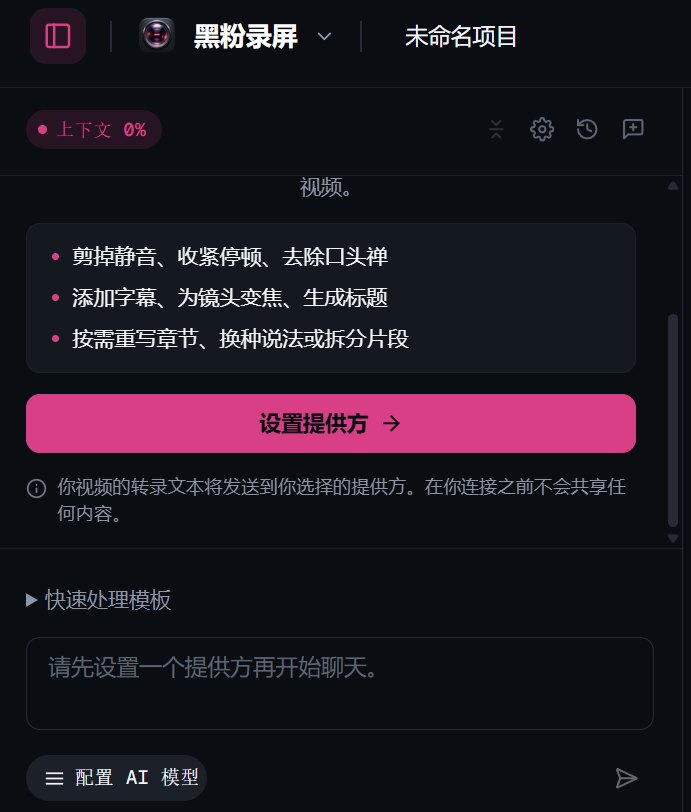
My choice for AI is not to bundle: no built-in model, no API fees collected on your behalf, no deciding for you. If you are already signed in to a Codex subscription, it is reused (no key to paste); for fully local, connect LocalBrain. 69 tools cover editing, sound, captions, transitions, redaction, zoom, markers, per-clip effects, visual templates, vertical reframes, export and the finished-video check — anything you can do by hand in the editor has a matching tool — plus 12 one-click recipes such as “shorten pauses”, “remove filler words”, “remove repeats and retakes” and “check before publishing”. External AI can use the same tools over MCP (73 with reading, saving, undo and redo).
The last time “AI editing” excited me was the one-click finished-video wave: stunning demos that never survived a real publishing routine, because they did everything for you and you could only take it all or start over. Here the AI works on your timeline: every step lands as an edit you can undo, and you can take over at any moment.
🗂 Projects, version history and storage
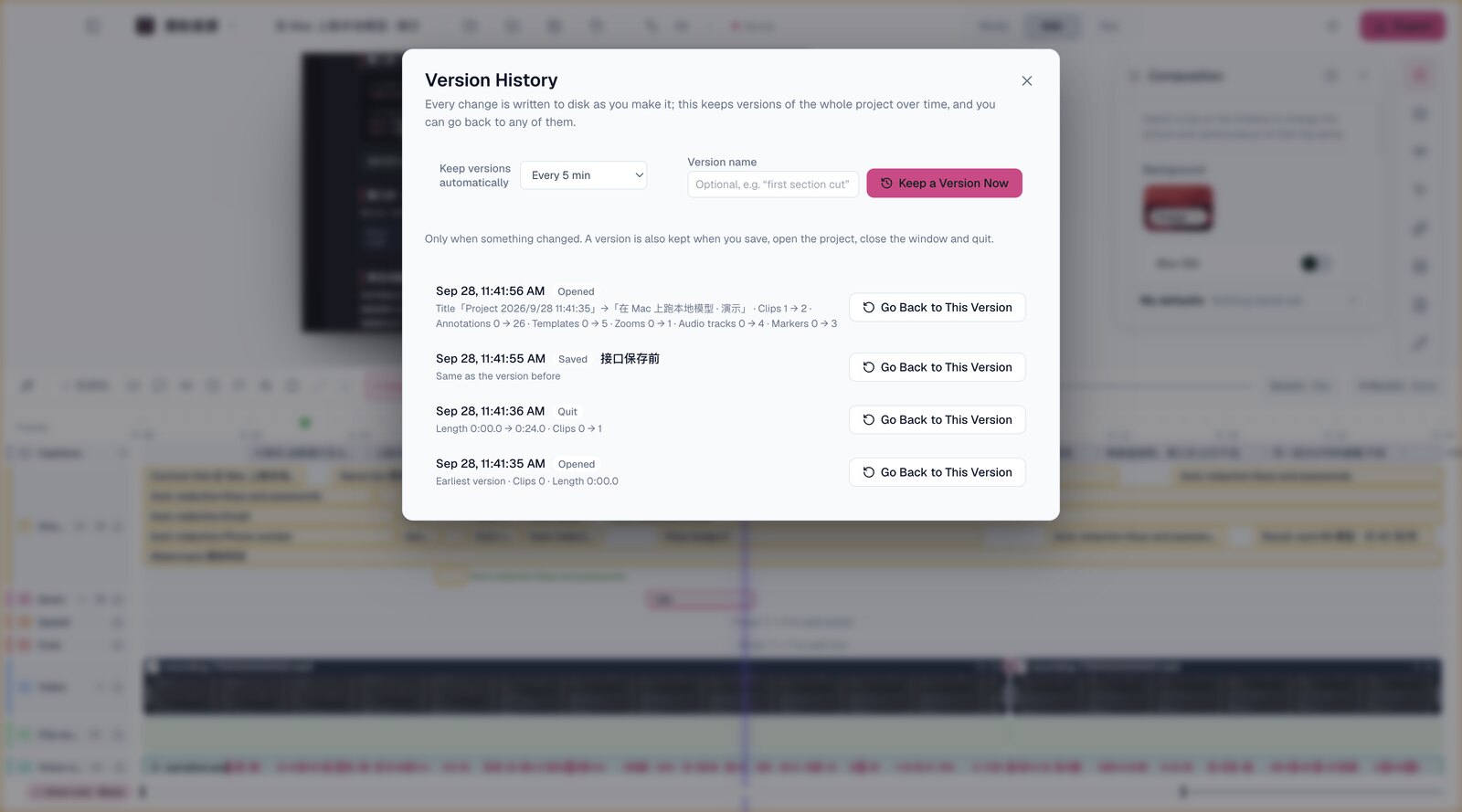
- Every edit is written to disk at once, and versions of the whole project are kept over time (every 5 minutes by default, only when something changed), each labelled with its cause and changes; go back to any of them, and undo the going back.
- Save a project anywhere and open one from anywhere; the folder for new projects can live on an external drive.
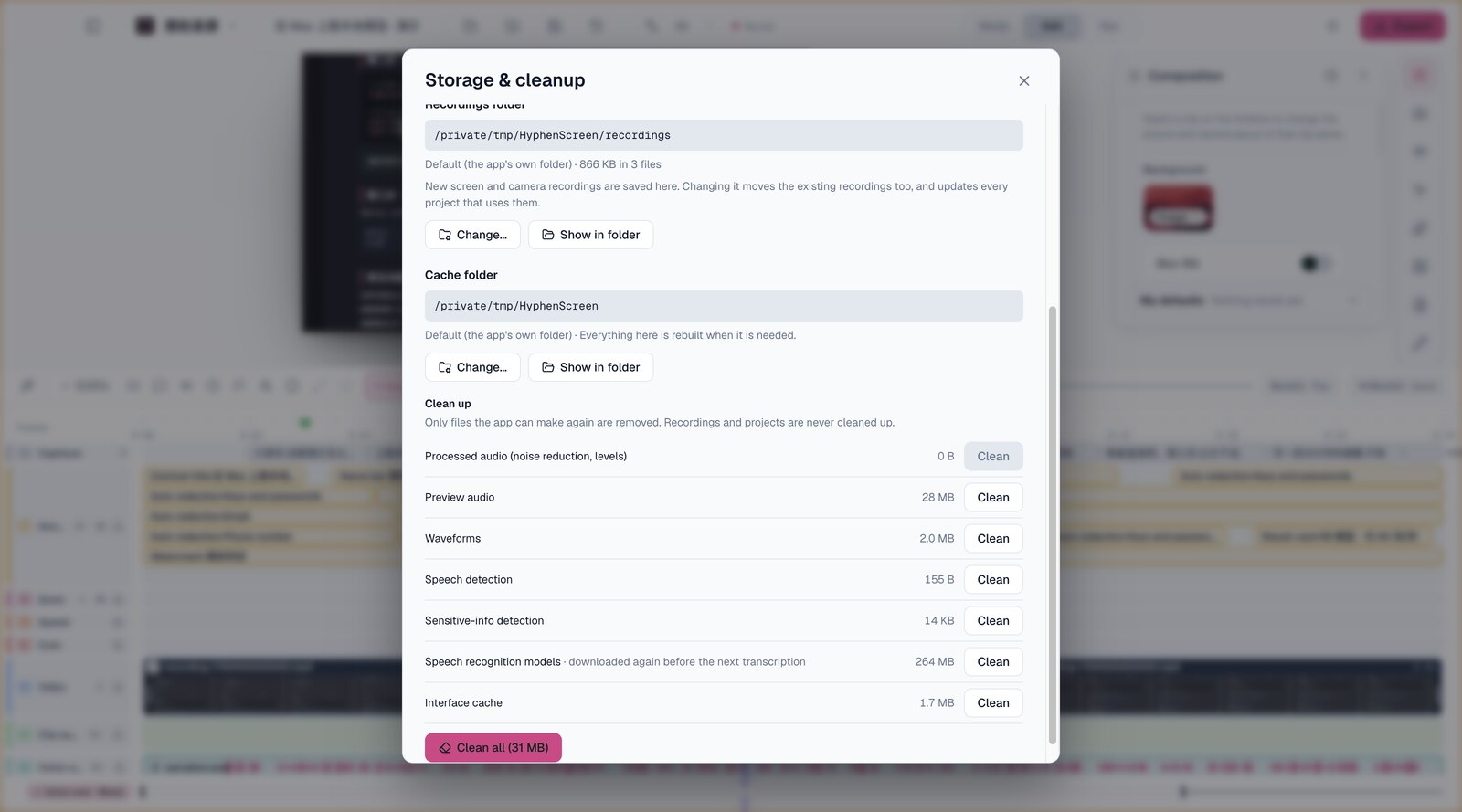
“Storage & cleanup”, new in 1.0.1, came from my own system disk running out of room:
- Move the recordings folder and the existing recordings move with it, with every project and saved version pointed at the new place. Everything is copied and checked before an original is deleted. A take that has just stopped needs a few seconds to finish writing, and the app waits for it — it never moves half a recording. Moved files keep their dates.
- The cache folder can move too: the old caches are simply deleted and rebuilt in the new place as needed. Each kind of cache shows its size and can be cleared on its own or all at once. Recordings and projects are never cleaned up.
- An old annoyance fixed on the way: after quitting, voice isolation sometimes kept running in the background, holding a whole CPU core until a half-hour timeout, and fought the next launch for resources. Now background work ends when you quit.
⚠️ Current limits
- No proper signing yet: the Mac version is signed with my own certificate and not Apple-notarized; Windows is not code-signed and SmartScreen will warn on first run; Linux is unsigned too.
- Windows and Linux are on 0.4.36: features added after it (storage & cleanup, the sharper camera cut-out edge, smoother preview seams and more) wait for a new build on the Windows machine. Voice isolation, sensitive-text detection for automatic redaction and “click a window to take its bounds” rely on native components built for macOS only.
- Linux has dependencies: all capture goes through xdg-desktop-portal, and it needs Vulkan drivers and your desktop’s portal backend.
🧭 My take
If you make tutorials, reviews or software demos, the real cost of screen recording was never the ten minutes of recording. It is what comes after: cutting pauses, redacting, reframing for vertical, checking nothing went wrong. Everything in this app is designed around “after recording”, including that slightly clumsy-sounding check — watching the finished video again after export.
The clumsy way has its merits: it trusts none of the intermediate steps I wrote, only the final file. After “all tests green but the e-mail showed”, I think that distrust is worth it. Taking the screenshots for this post, my own app taught me the lesson again: the screenshots revealed three problems — splitting a clip dropped the music after the cut, redaction boxes on a scrolling page were far too big, and silence got transcribed as the marker “[BLANK_AUDIO]” — none caught by tests, all obvious the moment you look at the picture. They were fixed before 1.0.1 went out.
Summary: In one sentence HyphenScreen 1.0.1 is the first official release of the screen recorder and editor I use myself: it recognises sensitive text on your own computer and keeps the mosaic on it through zooms, crops and scrolling; after export it checks the finished video itself (loudness, black frames, frozen pictures, overflowing captions, plus a frame-by-frame text read-back); AI works on your timeline with your own Codex subscription or a local model; and you decide where recordings and caches live. It is a free download, but not yet signed or notarized, so your system will stop it once.
📚 Notes
- Download (Mac 1.0.1; Windows / Linux 0.4.36): https://github.com/HackerChi-Hub/HyphenScreen-Releases/releases
- The numbers come from the project’s release notes and measured receipts; the screenshots were taken on 1.0.1 with purpose-made demo media.
- HyphenTech: https://hyphentech.top
🧰 Tools I build
I maintain all of these tools myself. Preview builds are clearly labeled; the release pages are the source of truth for downloads, updates and known limits.
Info: HyphenBox Status: Early build · Preview
A radar for free LLM APIs: availability is re-tested continuously, one local interface for all of them, and keys stay on your machine
Info: LocalBrain Status: Official releases
A multimodal MCP toolbox for local models: TTS, Whisper and video generation in one place
Info: ScreenLex Status: Official releases
Learn new words while you watch shows. Free, for Mac and Windows
Info: HyphenScreen Status: Official releases
Screen recording and smart editing in one: a DaVinci-style timeline, automatic redaction and a check of the finished video before export. Free
Quote: HyphenTech Make AI your superpower Local deployment · Free resources · Self-made software https://hyphentech.top
Comments
Loading comments…