Info: Machine translation This post was machine-translated from the Chinese original. Wording may be rough in places — the Chinese version is authoritative.
Summary Cut an 8-minute pause in one sentence and check for uncensored keys before exporting 368 native animations and 17 platform follow cards can be used just by modifying the text HyphenTech · 2026-10-03
I used to have three software programs to record a tutorial: the screen recording software and exporting it; the editing software then cut pauses, add subtitles, blur, and the follow card at the end to find templates. HyphenScreen was written by me myself to incorporate these steps into one software: **After recording, I cut directly on the timeline, handing the finished sentences to AI, and the animations for opening and ending credits are available in the asset library. **
The title sounds bold—that’s the author’s personal bias; Whether it matches it or not, I’ll share two real-world tests below. One was on September 27, when I handed a 28-minute 53-second original screen recording to AI editing (the version was 0.4.47 at the time); The other was today, when I used the freshly installed 1.0.7 to actually insert, switch, and export the platform follower card. The parts I didn’t do are listed separately at the end.
No need to export after recording: Screen recording and editing are the same software
HyphenScreen can record the entire screen, a single window, or a selected area. The selectable screen can lock 16:9, 9:16, 1:1, or 4:3, allowing both the camera and microphone to record together. Click **Stop, and the recorded footage will open directly in the editor. No need to export or import other software.
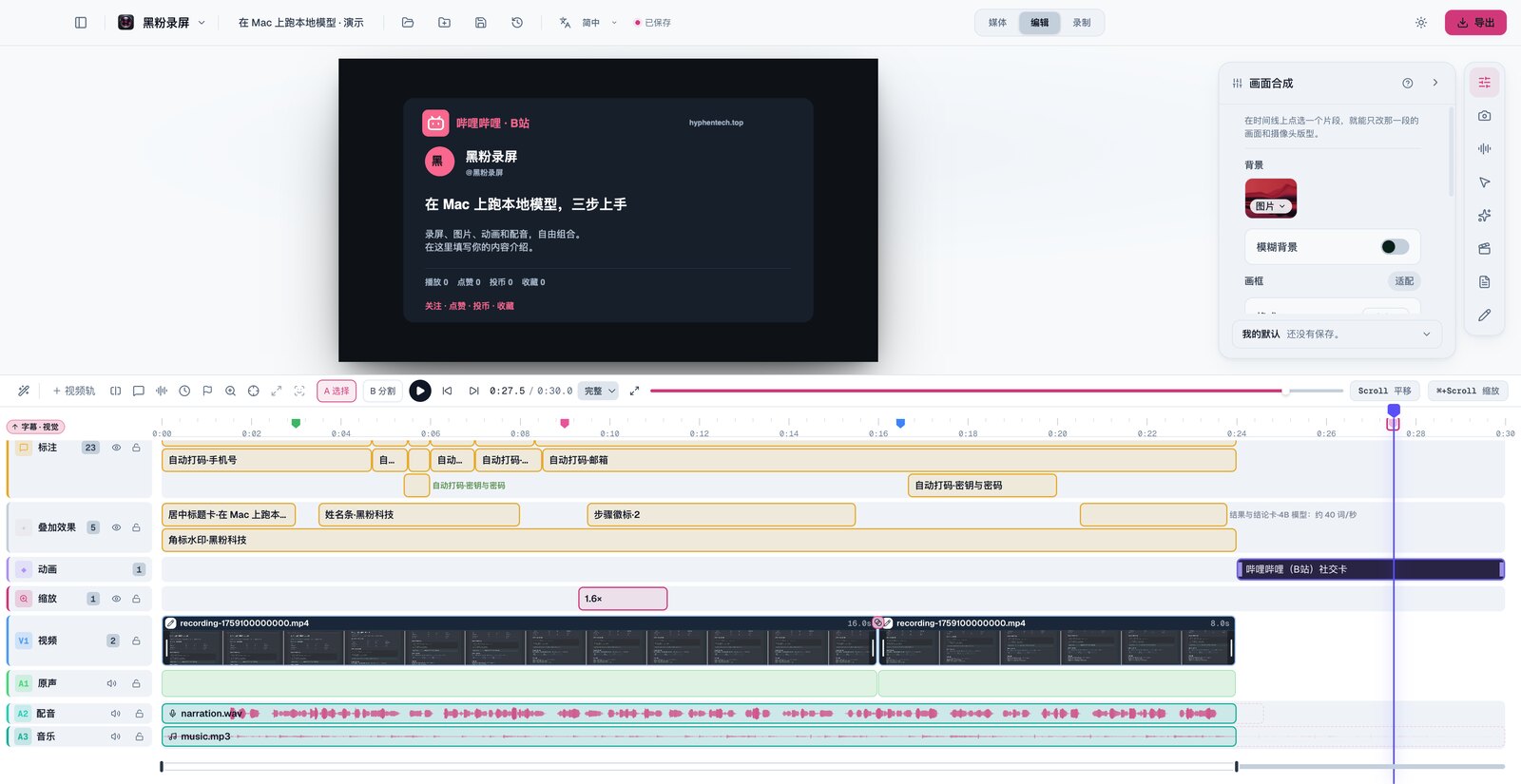
The editor’s timeline is arranged according to DaVinci Resolve’s track style: subtitles, annotations, zoom, video, original sound, dubbing, and music each each directly written as content. The most demanding tasks in post-recording are handled by the software for you first:
- Auto Enlarge: Recommends smooth zooming based on mouse position, with multipliers calculated according to the operating range.
- Auto Coding: Detects email, phone number, ID number, bank card number, key, and custom keywords on the screen, then wallpapers them; When zooming in, cropping, or switching to portrait, the coding box follows the text.
- Voice Isolation: Uses neural networks to remove noise from keyboards, fans, and other changes, so background music automatically avoids when speaking.
- Subtitles: Locally transcribed, line breaks according to Chinese words, and a word will not be split into two lines.
- Vertical Screen Highlights: A segment recorded in landscape mode is converted to 9:16, with software operations cropping according to mouse position, while the entire webpage and document are preserved.
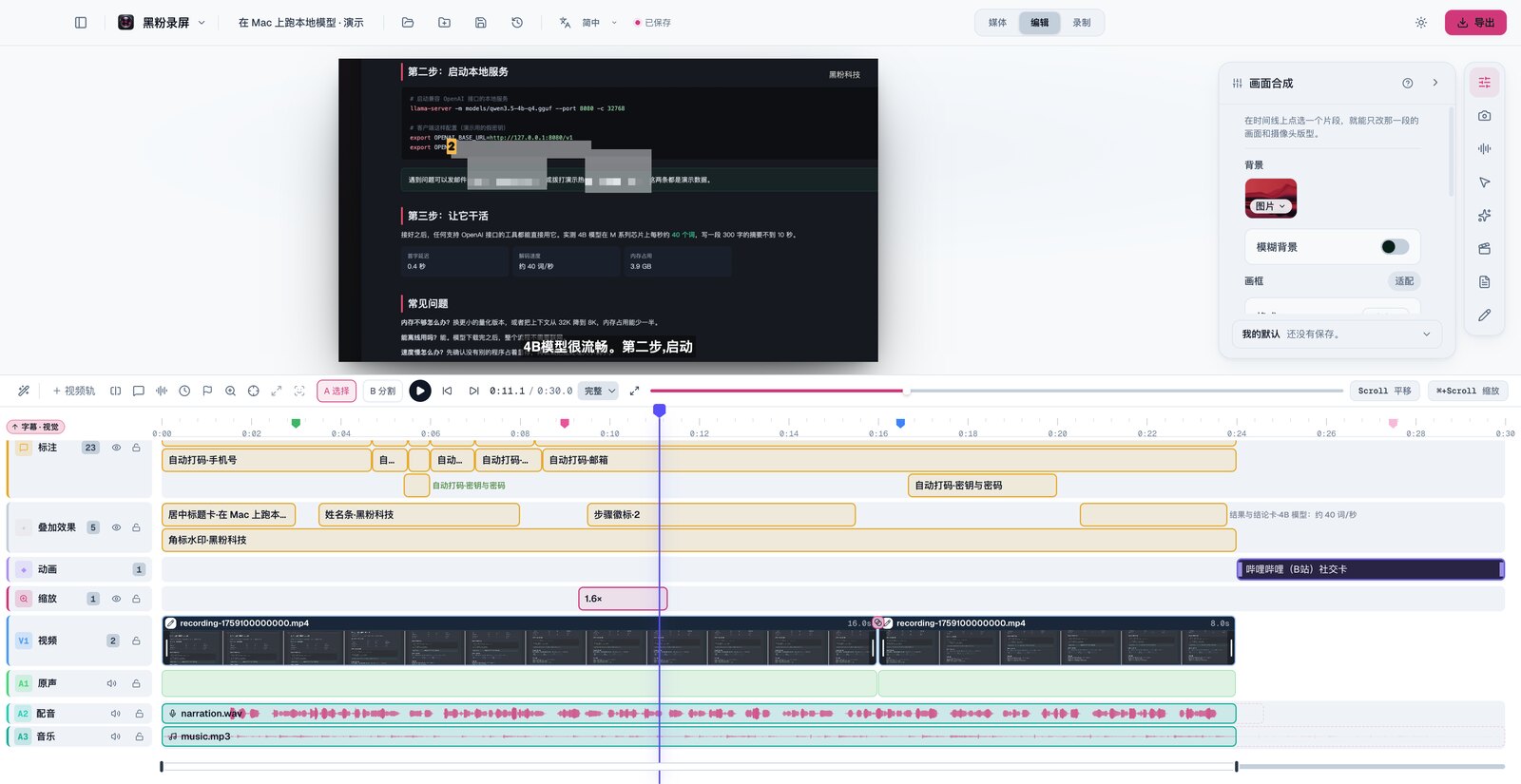
All these processes are done locally; screen recordings are not uploaded. HyphenCut also brings in 13 text styles and 11 visual effects: large font heads, handwritten annotations, warm documentary, vignetting — each parameter can be changed. Each modification is immediately written to disk, and the entire project version is saved by time; if the cut is damaged, it can be returned to any version.
Automated AI Editing: Say a word, and it will cut for you
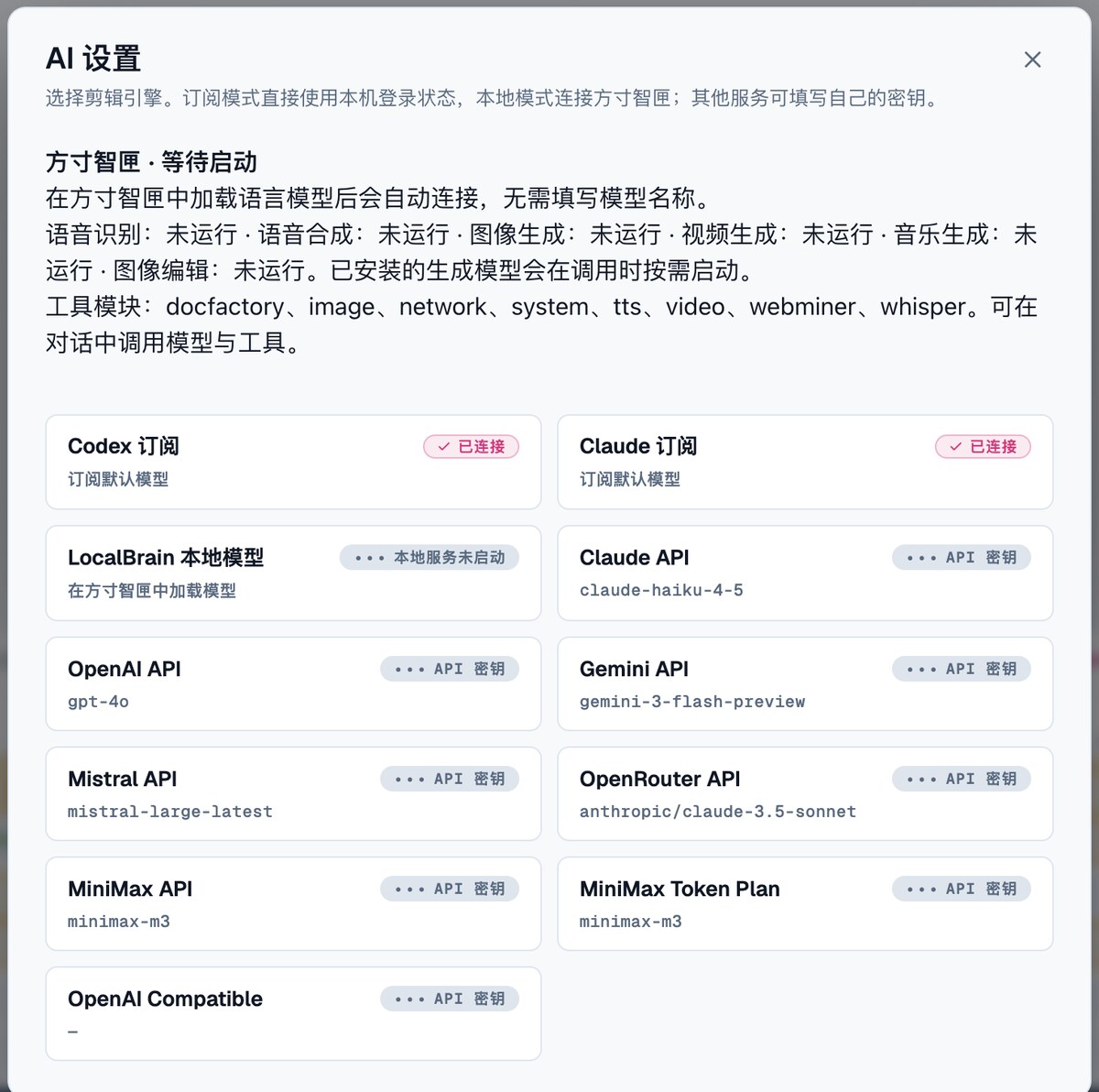
To the left of the editor is the AI chat panel. The editing engine can be selected as either a Codex subscription or a Claude subscription, directly using subscriptions already logged into on the machine without entering API keys; You can also select local models from LocalBrain or enter your own key to connect to services like OpenAI, Gemini, OpenRouter, MiniMax, etc.—a total of 11 options.
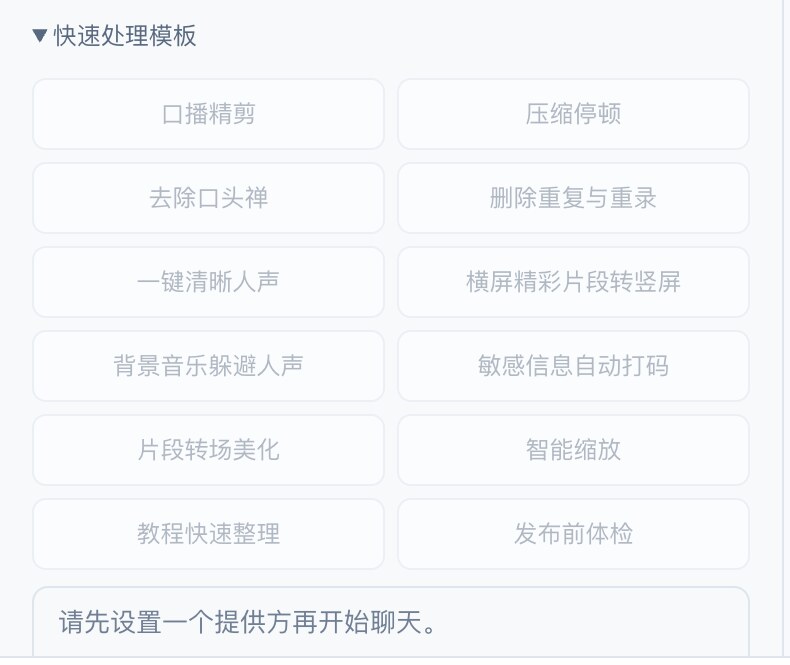
It can do more than just chat. Behind the panel are 88 editing tools: cut, audio, subtitles, transitions, blurring, zooming, marking points, templates, animation, export, finished video checkups. Any manual operation in the editor has corresponding tools. Changes appear in real time on the timeline and can be undone just like manual operations. If you’re too lazy to type, just click on the 12 ready-made templates below, such as “Voice Clip,” “Compression Pause,” “Quick Tutorial Summary,” and “Pre-Publish Checkup.”
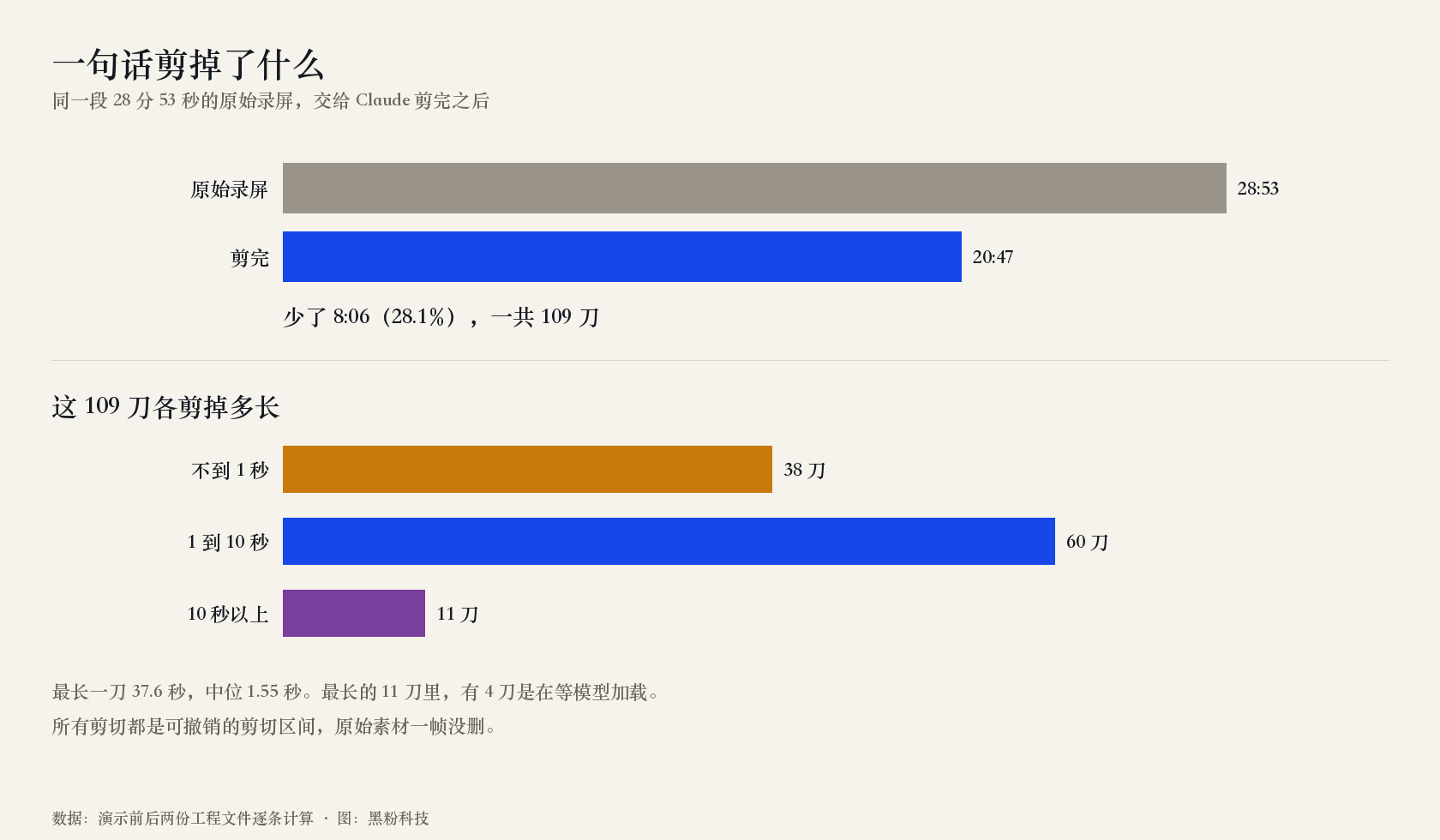
If it works, try a real screen recording. On September 27, I handed Claude a 28 minutes and 53 seconds uncut screen recording and said just one sentence: “Help me cut this recording clean: remove long pauses, catchphrases, and places where you say the wrong thing and start over. After cutting, save a copy.”
**After 124 seconds, it cut 109 cuts, and the length increased from 28 minutes 53 seconds to 20 minutes 47 seconds, losing 8 minutes and 6 seconds. **This number wasn’t reported by the company itself; I recalculated each of the two engineering files before and after editing. The longest cuts cut out the gaps I took while recording the screen while waiting for the model to load; Each cut was a reversible cut interval, and the original footage wasn’t deleted at all. This round was converted to $0.34 per API price. If you don’t pay for subscription, it counts toward your subscription usage.
The second sentence told me to export and perform a check. A 20 minutes 49 seconds of 1080p finished video, exported in 224 seconds, about 5.6 times longer than the live playback. During the checkup, I recognized the text frame by frame and found two sensitive pieces I hadn’t seen myself: a suspected key and a string of digits recognized as bank card numbers. Additionally, a 2.4-second frame freeze and a 3.5-second residual mute were reported, with low volume (−23.7 LUFS), at most 3.7 dB, and above the peak, the wave clipping.
No one states at the corner of the screen when recording; tokens flashing by in the terminal are easy to miss when reviewed, and once sent, they can’t be retrieved. **Just finding this key segment makes the physical exam worth doing every episode. **
If you’re used to working in Claude Code, Codex, or OpenCode, you can also connect them directly into HyphenScreen: the external interfaces provide the same set of tools, plus read, save, undo, and redo, totaling 92 files. It’s worth noting that the above edit numbers were tested in 0.4.47; Later versions added tools like transcribing words and splitting original audio, but I didn’t rerun the same recording on version 1.0.7; this number only represents that one.
Built-in animations: 368 animations, export just by modifying the text
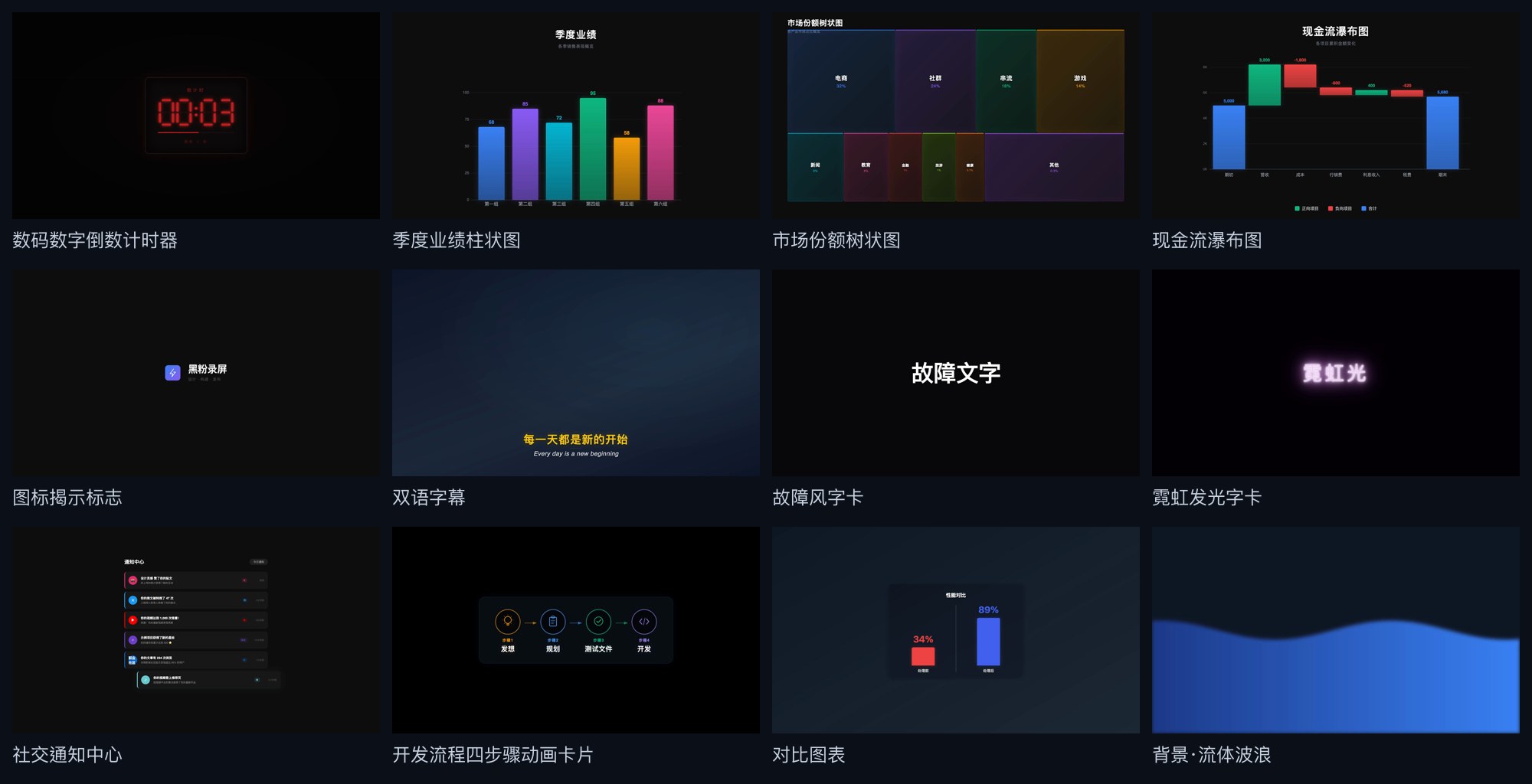
HyphenScreen has an independent animation track: animations generate their own visuals, no video is needed, and screen recording and dubbing can be placed on the same timeline. The asset library now contains 368 native animations migrated from web animations, plus 16 built-in presets and a self-media platform card; Text, color, and keyframes can all be changed, exported without going through a browser.
The most commonly used is the post-credits follow card. In this version, I turned 17 domestic and international platforms into a single “self-media platform” card: insert it into the timeline, switch to the platform at the top of the animation panel, switch to the platform in the pull-down menu, and change the logo, color, and interactive copy accordingly. Keep your changed account, title, and data exactly as they are, and keep the clips on the timeline.
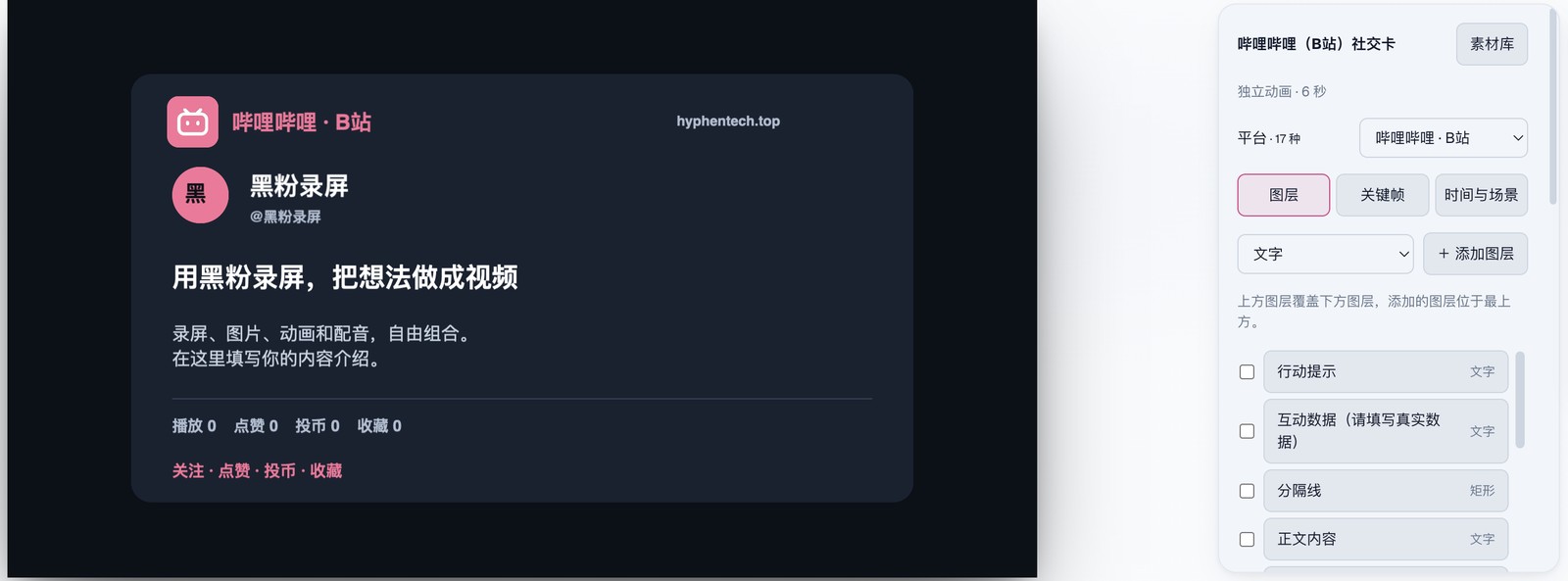
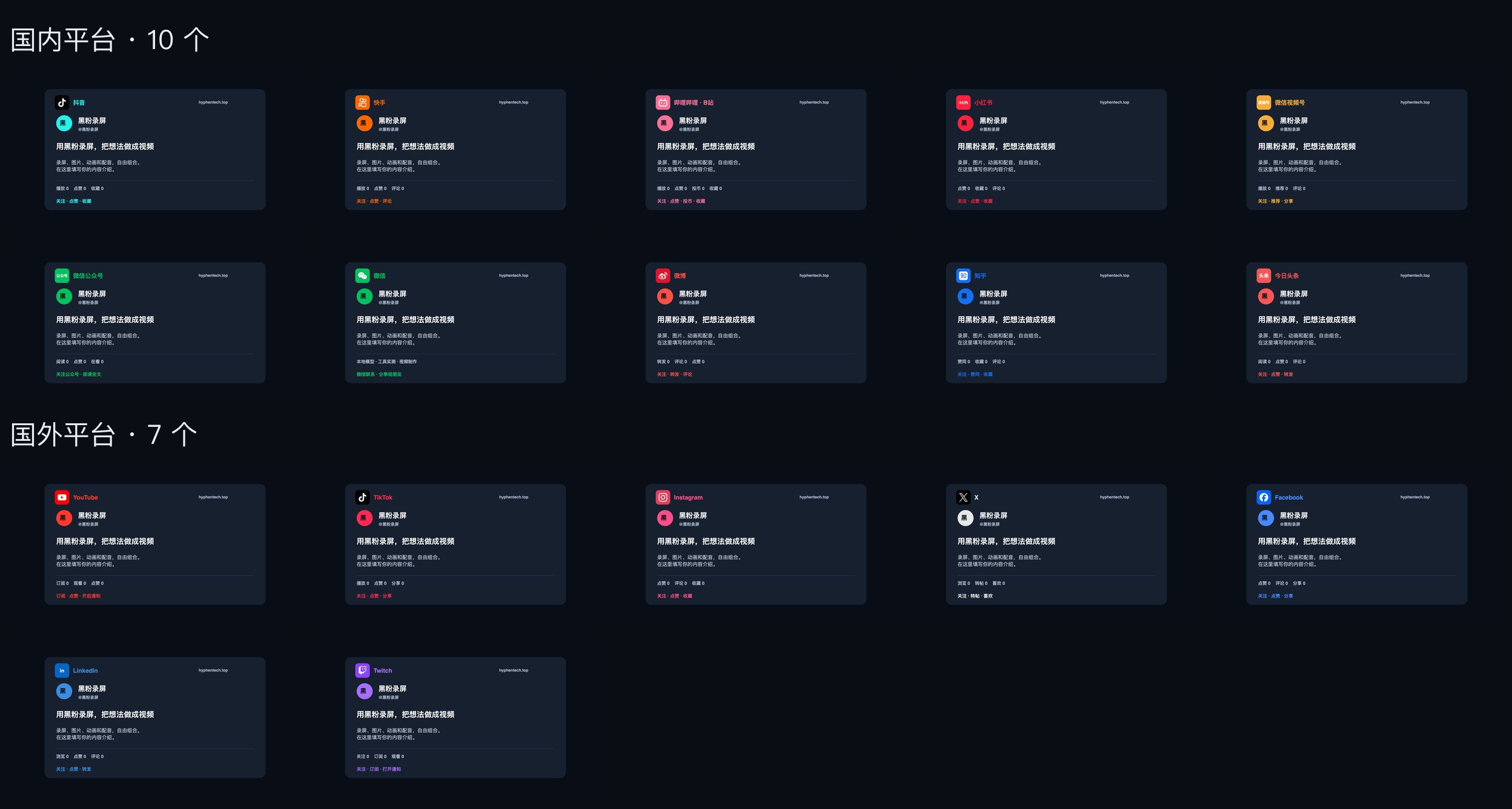
- 10 domestic platforms: Douyin, Kuaishou, Bilibili, Xiaohongshu, WeChat Video Channels, WeChat Official Accounts, WeChat, Weibo, Zhihu, Toutiao
- 7 abroad: YouTube, TikTok, Instagram, X, Facebook, LinkedIn, Twitch
The image below is exported from freshly installed 1.0.7: I used the editing interface for the version installation interface to insert 18 cards, cut out 17 platforms one by one, changed the title on the last one before switching to YouTube, saved the video, and exported a 108-second 1080p video. 3240 frames took 12 seconds, about 9 times the live playback; frame by frame decoding was normal, and the changed title remained after switching. The graphic logos for the 13 platforms come from the open-source icon library Simple Icons (CC0 license). Text logos are used for Video Channels, WeChat Official Accounts, Toutiao, and LinkedIn, all loaded offline without connecting to the internet.
The same approach applies to the entire animation library: for animations of the same type but differing style, just list one card, insert it, and switch under the “Styles” pull. There are 20 transitions, 14 logo animations, and 13 word cards—a total of 23 groups and 214 items. The library has grown from 437 cards to 246, making it much easier to find. By searching for a specific title like “Official Account,” you can also directly find the cards you belong to.
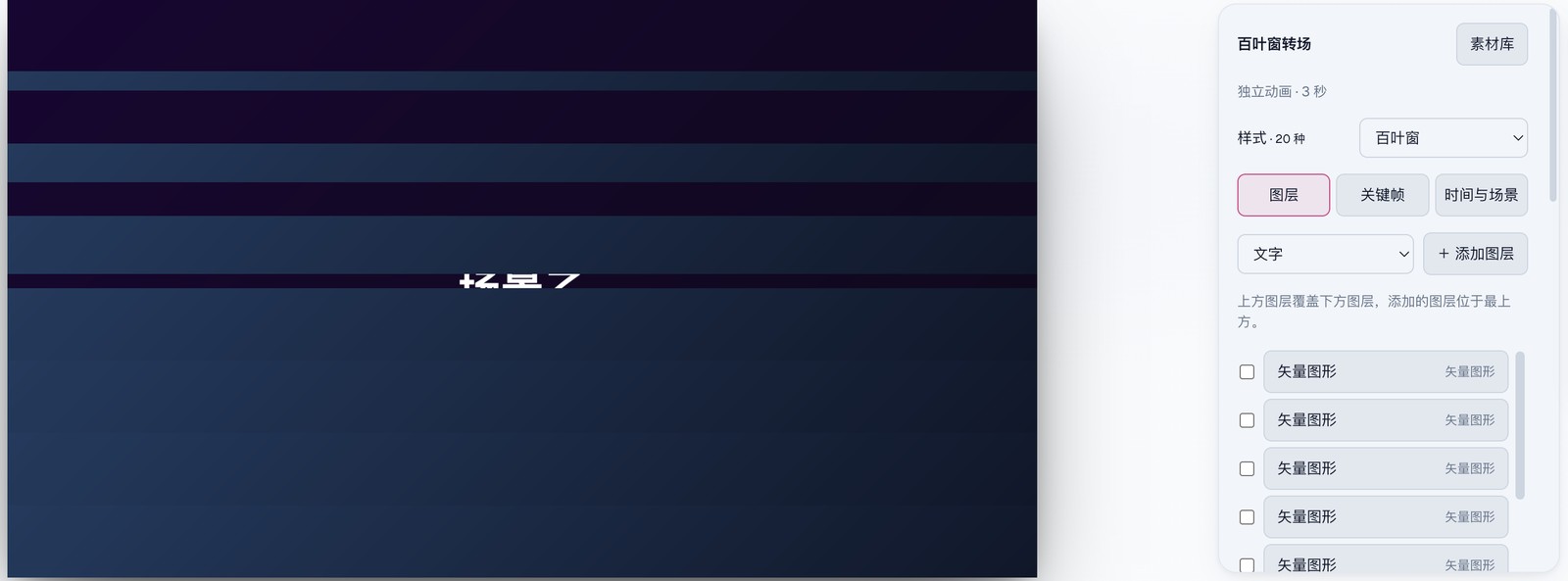
Animation can still be left to AI. For example, “Replace the TikTok card with YouTube at the end,” it will call the “Style Switch” tool to replace it on the spot, keeping the altered text as is.
Before each animation is imported, there must be a frame-by-frame comparison: every frame from the original in the browser and every frame exported from HyphenScreen, with an average frame difference not exceeding 1.5 (each color channel is 255). The 8×8 and 32×32 small segments also have limits; if one frame fails, it won’t be stored. All 42 new frames added this round were added this way.
It didn’t do it
- Chinese Catchphrases Can’t Be Cut Clean: ‘Remove Catchphrases’ only cleans up the individually positioned ‘um’ and ‘uh’, and the ‘this’ embedded in the sentence doesn’t move. In the September test, ‘this’ appeared 132 times in transcription, not a single part was cut; Even if a sentence is mispronounced or redone, you have to rely on the model to read and transcribe it. It’s more reliable to review it yourself.
- What does AI editing cost: The subscription mode counts up the Codex or Claude subscription quota; Local models don’t cost money, but they consume memory. Transcribed text will be sent to the provider you select; selecting local models won’t leave the native system. When using Claude subscriptions, a single round lasts up to 5 minutes and costs up to $4; if exceeded, it stops; It is recommended to keep Claude Code’s permission mode as default and avoid skipping confirmation globally.
- Animation isn’t even missing a single pixel: After frame by frame comparison, there are still subtle differences in the font edges. Out of 607 reference animations, none have achieved pixel-by-pixel consistency; Another 8 animations that didn’t pass comparison were not included this time, and effects like 3D and physical particles haven’t been transferred yet.
- Main focus is Mac: Windows and Linux installation packages are built in the cloud and haven’t been verified on real machines yet; Linux does not support box selection. macOS packages are signed with local certificates and not notarized by Apple. The first time you open them, they’ll be blocked. You need to right-click and select ‘Open’ in ‘Apps’; Windows packages aren’t signed, and when SmartScreen prompts, click ‘More info → but it still runs.’
Whoever it suits you
Suitable for: People recording tutorials, demos, or speaking videos, especially those who need to post on multiple platforms in the same episode. Recording, editing, blurring, subtitles, and ending credits are all done in one software, then the pauses are handled by AI, and before publishing, let it review the process. Not suitable for now: Professional post-production tasks like color grading of logs or green screen keying, those needing 3D effects, and those mainly selecting and recording on Linux.
The software is free, ad-free, and the installation package is publicly available on the download page. The macOS version only supports Apple chips. What you pay for is the AI part: subscription quota or local model memory. The easiest way to get started: choose the editing engine, record a segment, click “Voice Clip Editing,” then “Pre-Publish Checkup” before exporting, insert a self-media platform card at the end, switch to the platform you want to post, and fill in the account and title only once.
📚 Source
- HyphenScreen Download Page (HyphenScreen-Releases, 1.0.7, 2026-10-03): https://github.com/HackerChi-Hub/HyphenScreen-Releases/releases
- HyphenScreen Initial Introduction (HyphenTech, 2026-09-16): https://hyphentech.top/hyphenscreen-local-screen-recorder/
- Simple Icons 16.33.0 (platform logo source, CC0 1.0): https://simpleicons.org
- Acceptance record for this issue: 2026-09-27 Two copies of the project from the editing test (0.4.47) and the original claude CLI output, the 1.0.7 installation platform card export report, and frame-by-frame comparison evidence: retained locally, not publicly disclosed
🧰 Tools I build
I maintain all of these tools myself. Preview builds are clearly labeled; the release pages are the source of truth for downloads, updates and known limits.
Info: HyphenBox Status: Official releases
A radar for free LLM APIs: availability is re-tested continuously, one local interface for all of them, and keys stay on your machine
Info: LocalBrain Status: Official releases
A multimodal MCP toolbox for local models: TTS, Whisper and video generation in one place
Info: ScreenLex Status: Official releases
Learn new words while you watch shows. Free, for Mac and Windows
Info: HyphenScreen Status: Official releases
Screen recording and smart editing in one: a DaVinci-style timeline, automatic redaction and a check of the finished video before export. Free
Quote: HyphenTech Make AI your superpower Local deployment · Free resources · Self-made software https://hyphentech.top
Late nights and burned API credits went in,a cup of tea comes back out — only if you feel like it.
Scan with WeChatPress and hold to save the image, then open it from your album in WeChat Scan

Comments
Loading comments…