

Info: Machine translation This post was machine-translated from the Chinese original. Wording may be rough in places — the Chinese version is authoritative.
Summary DeepSeek Harness mobile remote control tool: From download to external network pairing, it clearly explains actual usage and acceptance results. HyphenTech · 2026-10-23
The AI on the computer is editing code and running tests, and I want to know how far it will go after leaving. I open a chat window again on my phone, but the previous tasks, files, and execution logs can’t be connected. What I need is to return to the ongoing work on the computer, check the progress, and continue to explain requirements if necessary.
The gadget I’ve put together this time is to add a mobile access entry to DeepSeek Harness. The computer handles the model and execution; the phone uses a browser to view the original session and send messages, without installing a separate mobile app. It’s already being deployed, and my phone can access and see the original session via the external network; Another independent web inspection also actually received a response from the model.
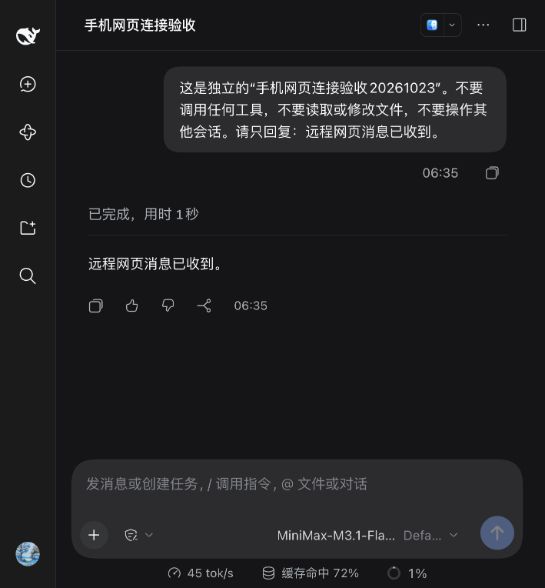
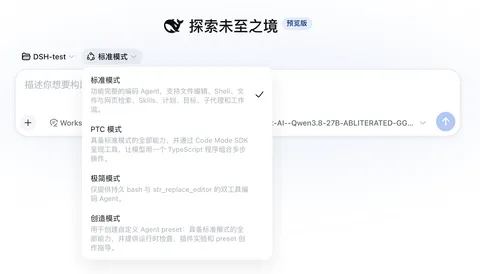
The image above shows independent web acceptance using the MiniMax model selected at the time; a simple reply display takes 1 second. Here, we look at whether remote messages can be delivered and replies can be returned; The speed of complex tasks is still determined by the original computer, model, and network. Harness can be configured with different models; the tool name includes DeepSeek, but that doesn’t mean it can only use the DeepSeek model.
First, let’s talk about whether it’s worth installing
If you’re already using Harness on your computer and often need to leave your desktop, this entry point is very useful: it keeps the computer running so you don’t have to stay in the window all the time. If you only ask a couple of questions or haven’t run Harness yet, it’s easier to use the local version first.
| Project | The actual situation of this tool |
|---|---|
| Names and versions | DeepSeek Harness Private Remote Management · 0.1.0 Preview |
| Purpose | The phone logs into the Harness webpage and the original session on the original computer |
| Form | Chinese menus and command-line portable tools, no third-party operation dependencies |
| Reveal the carrying bag | ZIP, 35,299 bytes, approximately 35 KB |
| Operating prerequisites | Node.js 22 or above; The computer already has an official Harness that works properly |
| Platform | Provides macOS, Windows, and Linux inputs; actual acceptance is detailed later |
| Cost boundaries | The portable bag can be downloaded for free; Model quota is not included; the original interface and network services are used according to their respective plans |
It’s an auxiliary tool I compiled separately, not an official DeepSeek mobile app. The package also doesn’t include Node.js, models, Harness main program, or certificates. The so-called about 35 KB refers to the publicly available connection and management scripts, which can’t be directly compared to the installation size of a full client. The development repository remains private, and the public package only includes runtime files and user instructions; Downloaders can view the runtime scripts in the package.
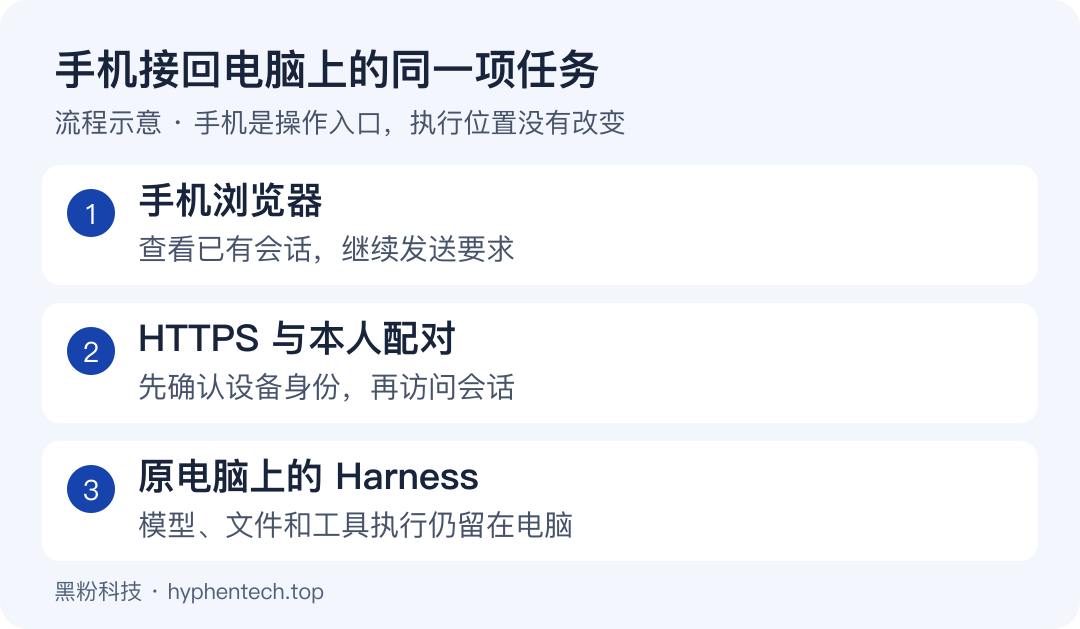
You can think of your phone as connecting back to the same WeChat chat: after changing the device, the original chat is still there. The computer actually performing the task here hasn’t been changed. The computer must stay on, and Harness and model services must be available; When the phone is offline, the tool will not resubmit the previous request for you. Running and resuming the original task is still handled by Harness.
Download entry and pre-construction preparations
Get these three ready: the official harness, Node.js, and this remote portable bag. If you can already have normal conversations on your computer webpage, you can start directly with the portable bag; Don’t download an existing model again just for remote access.
- Official Harness: Project and Installation Instructions——The main program is from DeepSeek’s official source. First, confirm that the device can send and receive messages normally.
- Node.js: Official Chinese download page — Choose the long-term support version suitable for your system and confirm it meets the requirements of 22 or above.
The official current README provides the webpage launch method as follows. The first run will follow npm’s normal process to obtain the main program; You also need to complete the model and usage environment configuration according to the official interface. Those who have already installed it can continue with the original startup method; there is no need to create a separate instance just to copy this command.
npx @deepseek-ai/dsh web
After installing Node.js, reopen the terminal and run the following check. If you see a v22 or higher version number, continue; If it says the node cannot be found, first handle the runtime environment; subsequent menus also depend on it.
node --version
- Remote Control Tool 0.1.0: Public release page and version notes.
- Directly download the three-platform portable pack (ZIP).
- Download SHA-256 verification file.
- View the full instructions.
This is a standalone public download repository and does not require developer repository authorization. Select deepseek-harness-remote-0.1.0.zip, or click the ZIP direct link above; The automatically generated source code attachment on the GitHub page is just a snapshot of the repository documentation, not a running bag. Whether an international network is required to access GitHub downloads depends on your actual network environment.
After downloading, extract to a directory to be kept long-term: both the connector and the login auto-start will reference the location of the tool file. After installation, do not move it elsewhere. To verify the file’s completeness, run the corresponding system validation command in the ZIP directory and compare it with the adjacent .sha256 file; The file name must be consistent.
# macOS
shasum -a 256 deepseek-harness-remote-0.1.0.zip

# Linux
sha256sum deepseek-harness-remote-0.1.0.zip

# Windows PowerShell
Get-FileHash .\deepseek-harness-remote-0.1.0.zip -Algorithm SHA256
The SHA-256 of the portable bag revealed this time:
b46203a7721a15a412d2392bd5018bd3dec006b098f043bac1fefbef3dfbe6e0
Step 1: Open the menu corresponding to your system
| System | How to open it | Double-tap when it hasn’t started |
|---|---|---|
| macOS | Double-click manage.command in the extracted directory | Run sh manage.command in the terminal of that directory |
| Windows | Double-click manage.cmd | Run .\manage.cmd in PowerShell in that directory |
| Linux | Open the terminal in the extracted directory | Run sh manage.sh |
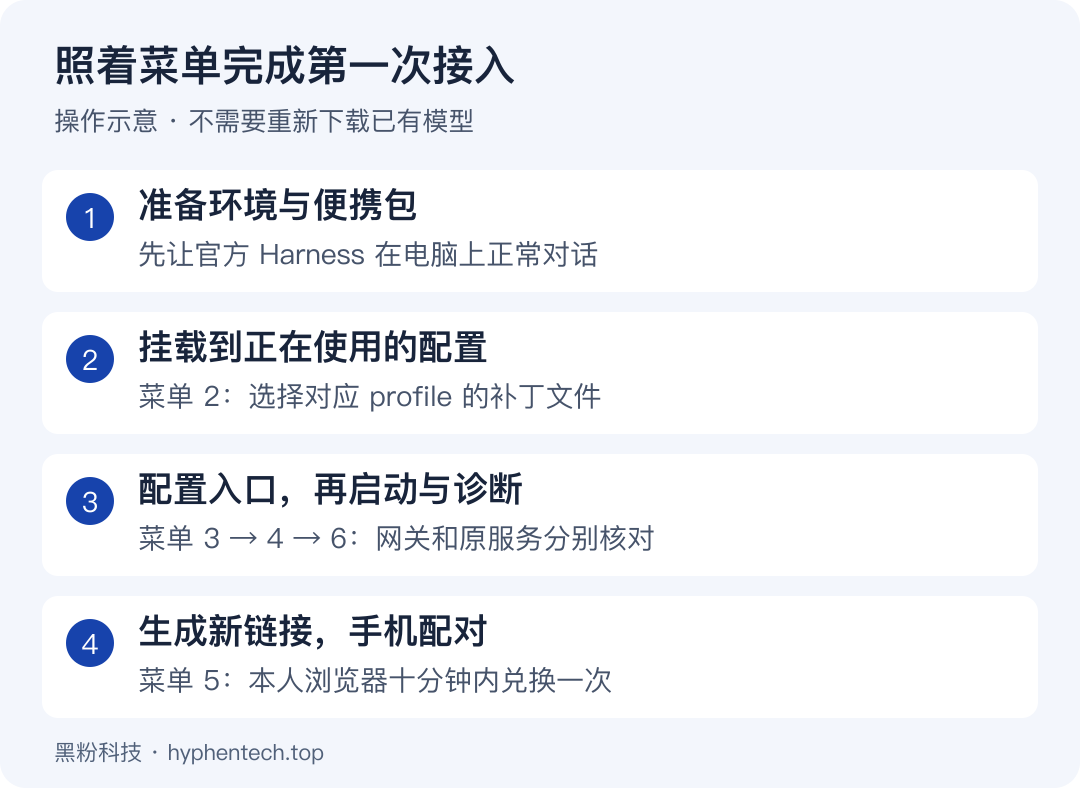
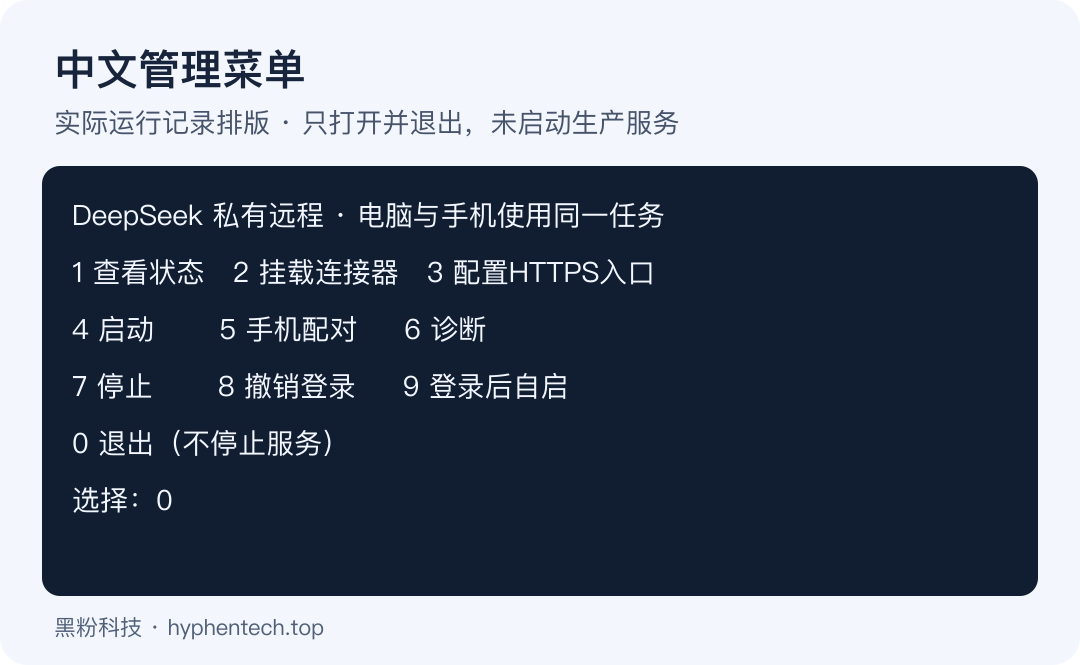
After seeing the Chinese menu, first identify the numbers you’ll use this time: 2 Mount connector → 3 Configure HTTPS entry → 4 Launch → 6 Diagnostics → 5 Phone pairing. The 0 in the menu is the exit management interface and will not close the background gateway.
The tool will create its own private state directory, save entry settings, match data, and logs. Do not share it publicly with the portable bag. If Windows is restricted by account permission policies, you should first check the corresponding directory and scheduled task permissions; do not use “full control by everyone” as a universal solution.
Step 2: Mount it onto the Harness you actually use
Enter 2 in the menu. The tool will list the configuration patch files found. You can select the number or fill in the full path of the actual file. The key is to select the one currently used by the Harness: the desktop and web profiles may each have their own configurations; write another configuration so that the running window will naturally not change.
The automatically searched locations include .dsh/profiles/desktop/cordis.patch.yml in user directories, dsh/profiles/web/cordis.patch.yml, and .dsh/cordis.patch.yml. When using custom directories, choose your own path; Do not mistake model configurations, certificate files, or entire folders for patch files.
This action only adds to the connector configuration and does not automatically start checking, resubmitting tasks, or restarting Harness. If the Host does not automatically load the new connector, wait until the current task is free and then restart the Host as before. If you have already mounted an old phone connector, the tool will prompt verification to confirm the migration method first, and do not overlay multiple configurations on the same device.
Step 3: Choose a network entry point that can truly reach the computer
Enter 3 from the menu to display three modes: Local only, existing HTTPS reverse proxy or private channel, and built-in HTTPS. ** “Local only” is suitable for checking the computer first; phones cannot access directly from the external network using this mode. ** The last two are the options you should choose based on your environment for remote use.
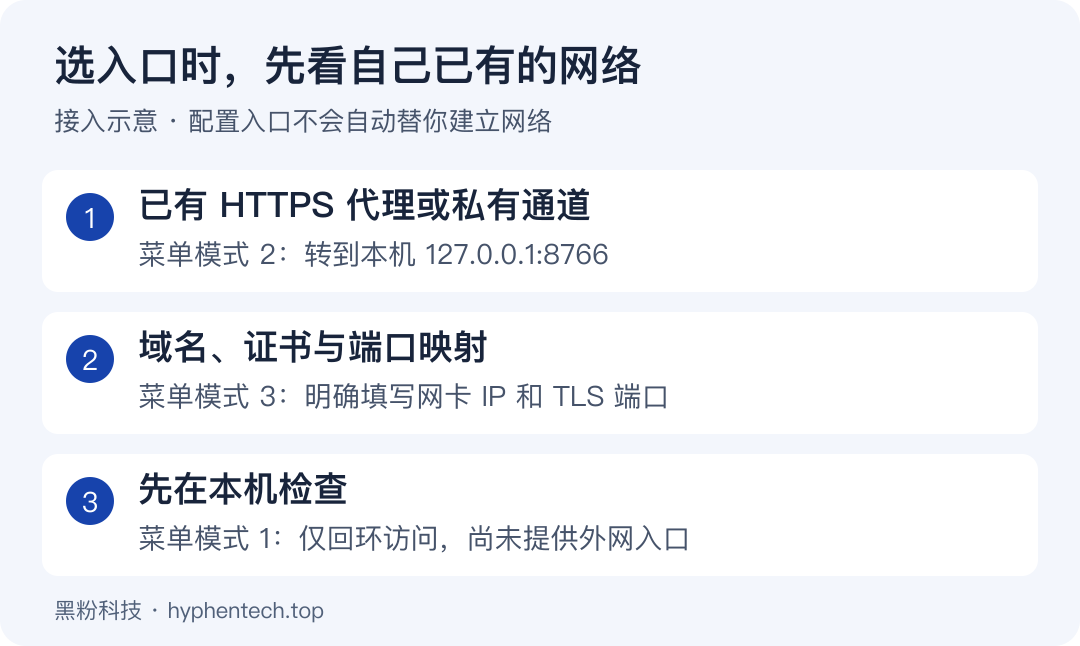
HTTPS reverse proxies or private channels are already available
In the entry mode, select 2 and enter the full HTTPS address you can already access. A reverse proxy is like a mailbox at the door: it first receives the browser request, then hands it over to the gateway on the computer. This solution sets the proxy target to http://127.0.0.1:8766, only connects to the remote gateway, and does not directly expose the original Host.
This version requires entry points to use the root path of a unique domain name; you cannot arbitrarily link them to the /deepseek/ subdirectory of a website. The proxy must also support WebSocket, retaining the browser’s Host, Origin, and cookies. WebSocket is used to continuously transmit new messages, such as maintaining the line after a call is connected; The homepage displaying does not mean the persistent connection is also configured.
Below is a Caddy configuration to illustrate the target relationship. remote.example.test is a placeholder domain and cannot be used directly. Only when you have installed and managed Caddy will you replace the domain domain with your own actual entry point and load the configuration according to the existing deployment method; These lines will not install a private channel for you.
remote.example.test {
    reverse_proxy 127.0.0.1:8766
}
Use router port mapping with built-in HTTPS
Select 3 in the entry mode. It is suitable for those who already have a domain name and valid certificate and are ready to map the designated port of their home computer. The menu will ask in order for the full HTTPS entry, local network card IP, HTTPS listening port, full certificate chain path, and private key path.
| Fill in the required information | How should this be verified? |
|---|---|
| HTTPS entry | The full address ultimately used by the browser; If using a non-default port, add : port |
| Local network card IP | The address of the computer that the router can reach; After switching networks, you may need to reconfigure the computer |
| HTTPS port | Select the free port and align it with the TCP forwarding target of the router |
| Certificate chain and private key | Using your own files, the certificate overrides the domain name you actually accessed and remains valid |
| DNS and firewalls | Domain name resolution is correct; Only access required for this entry is open |
For example, if you choose 19527, you need to check “Public TCP 19527 → the internal address of this computer: 19527” item by item, and the computer will also listen for the same target port. The port number itself has no special capability; switching to a free port is also possible. Domain name resolution, port mapping, and firewall release are three things: Having a domain name does not mean the request has been sent to the computer.
The HTTPS certificate is responsible for having the phone verify “is this address I want to connect to,” while the matching code is for the computer to verify “is the authorized phone I am authorized for.” This is like first finding the correct address and then using your own key to open the door; both must be valid. The tool checks whether the imported certificate matches the private key, whether the domain name is overridden and valid, and if it fails, it will not be converted to a public plaintext service.
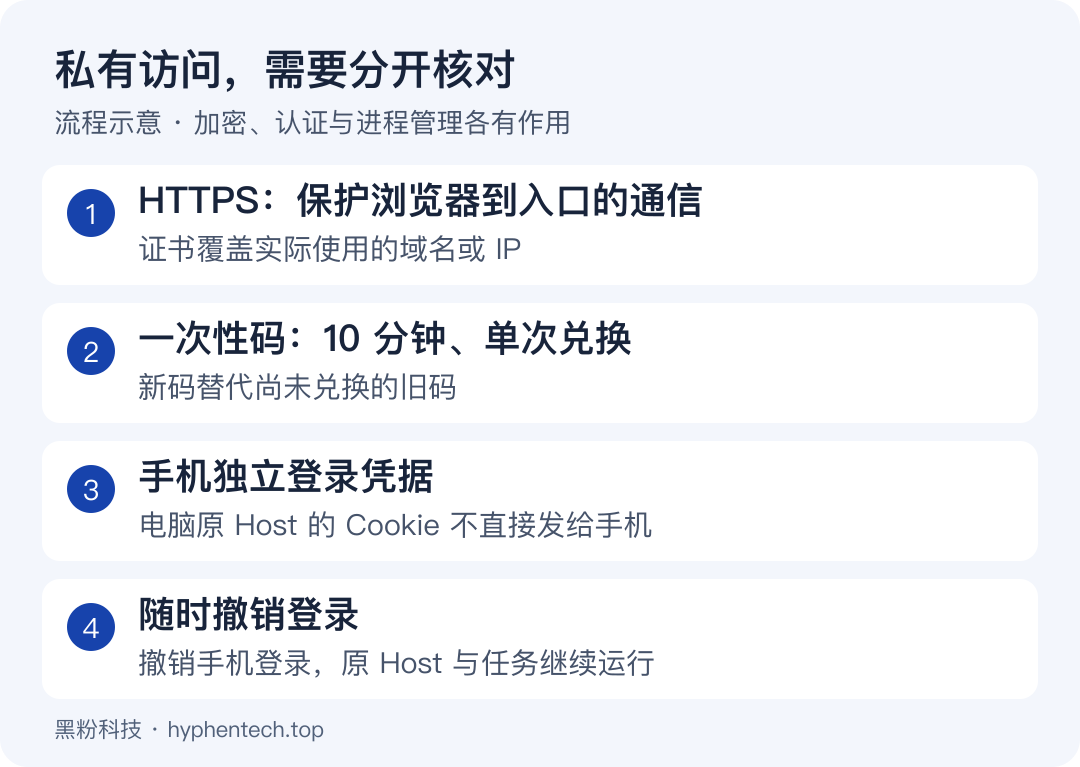
If you don’t have public network mapping conditions, you can first prepare a suitable private channel or HTTPS reverse proxy before using the previous solution. The tool will not automatically bypass the carrier’s network for you, nor will it modify your router, VPN, or firewall to pretend it is “connected.” Certificate application and renewal are handled by the original certificate management process.
Step 4: First diagnose, then pair with your phone
After completing configuration, enter 4 to start, then enter 6 to diagnose. Here you need to look at two results: first, the gateway service is running; second, the original Harness webpage has been successfully authenticated. The former only means the reception entrance is open, while the latter means the interface behind the entrance is connected to the original work environment.
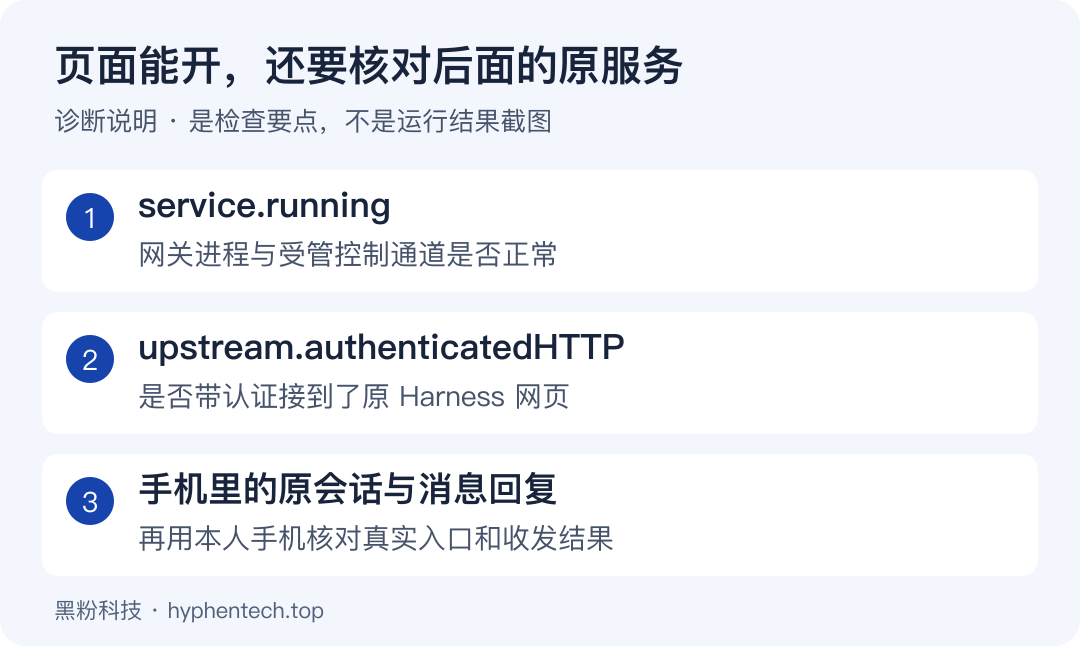
When using the command line, run the following two items in the tool extraction directory. Check ‘running’ in ‘status’; ‘Doctor’ further check ‘upstream.authenticatedHTTP’; it should be true when accessed normally. If the latter is false, first check whether the correct profile is mounted and whether the host has loaded connectors. Don’t rush to repeatedly pair them.
node bin/dsh-remote.mjs status
node bin/dsh-remote.mjs doctor
Then enter the menu 5 to generate the phone pairing entry. Open the tooltip for local “Phone Connection .html”, give the latest complete link to your phone, open it in the phone’s browser and click “Confirm Connection”. The link has a one-time matching code, valid for ten minutes, expires after one redemption; Do not put it in public screenshots, group chats, or tutorials.
For the first check, you can first check the home network confirmation page, then turn off the phone’s wireless network and reopen the same paired entry using the mobile network. Only if you can see the original session from the mobile network does it indicate that the external network route is available this time. This is about how readers should verify; This round did not list the long task recovery after the real phone switched to the internet as accepted.
After entering, first select a non-important test session and send “Reply only: Remote connection is normal, no tool called.” You can see the reply, then return to the original official task. When you need to adjust your work, clearly state “which task to continue, what to modify, and which to leave untouched.” The original Harness tool permissions and execution approval remain valid. The real tool approval process on mobile has not yet been individually accepted this round.
What did I actually measure?
During real access, the first problem encountered was that the page could open but pairing wouldn’t go in. At first, the phone reported that the pairing code was invalid; Later, when the server confirmed successful pairing, the browser still prompted source check and rejection. After fixing normal page navigation, my phone finally confirmed “Entered and can see the original session.” So acceptance shouldn’t stop at just one login page; you also need to continue checking session and send/receive results.

This time, the entire security check was not disabled: top-level navigation for entering the homepage and login page could continue, but write requests from other websites were still rejected. Persistent connection was also performed independently, and after eleven seconds of idleness, two-way sending and receiving were still possible. These checks supported access and transmission behaviors, not the model’s answering ability or all mobile network conditions.
| Actual test project | Results and boundaries |
|---|---|
| I accessed it via external internet on my mobile phone | You have entered, and it has been confirmed that the original session can be viewed |
| Independent web message sending and receiving | Actually submit a request and receive a model response; A simple reply is displayed in 1 second |
| The new temporary gateway connects to the real Host | After completing the pairing and loading the official webpage, the original service was not restarted |
| macOS programs return | 20 passed, 0 failed |
| Linux isolate container regression | 20 items passed, 0 failed; Does not replace native desktop acceptance |
| macOS login starts automatically | Complete installation, system boot, repeated reuse, reload, and remove; Log in again without actual logout |
| Windows and Linux native environments | Windows permissions, scheduled tasks and Host, and Linux login auto-start remain to be tested |
| Used for long tasks on mobile phones | Approval of genuine tools, network disconnection, and long-term restoration still require specialized acceptance |
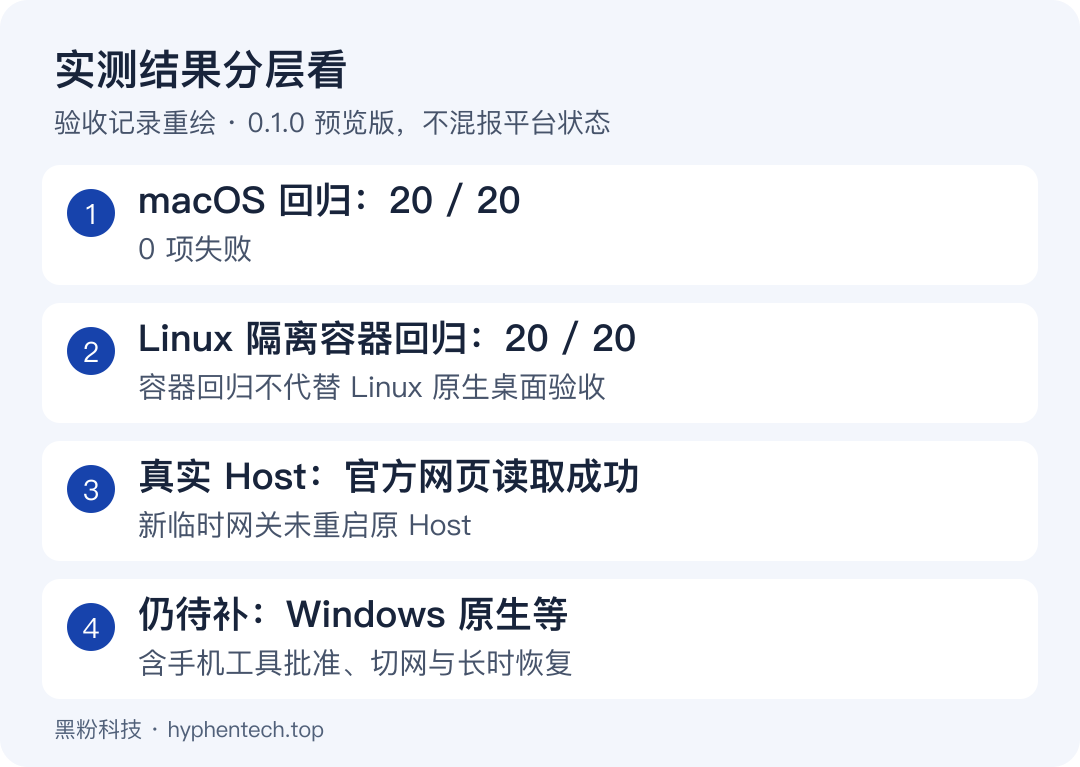
This public package removes development testing and workflows, supplementing reader-oriented instructions; 13 runtimes are consistent byte-byte with the tested versions mentioned above. The scope of the contract has been adjusted without adding new platform pass-through items. The three-platform startup script is already available, but at this stage it is more suitable for users who already have existing Harnesses and network access points and are willing to first complete small task confirmations.
Windows users should especially test according to their account permissions and not treat Linux container pass records as Windows running. GitHub’s automatic regression on the three platforms was previously not enabled due to account billing restrictions and was not counted as a pass.
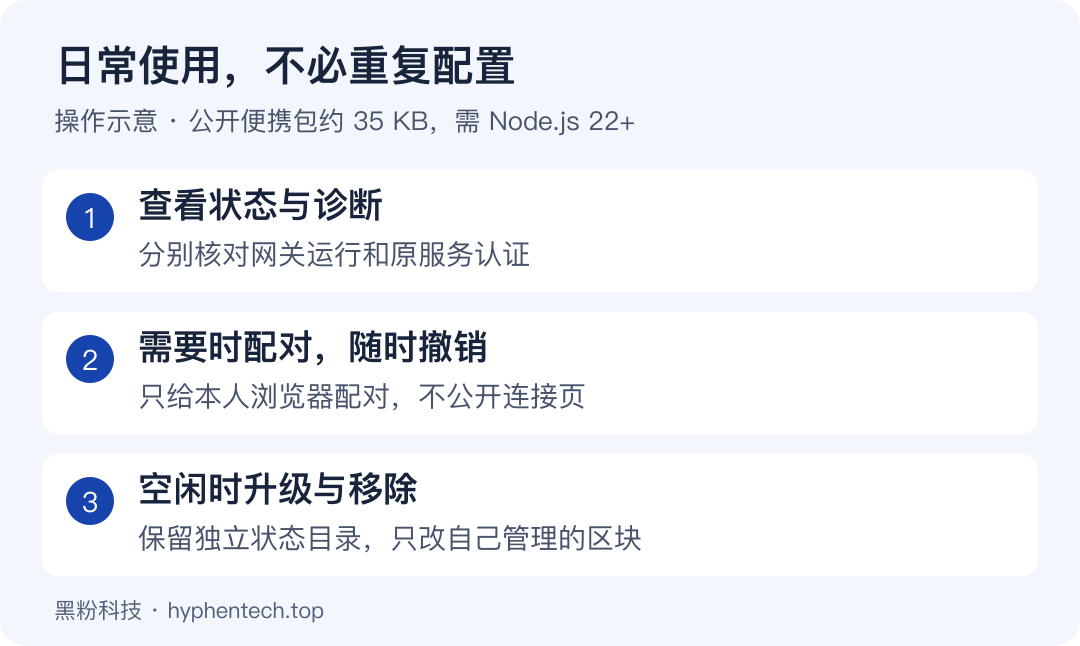
How do you manage, upgrade, and remove them in daily life?
After the first match, you don’t need to redo all steps each time. First, check the status and generate a new pairing code when connecting to a new browser; If your phone is lost, lent out, or suspects someone else has obtained the link, enter 8 in the menu to undo login. It will revoke all mobile browser logins and unredeemed codes, and the computer’s original tasks will continue to be managed by Harness.
node bin/dsh-remote.mjs status
node bin/dsh-remote.mjs pair
node bin/dsh-remote.mjs revoke
Enter 9 from the menu to choose to start automatically after logging in. macOS uses the current user’s LaunchAgent, Windows uses the current user’s scheduled tasks, and Linux uses the user’s systemd service; none of these proactively promote to administrator. Due to company computer policies and Linux environments without systemd, corresponding methods may not be allowed; In this case, manual startup is sufficient.
Enter 7 from the menu to stop this gateway; When already logged in on your phone, it will prompt confirmation first. Enter 0 to exit the menu, and the background will continue running. Restarting the gateway will repair the phone, so when the original task is running and the phone entry is still in use, don’t suddenly stop just to change files.
When upgrading, stop the tool when it is free, replace the original tool directory with a new file, keep the independent private status directory, then restart and re-pair. If even the tool directory location has been changed, first disconnect the connector and auto-start from the old position, then mount it in the new position to avoid the two positions occupying each other.
When you are no longer using it at all, run the following removal command in the original tool directory. By default, you disconnect the connector and start by login, keeping private data; The program only deletes the configuration blocks it manages, while later added user settings are retained. When a block is manually modified, it will require verification and will not fully overwrite the old file.
node bin/dsh-remote.mjs uninstall
If connection fails, investigate according to the symptoms
| Phenomenon | What to investigate first |
|---|---|
| The menu flashes and closes, or it prompts that there is no node | Reopen the terminal and check node --version; Check the error from the extraction directory running the corresponding entry |
| The diagnostic gateway is normal, but there is no original session | Check upstream.authenticatedHTTP; verify that the current profile and host have loaded the connector |
| The mobile page won’t open | Check DNS, router TCP mapping, computer listening address, firewall, and certificates separately |
| Prompt that the pairing code is invalid | Generate the latest matching page; Open the full link in the system browser that has not been redeemed within ten minutes |
| Prompt: Source verification failed | Verify the complete HTTPS entry point; Check if the proxy has overwritten Host or Origin, and do not disable the check as a safety net |
| The homepage can be opened, but new messages are not updated | Check for proxy WebSocket forwarding and read timeouts, not just test homepage HTTP 200 |
| Certificate expiration or domain name mismatch | First, the original certificate manager handles it, then updates the certificate file currently in use and executes reload-cert |
Whether the public account external link can be directly clicked depends on the platform and current display method; If the address appears in text, please copy it to the system browser for access. The blog text should retain clickable download and document entry points. When requesting help, only provide the desensitized diagnostic results, without matching full links, cookies, private keys, or real conversation content.
My current judgment about this tool is clear: it has solved the practical problem of “people wanting to continue watching the same task after leaving the computer”; The first configuration still requires you to have an accessible HTTPS network access. First, follow the tutorial to send and receive small messages without the tool, then hand over the official task to it, which helps you more quickly distinguish whether the problem is with the computer, network, or the pairing stage.
Official Public Deployment Instructions Can be used to further understand the original Host’s address announcements, trusted hosts, and TLS. The remote control tool in this article currently only supports root path entry; configuration should follow the requirements of this version of this tool.
Self-made software
Versions, changes and supported installers all come from the same public release records.
LocalBrain
A local AI toolbox for transcription, speech, images, video, and MCP tools. Features vary by platform version.
View public downloads and updates ↗HyphenBox
A free model API radar and local router, with ongoing availability checks and keys kept on your device.
View public downloads and updates ↗ScreenLex
Turn subtitles from your own films and shows into an English vocabulary library, entirely offline.
View public downloads and updates ↗HyphenScreen
Screen recording and editing with a Resolve-style timeline, automatic redaction and pre-export checks.
View public downloads and updates ↗Late nights and burned API credits went in,a cup of tea comes back out — only if you feel like it.
Scan with WeChatPress and hold to save the image, then open it from your album in WeChat Scan






Comments
Loading comments…