Info: Machine translation This post was machine-translated from the Chinese original. Wording may be rough in places — the Chinese version is authoritative.
[Let AI Be Your Superpower] Welcome to visit our website Website: https://hyphentech.top
After the channel was renamed “HyphenTech,” the first thing they did was create a brand-new set of assets: avatars, YouTube banners, Bilibili banners…
I don’t know Photoshop, nor do I install Figma. The whole process only used two things: Gemini (generate concept images) and ImageMagick (command-line cropping and compositing).
This article fully documents the entire process from AI-generated images to the implementation of materials across all platforms, including the pitfalls encountered along the way.
The final result
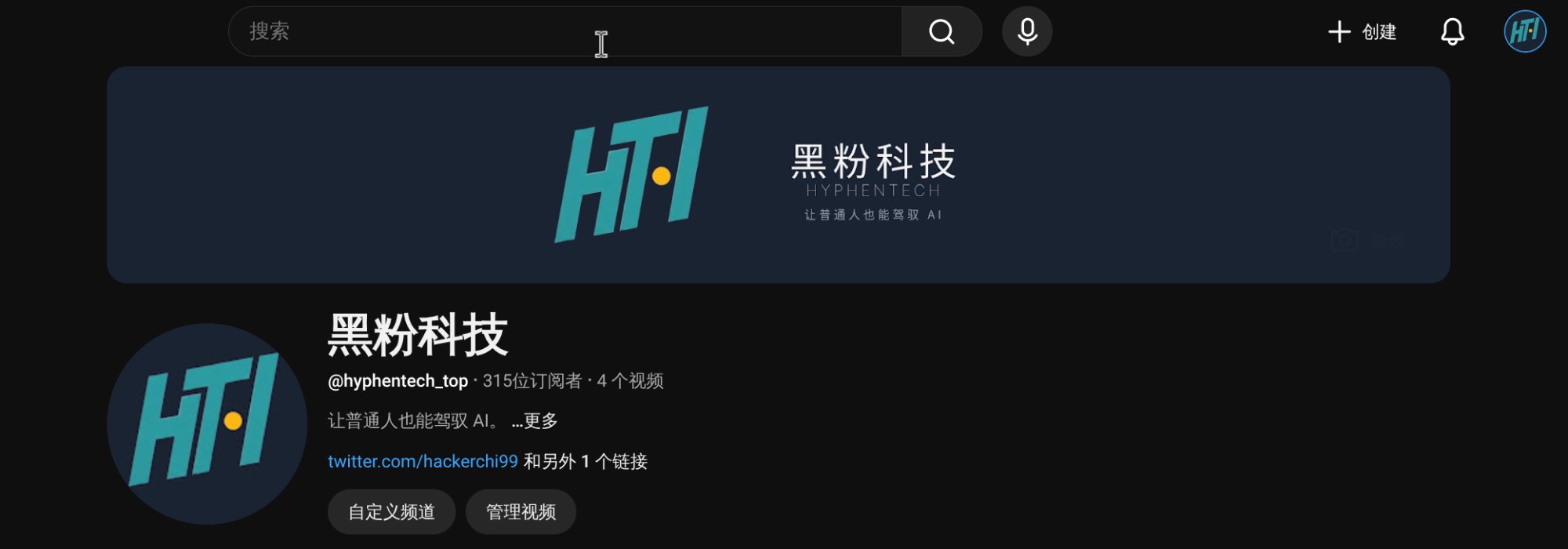
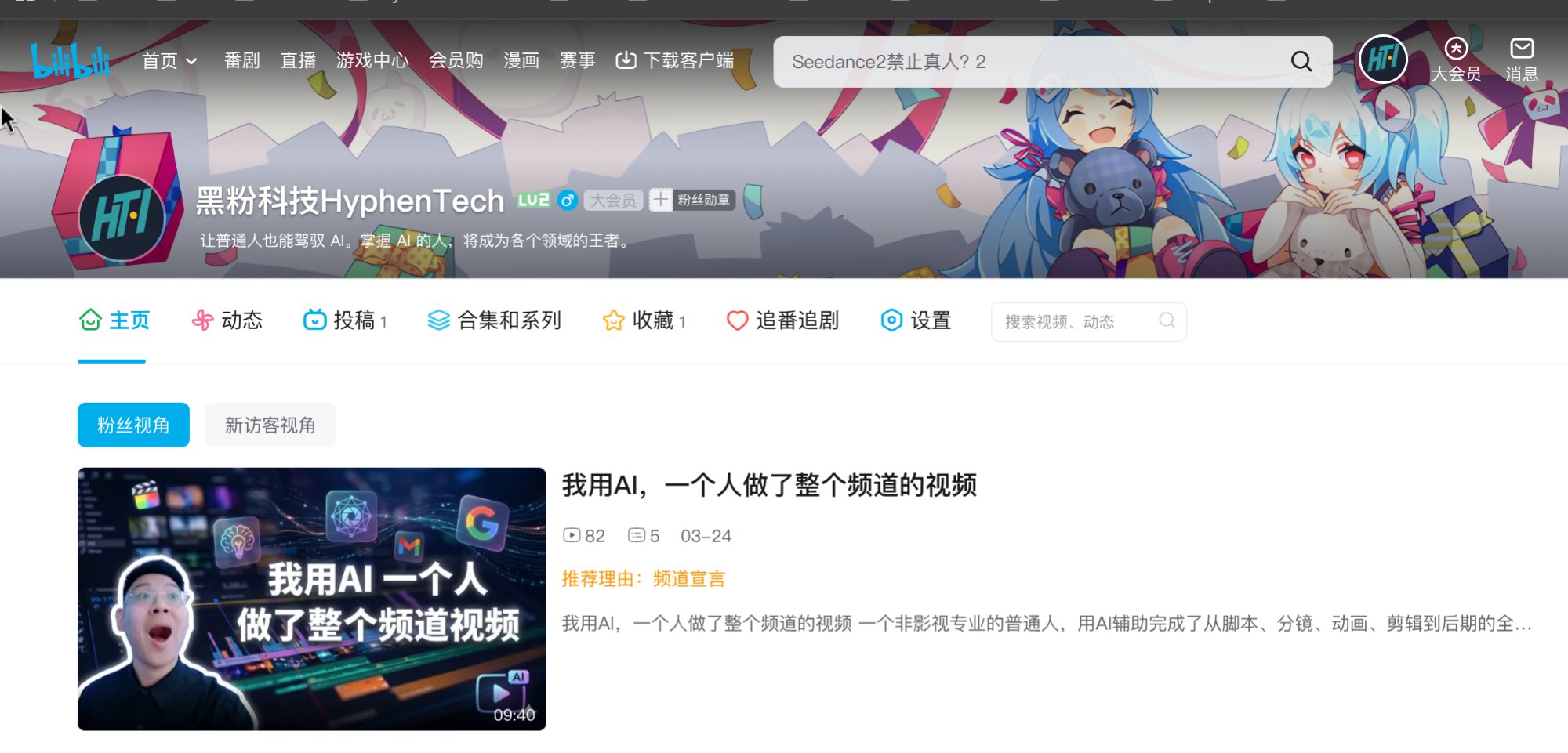
The final HTI logo has been deployed on YouTube, Bilibili, and WeChat official accounts, with the brand vision across all three platforms completely unified:
YouTube channel
WeChat public account
Bilibili
Final material file

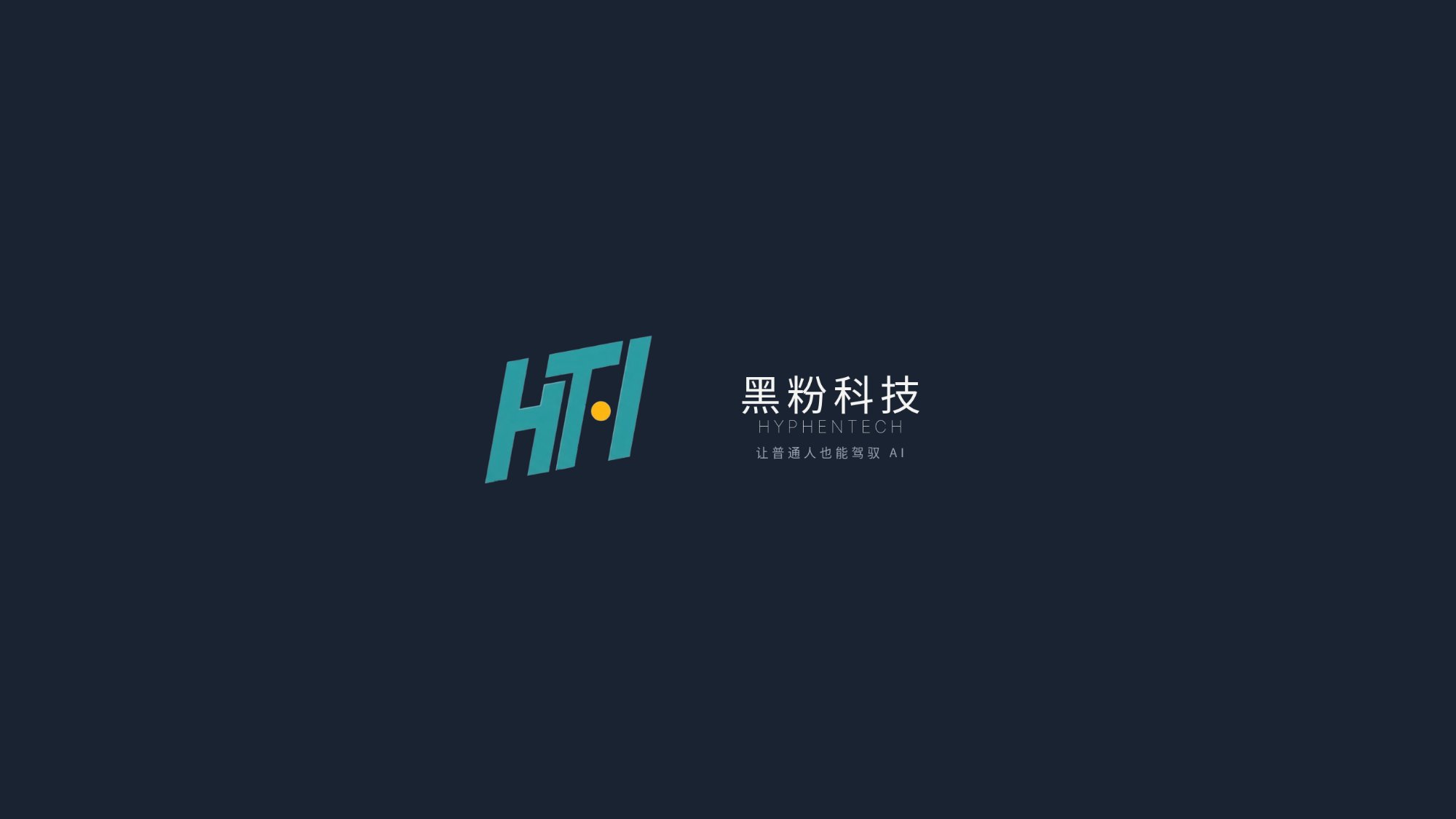
All are derived from the same AI-generated source image.
Step 1: Use Gemini to generate a logo concept image
Prompt
Here is a general tip for Gemini:
Design a modern, minimalist logo for a tech YouTube channel called "黑粉科技" (HyphenTech).
- Letters "HTI" as the main icon mark, styled as bold italic parallelograms (≈11° shear)
- Color scheme: cyan (#2DD4BF) for letters, amber (#FBAB18) dot between T and I
- Dark background (#1A2332)
- Clean, geometric, suitable for avatars and banners
Iteration process: Dozens of photos were produced, and only one was picked up
The biggest problem with AI-generated logos is uncontrollability. The same prompt runs ten times, resulting in ten completely different shapes.
I generated about **30+ **concept images, covering various variants—some with incorrect letter proportions, some with steep tilts, and some with a cartoonish style. In the end, I picked out the one whose shape most closely matched the expected image as the source image.
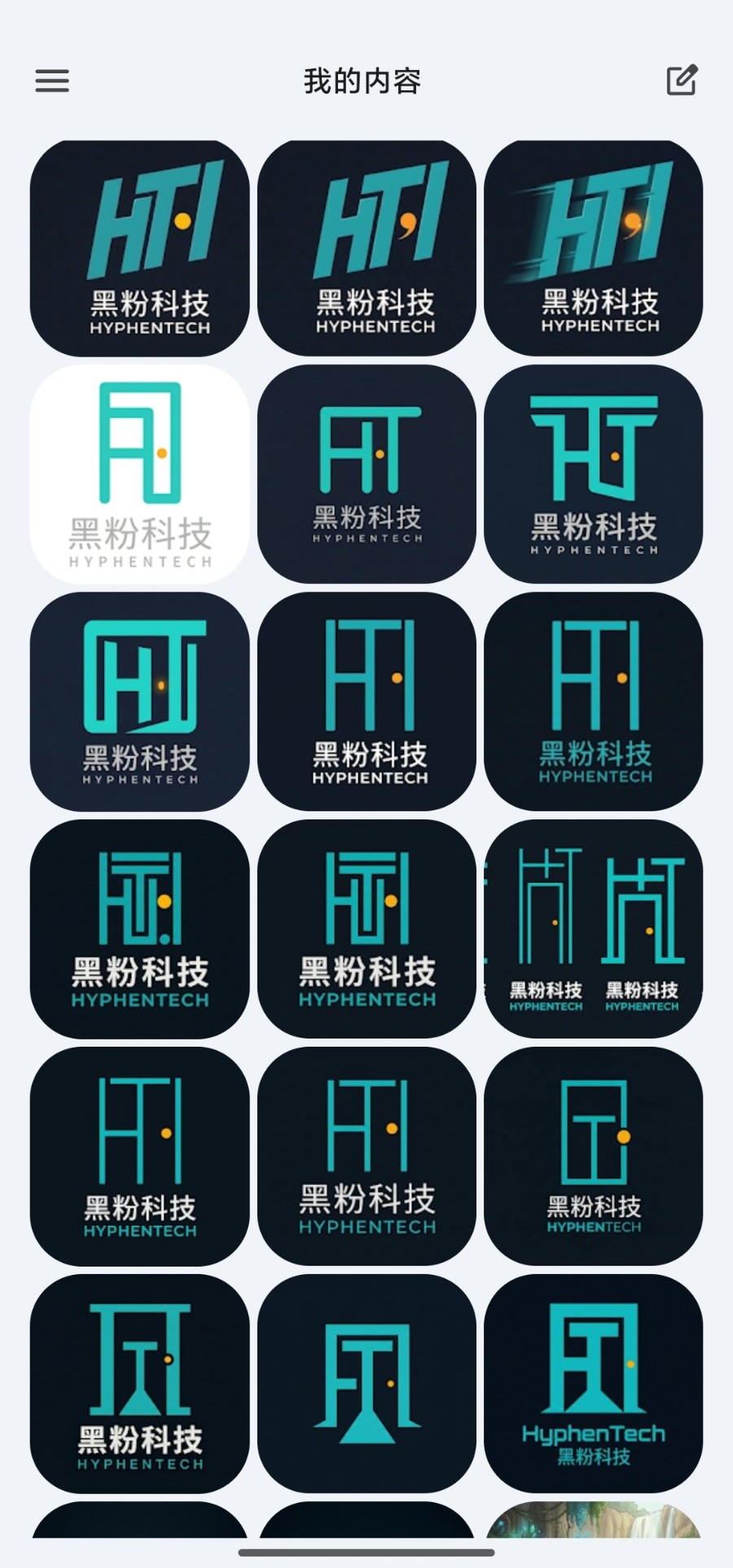
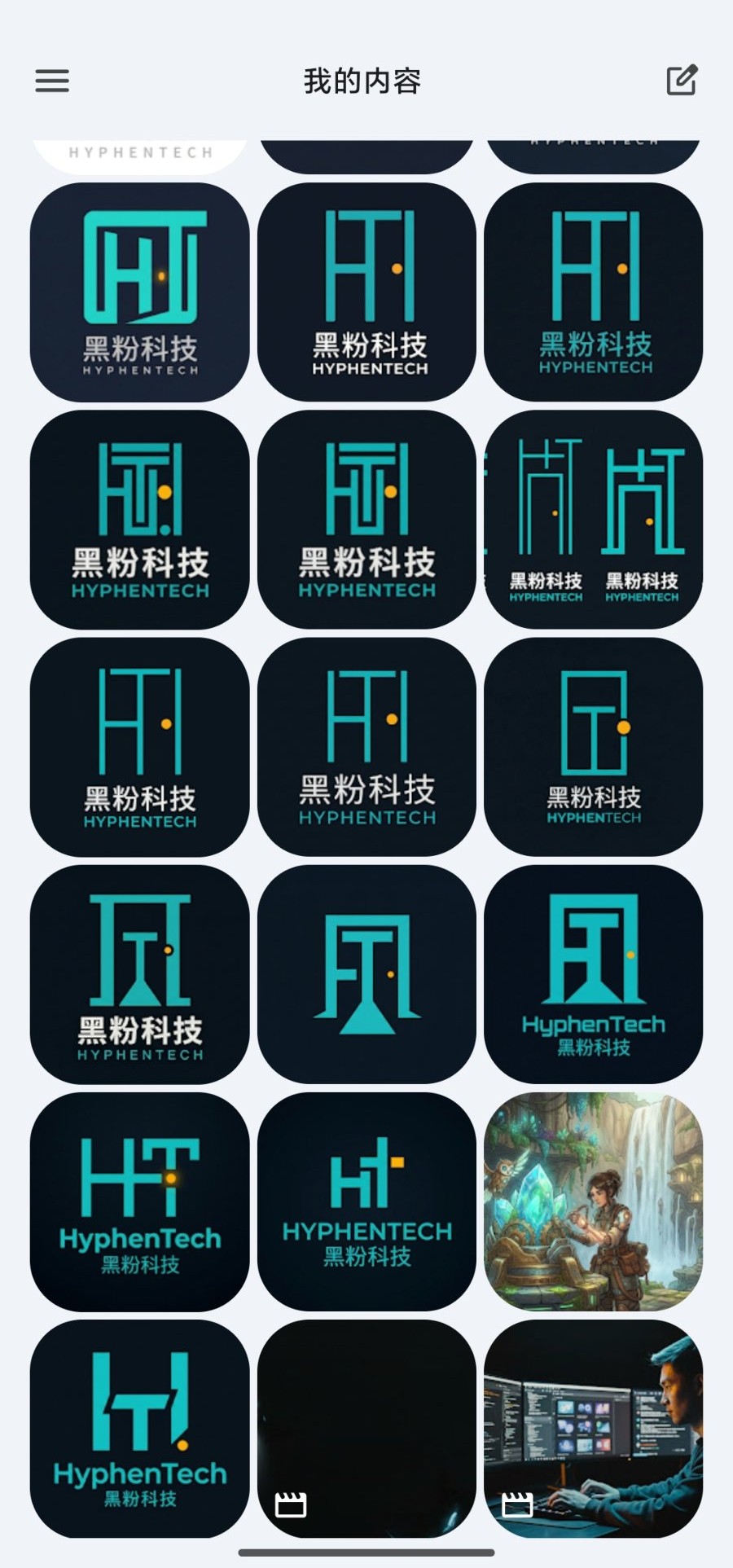
Experience: AI-generated logos are bitmaps and can’t be used directly as vectors, but shapes can serve as a base. Instead of repeatedly adjusting prompts for perfection, it’s better to generate more and filter quickly.
Other AI tools are also available
Besides Gemini, DALL-E 3, Ideogram, and Midjourney can all generate concept images. Ideogram’s text rendering is relatively more accurate; if the logo contains text elements, try it first.
Step 2: ImageMagick cropping and background trimming
After selecting the source image, everything is completed on the command line.
Install ImageMagick
# Arch Linux
sudo pacman -S imagemagick

# Ubuntu/Debian
sudo apt install imagemagick

# macOS
brew install imagemagick
Crop the logo area
From the AI-generated large image, crop out the area containing only the logo icon:
magick source.png -crop 1900x1000+430+10 +repage logo-crop.png
Better to cut bigger than small; it will automatically trim later.
Removing Background (Transparent)
AI-generated image backgrounds are not solid colors but have subtle light gradients. Floodfill to fill transparent colors from the four corners:
magick logo-crop.png \
  -alpha set \
  -fuzz 25% \
  -fill none \
  -draw "color 0,0 floodfill" \
  -draw "color 1899,0 floodfill" \
  -draw "color 0,999 floodfill" \
  -draw "color 1899,999 floodfill" \
  -trim +repage \
  logo-transparent.png
Note **Why use floodfill instead of -transparent? **
-transparent "#1A2332"Only accurate color matching can cause gradient areas to be missed. floodfill spreads inward from the corners and naturally follows gradient boundaries, which suits the characteristics of AI-generated images.
Note -fuzz Parameter Adjustment Guide 15%: Conservative, may leave afterimages 25%: Recommended starting point (the sweet spot for most AI-generated images) 35%: Aggressive, may consume dark details
Step 3: Batch generate a full set of brand assets
With a transparent background logo source file, you can batch generate all the materials needed by the platform.
Avatar (800×800)
magick -size 800x800 xc:"#1A2332" \
  \( logo-transparent.png -resize 580x \) \
  -gravity center -geometry +0-30 -composite \
  avatar-800x800.png
YouTube Banner (2560×1440)
YouTube banners vary greatly across different devices. All key content must be within the mobile safe zone (1546×423 centered):
magick -size 2560x1440 xc:"#1A2332" \
  \( logo-transparent.png -resize x260 \) \
  -gravity center -geometry -280+0 -composite \
  -gravity center \
  -font "Noto-Sans-CJK-SC" -pointsize 72 -fill "#F4F4F3" -kerning 10 \
  -annotate +180-30 "黑粉科技" \
  -font "Inter" -pointsize 30 -fill "#F4F4F3" -kerning 6 \
  -annotate +180+30 "HYPHENTECH" \
  -font "Noto-Sans-CJK-SC" -pointsize 22 -fill "#9CA3AF" \
  -annotate +180+75 "让AI成为你的超能力" \
  banner-youtube-2560x1440.png
Verification of safe zones can be checked by drawing reference lines:
magick banner-youtube-2560x1440.png \
  -strokewidth 2 \
  -stroke "#FF4444" -fill none -draw "rectangle 507,508 2053,931" \
  -stroke "#FBAB18" -fill none -draw "rectangle 352,508 2207,931" \
  -stroke "#2DD4BF" -fill none -draw "rectangle 0,508 2560,931" \
  banner-safezone-check.png
Red means phone safe zone, amber means tablet, and cyan means desktop.
Bilibili Banner (2048×320)
magick -size 2048x320 xc:"#1A2332" \
  \( logo-transparent.png -resize 170x \) \
  -gravity north -geometry +0+15 -composite \
  -gravity center \
  -font "Noto-Sans-CJK-SC" -pointsize 40 -fill "#F4F4F3" -kerning 8 \
  -annotate +0+62 "黑粉科技" \
  -font "Inter" -pointsize 18 -fill "#F4F4F3" -kerning 6 \
  -annotate +0+100 "HYPHENTECH" \
  banner-bilibili-2048x320.png
Step 4: One-click scripting
The entire process can be woven into a Bash script, which can be reused by modifying and changing the amount:
#!/bin/bash
# generate-brand-assets.sh
set -e

SOURCE="$1"
BG_COLOR="${2:-#1A2332}"
BRAND_CN="黑粉科技"
BRAND_EN="HYPHENTECH"
SLOGAN="让AI成为你的超能力"

# ... 裁切 → 去背 → 生成头像 → 生成 banner
# 完整脚本见文末
Record of pitfalls
Pitfall 1: SVG trace route (failed)
Initially, I tried using potrace to trace bitmaps into SVG vector paths. Although the shapes are roughly correct, the AI-generated images have light gradients and anti-aliasing, but the traced edges are not sharp enough, and there are subtle deviations in the gaps and tilt angles between letters. Repeated manual adjustments of coordinates are extremely inefficient.
Conclusion: Unless you have clean black-and-white vector input, directly cropping PNG is more reliable.
Pitfall 2: Font issues
ImageMagick’s -font requires the font name installed on the system. If no Chinese font is available, additional installation is required:
# Arch
sudo pacman -S noto-fonts-cjk
# Ubuntu
sudo apt install fonts-noto-cjk
View available fonts: magick -list font | grep -i "noto\\|inter"
Plot 3: -fuzz parameters
This parameter controls the tolerance for color matching. If it’s too small (<15%), background residue remains; if too large (>35%), dark parts of the logo will be accidentally deleted. 25% is the best starting point for most AI-generated images.
Final product list
| Documents | Dimensions | Purpose |
|---|---|---|
| logo-transparent.png | ~930×830 | Transparent background source logo |
| avatar-800.png | 800×800 | YouTube/Bilibili/GitHub profile pictures |
| banner-youtube.png | 2560×1440 | YouTube channel banner |
| banner-bilibili.png | 2048×320 | Bilibili space banner |
| logo-icon-380.png | 380px wide | Webpages/documents/watermarks |
| logo-icon-32.png | 32px width | Favicon |
Summary
The core idea of this workflow is: Let AI handle creative (shapes), and let the command line handle engineering (cropping, compositing, batch generation).
For individual creators, there’s no need to learn Photoshop or Figma—just one AI tool + a single ImageMagick command to handle branded assets across all platforms. The entire process is reproducible and scriptable; next time you change a name or color mix, you only need to change a few variables.
HyphenTech | hyphentech.top | Let AI be your superpower
🧰 Tools I build
I maintain all of these tools myself. Preview builds are clearly labeled; the release pages are the source of truth for downloads, updates and known limits.
Info: HyphenBox Status: Official releases
A radar for free LLM APIs: availability is re-tested continuously, one local interface for all of them, and keys stay on your machine
Info: LocalBrain Status: Official releases
A multimodal MCP toolbox for local models: TTS, Whisper and video generation in one place
Info: ScreenLex Status: Official releases
Learn new words while you watch shows. Free, for Mac and Windows
Info: HyphenScreen Status: Official releases
Screen recording and smart editing in one: a DaVinci-style timeline, automatic redaction and a check of the finished video before export. Free
Quote: HyphenTech Make AI your superpower Local deployment · Free resources · Self-made software https://hyphentech.top
Late nights and burned API credits went in,a cup of tea comes back out — only if you feel like it.
Scan with WeChatPress and hold to save the image, then open it from your album in WeChat Scan

Comments
Loading comments…