
Info: Machine translation This post was machine-translated from the Chinese original. Wording may be rough in places — the Chinese version is authoritative.
National Broadband Operator Fault Self-Inspection Manual
Broadband Self-Rescue · Practical Manual · No Need to Ask for Help When Disconnected
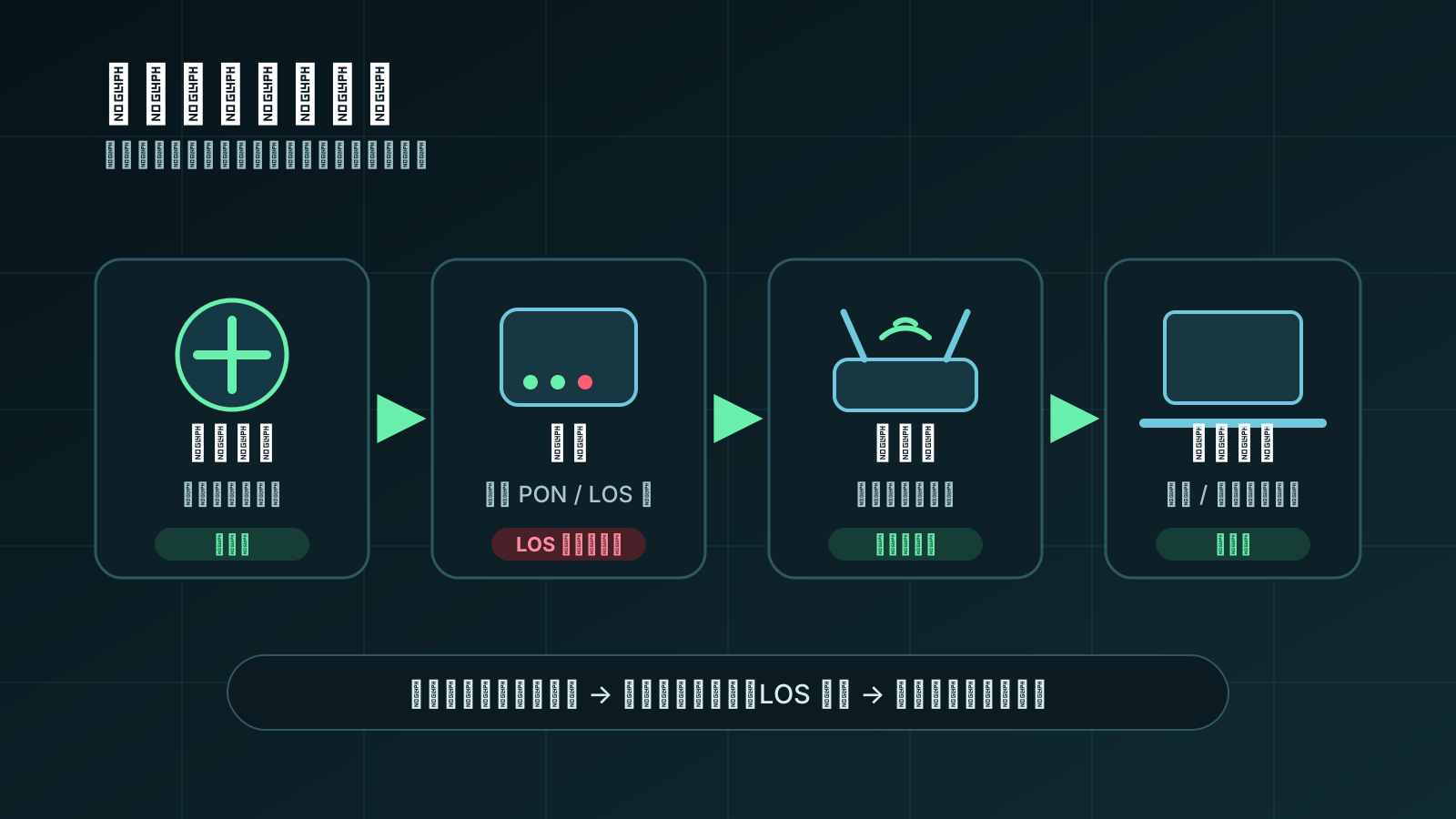
1. Carrier customer service hotline—save to your contacts first
If you go down, the first step isn’t to curse, but to make a call. Not sure which provider your broadband service provider? Just look at the label on the optical modem.
| Operators | Customer service hotline | App path | WeChat public account | Complaint hotline |
|---|---|---|---|---|
| China Mobile | 10086 | China Mobile APP → broadband → fault reporting | China Mobile 10086 | 10086 to 0 |
| China Unicom | 10010 | China Unicom APP → service → broadband fault reporting | China Unicom | 10010 Ext. 5 |
| China Telecom | 10000 | Telecom Business Hall APP → Broadband → One-Click Repair Request | China Telecom | 10,000 to 0 |
| China Broadcasting Corporation | 10099 | China Broadcasting APP → broadband service | China Broadcasting Corporation | 10099 to 0 |
Before calling customer service, prepare: broadband account (with the optical modem back label), last four digits of your ID card, and the installation address
After dialing 10086 / 10010 / 10000, first mention a “broadband failure.” In most cases, AI customer service can remotely restart the optical modem without switching to manual assistance.
2. Quick Check of Optical Modem Indicator Light—Identify Faults by Viewing the Light
The optical modem has a row of indicator lights, each representing a specific status. **Once you learn to read the lights, you can identify the fault within 30 seconds. **
⚠️ Key rule: **All lights should be green and always on. ** Any red light, flashing, or not lighting is a fault signal.
| Indicator light | Normal state | Abnormal status | Possible reasons | Handling methods |
|---|---|---|---|---|
| POWER power light | 🟢 Chang Liang | 🔴 It is not bright | Power supply not plugged in / adapter broken | Check the power cord and try replacing the socket |
| PON registration light | 🟢 Chang Liang | 🟡 Flickering / 🔴 Not bright | Optical modem not registered / weak fiber signal | Wait 2 minutes; If it doesn’t work, request repair |
| LOS light signal lights | 🟢 Not lit (normal!) ) | 🔴 Ever-bright/flashing | Fiber optic line breakage / loose joints | Check the fiber optic interface; Red = Must be repaired |
| LAN network port light | 🟢 Ever-bright/flashing | 🔴 It is not bright | Network cable not properly inserted / network port is broken | Replug and unplug the network cable and test the interface |
| WLAN WiFi lights | 🟢 Ever-bright/flashing | 🔴 It is not bright | WiFi function is turned off | Press the WPS button on the back of the optical modem to turn it on |
| PHONE phone lights | 🟢 Chang Liang | 🟡 Flickering / 🔴 Not bright | Phone line not connected / number not registered | Not calling can be ignored |
| INTERNET network lights | 🟢 Chang Liang | 🟡 Flickering / 🔴 Not bright | Broadband authentication failure / line failure | Restart the light modem; If not, report for repair |
🔴 ** LOS Red Light = Must Request Repair **
The LOS light turning red means the fiber signal is completely lost—it could be that the fiber in the hallway was chewed by mice, was drilled off during renovation, or the connector came loose. You can’t fix this yourself, so stop making a move—just call for repair. When reporting it, they say ‘LOS red light,’ and customer service will issue a work order.
3. Common Fault Codes—How to Resolve Error Prompts
Windows / router dialing may show error codes:
| Error code | Meaning | Common causes | Solution |
|---|---|---|---|
| 651 | The modem reports an error | Network card driver issue / Optical modem not online | Restart the optical modem→ restart the computer→ check the network cable; If it doesn’t work, request repair |
| 678 | The remote computer didn’t respond | Line faults / operator equipment maintenance | Check the status of the modem light; If everything is normal, call to ask if maintenance is performing |
| 691 | Incorrect username/password | Broadband account arrears / password changed | First, check if you owe any fees (the app is easy to check); Confirm your account and password |
| 711 | Remote access service is not running | Windows system service exception | Start the RemoteAccess service in the Service Manager; or network reset |
| 720 | PPP control protocols are not available | Network protocol stack corruption / driver conflicts | Reset Network: Set up → network → advanced → network reset |
Fastest troubleshooting method: Use your phone to connect to the fiber modem’s WiFi. If your phone can’t get online→ the problem lies with the modem/cable; If your phone can access the internet→ the problem is with your computer/cable.
4. 7 steps for self-checking—Checklist before making a call
Inspect in this order, about 5 minutes. If you can fix it, you save yourself a repair call.
Step 1: Check the Outstanding Fees
Open the carrier app → broadband → to check account status. **The first reason for network outage: unpaid bills and downtime. ** Don’t laugh, accounts for over 30%.
Step 2: Check the Light Modem
Refer to the “Light Modem Indicator Light Quick Reference Chart” above. **Are POWER and PON both green? LOS doesn’t have a red light, right? **
Step 3: Check the cable
Is the power cable properly plugged in? Is both ends of the network cable securely plugged in? Has the fiber optic cable been bent at a 90-degree angle? **The bending angle of the fiber optic cable should not be less than 60 degrees, otherwise the signal will suffer severe signal attenuation. **
Step 4: Restart the Great Method
Correct Restart Posture: Unplug the optical modem power → wait 30 seconds (not 3 seconds, but 30 seconds) → plug it back in →and wait 3 minutes for the optical modem to fully register. This trick can resolve over 50% of faults.
Step 5: Direct Connection to the Optical Modem
Connect the computer directly to the LAN port of the optical modem (bypass the router) with a network cable. If you can access the internet→ the problem is with the router; If not→ the problem is with the optical modem/line.
Step 6: Check your computer settings
Open Settings → Network → Make sure proxy is not enabled, VPN, or airplane mode. Set IP address to Automatic Acquisition (DHCP), DNS set to Auto.
Step 7: Call for Repair
None of the above works? Call them. Clarify: ‘Optical modem model + PON/LOS light status + Restart + Direct connection tested’. This means customer service will skip the troubleshooting process and send you a ticket.
⚠️ Never disassemble the optical modem yourself! The optical modem is the carrier’s asset; unauthorized disassembly, flashing, or replacement may incur charges during repairs.
5. WiFi Optimization Suggestions — What to Do If the Signal Lags Even at Full Bars
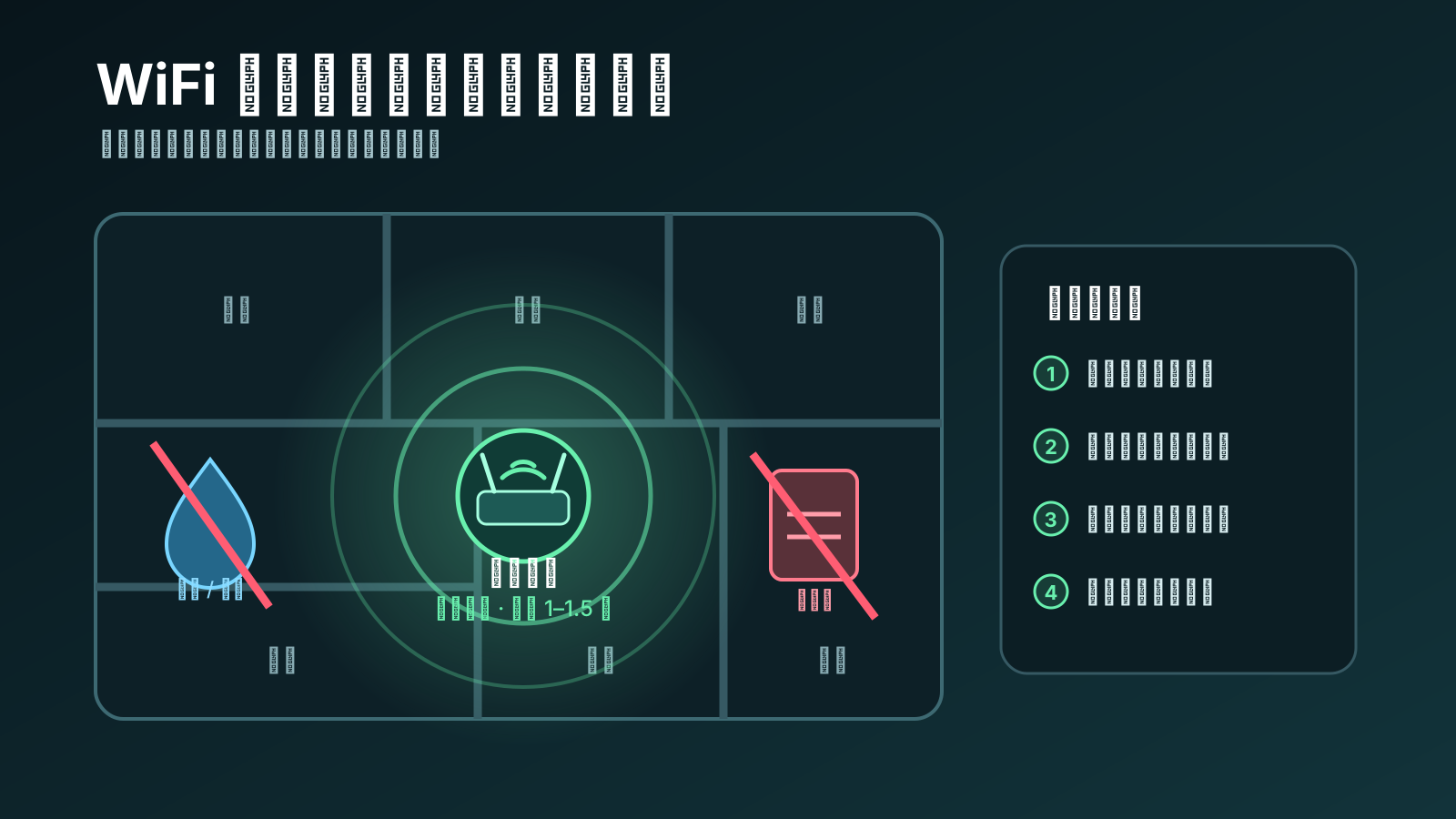
Broadband is fine, but WiFi is just a lag? This isn’t the carrier’s fault, it’s the router’s fault.
📍 Router placement
-
🏠 Place in the center of the house — the signal spreads outward, and the corners are half covered by the waste
-
📏 1-1.5 meters above ground — signals from the ground are absorbed by the floor; if placed too high, the ceiling blocks them
-
🚫 Stay away from metal objects—refrigerators, microwaves, and metal cabinets are all signal killers
-
🚿 Away from Water Source — Water absorbs 2.4GHz signals, making the aquarium the router’s nemesis
-
🚪 Less wall penetration — signal attenuation per wall is 10-30%, with concrete walls being more exaggerated
📡 Frequency band and channel selection
| frequency band | Speed | Wall-passing ability | Interference situation | Recommended scenarios |
|---|---|---|---|---|
| 2.4 GHz | Slower (72-300 Mbps) | ✅ Strong | ⚠️ Serious | Long-distance/wall-passing scenarios |
| 5 GHz | Fast (433-2400 Mbps) | ❌ Weak | ✅ Less interference | Close range / roommate / watching videos |
| 6 GHz (WiFi 6E) | Fastest (up to 9.6 Gbps) | ❌ The weakest | ✅ Almost no interference | New equipment / high-density scenarios |
🔧 Practical optimization tips
-
📱 Turn off unused device connections — 20 devices connected to one router can grab bandwidth to shreds
-
🔄 Firmware Updates — Router manufacturers fix signal issues through firmware and update at least once a year
-
📶 Channel Selection — Use the WiFi Analyzer app to scan your neighbor’s channel and pick one that no one uses
-
🔌 Mesh Networking — For a house over 100 square meters, a single router can’t cover it, so use Mesh
-
🧱 Don’t stuff the router into a weak current box — Metal box = Faraday cage, full signal shielding
-
⏰ Set Scheduled Restart — Automatically reboots the router once a week to clean up memory leaks
The cheapest WiFi optimization solution: spend ¥30 on a longer cable and move the router from the weak current box to the living room. **The effect is even better than replacing a ¥500 router. **
Summary
-
📞 Four major carrier hotlines: 10086 / 10010 / 10000 / 10099, save your contacts
-
🔴 LOS Red Light = Repair Request, Don’t Mess with the Fiber Optic Cable Yourself
-
💡 Restart Method: Unplug for 30 seconds → plug back into the → for 3 minutes to resolve 50% of faults
-
💰 Check the Outstanding Fees First: 30% of internet outages are caused by forgetting to pay
-
📡 5GHz Priority: Connect whenever possible, fast speed, low interference
-
📍 Router placed in the center of the living room: Don’t put in a weak current box, the signal is ten times worse
Losing internet isn’t scary; what’s scary is not knowing what to look for. Save this article and follow the steps next time you lose your connection. **If none of the above works, then it’s the carrier’s problem. Call for repairs without hesitation. **
HyphenTech · hyphentech.top
🧰 Tools I build
I maintain all of these tools myself. Preview builds are clearly labeled; the release pages are the source of truth for downloads, updates and known limits.
Info: HyphenBox Status: Official releases
A radar for free LLM APIs: availability is re-tested continuously, one local interface for all of them, and keys stay on your machine
Info: LocalBrain Status: Official releases
A multimodal MCP toolbox for local models: TTS, Whisper and video generation in one place
Info: ScreenLex Status: Official releases
Learn new words while you watch shows. Free, for Mac and Windows
Info: HyphenScreen Status: Official releases
Screen recording and smart editing in one: a DaVinci-style timeline, automatic redaction and a check of the finished video before export. Free
Quote: HyphenTech Make AI your superpower Local deployment · Free resources · Self-made software https://hyphentech.top
Late nights and burned API credits went in,a cup of tea comes back out — only if you feel like it.
Scan with WeChatPress and hold to save the image, then open it from your album in WeChat Scan

Comments
Loading comments…